

The 3-2-1 backup rule, with one copy kept offline
Three copies of your data, on two different types of storage, with one copy kept somewhere else entirely. That's the 3-2-1 backup rule, and it has protected files through hard drive failures, house fires, and stolen laptops for decades. The one update that matters now: at least one of those copies needs to be offline or immutable, because ransomware actively hunts down and encrypts any backup it can reach.
Key takeaways
- Maintaining immutable, offline, or air-gapped backup copies is essential to prevent ransomware from encrypting or deleting all backups simultaneously.
- Using a combination of local NAS or external drives with cloud storage that offers immutability strengthens protection against modern cyber threats.
- Regularly testing restore procedures is critical, ensuring that actual recovery times align with your RTO and RPO goals rather than relying solely on backup completion reports.
- Relying on RAID or sync folders as backups is a mistake, as these methods do not protect against accidental deletion, corruption, or ransomware.
- Implementing proper versioning, encryption, and controlled access with multi-factor authentication minimizes human error and malicious attacks on your backup system.
Table of Contents
- What the 3-2-1 backup rule actually means
- How the rule works in practice: media, versioning, and where people go wrong
- Modern extensions: 3-2-1-1, immutability, and air-gapped copies
- Step-by-step implementation for individuals and small businesses
- Backing up cloud services and Microsoft 365: applying 3-2-1 to SaaS
- Testing, RTO and RPO: proving your backups actually work
- Common backup mistakes and how ransomware exploits them
- Practical setups you can copy this week
- Why this still comes down to discipline, not tools
- Get your backups checked properly, not just switched on
- Sources
- FAQ
What the 3-2-1 backup rule actually means
The rule breaks into three simple parts, and once you see them mapped out, it stops feeling technical.
Three copies means your original file plus two backups. Not one backup, two. Two different media means you don't put both backups on the same type of storage. A laptop and its Time Machine drive plugged in beside it are still one media type, effectively. One off-site means at least one copy lives somewhere physically separate, so a house fire, theft, or flood can't wipe out everything at once.
Here's how that plays out for different people. A home user might keep photos on their laptop, back up to an external hard drive on the desk, and sync a third copy to a cloud storage service. A freelancer might have working files locally, a network drive at the office, and an encrypted cloud backup running overnight. A small business might run production data on a server, a local NAS backup, and a cloud backup account nobody else has login access to.

The detail people miss: these copies must be independent and versioned, not just synced. If a folder syncing service mirrors every change instantly, it copies deletions and ransomware damage just as fast as legitimate edits. That's not a backup by Victorian Government standards - it's a mirror, and mirrors break together.
How the rule works in practice: media, versioning, and where people go wrong
Media choice matters more than most people think. Local disks and NAS devices are fast to restore from but vulnerable if they're on the same network as everything else. Removable drives you can physically unplug add a genuine air gap. Cloud object storage adds geographic distance and, in some services, immutability settings that stop even an administrator from deleting a backup early.
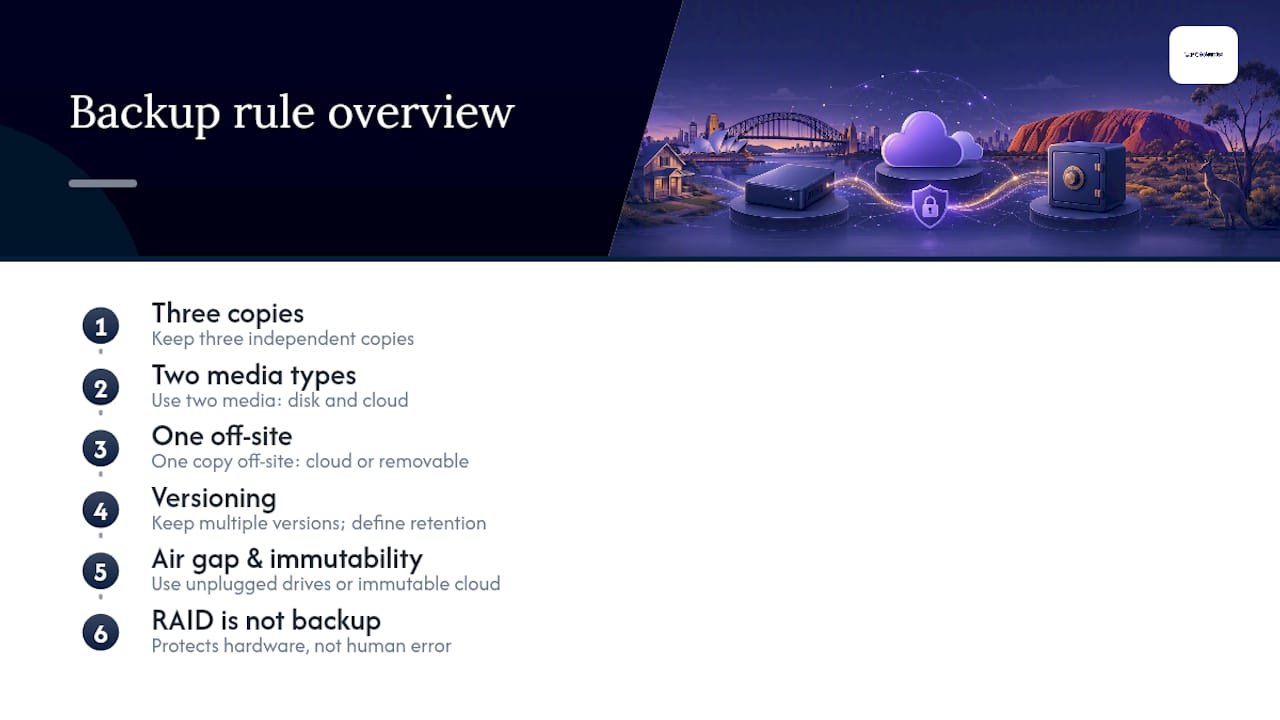
A common mix that works well: your working files, a NAS backup on the local network, and a cloud backup as the off-site leg. That satisfies three copies and two media types, and the cloud leg covers "off-site" without anyone needing to carry a drive anywhere.
Versioning is what separates a backup from a copy. A true backup keeps multiple points in time, so if a file gets corrupted or encrypted on Monday, you can restore Sunday's version. Retention policies decide how many versions you keep and for how long, and this is where a lot of DIY setups fall short: they overwrite the same backup file every night, which means the "backup" from six months ago and the one from six minutes ago are identical if something's gone wrong in between.
RAID deserves a specific mention because it gets confused with backup constantly. RAID protects against drive failure, not human error, ransomware, or theft. If you delete a file or ransomware encrypts it, RAID faithfully mirrors that mistake across every disk in the array. It's redundancy, not a backup, and treating it as one is a mistake the Business Victoria backup guidance flags repeatedly among small operators.
Modern extensions: 3-2-1-1, immutability, and air-gapped copies
Ransomware changed the calculus. Attackers now specifically look for connected backup drives and mapped network shares before they trigger encryption, because destroying your recovery option makes payment more likely. That's why the security community extended the original rule.
3-2-1-1 adds one immutable or air-gapped copy to the standard three. Some guidance goes further with 3-2-1-1-0, where the final zero means having zero errors on your restore tests. The extra "1" isn't optional anymore for anyone holding data they can't afford to lose. The ACSC recommends offline or immutable backup copies specifically because they resist tampering even if an attacker gains full control of your network.
In practice, this looks like a removable drive you back up to, then physically disconnect and store elsewhere, rotating between two or three drives so you're never more than a day or two out of date. Or it's tape, still very much alive in serious backup strategies for exactly this reason. Or it's an immutable cloud storage bucket, where files can't be altered or deleted for a set retention period no matter who has the login.

The most defensible position now treats 3-2-1 as the floor, not the ceiling, and adds automated verification on top of it for anything critical.
Pro Tip: Set a recurring calendar reminder to physically disconnect your offline backup drive after each backup run. An "offline" drive that's permanently plugged into a USB port is just an expensive way of describing a connected drive.
Step-by-step implementation for individuals and small businesses
Building a real backup system takes an afternoon, not a project plan. Here's the order that actually works.
- Set your RTO and RPO first. Recovery Time Objective is how long you can be down. Recovery Point Objective is how much data you can afford to lose. A home user might tolerate losing a day of photos; a small business running invoicing might tolerate losing an hour, no more.
- Choose your media based on scale. A household setup might be one external drive plus one cloud service. A small business usually needs a NAS for fast local restores, plus a cloud backup account for the off-site leg and disaster scenarios.
- Automate everything. Manual backups fail because someone forgets, gets busy, or assumes it happened last time. Scheduled, automated jobs with versioning turned on remove that human variable entirely.
- Encrypt backups in transit and at rest, and use a separate account and password for your backup service, ideally with multi-factor authentication switched on. If your everyday admin login is compromised, your backup account shouldn't fall with it.
- Build your off-site and offline leg. Rotate a removable drive, or use a cloud provider with immutability settings, so ransomware or a disgruntled former employee can't reach every copy at once.
- Test a restore before you need one. Not next month. This week.
Once that's running, maintenance is light: check backup logs weekly, rotate offline drives on schedule, and review the whole setup annually or whenever your data volume changes significantly.
Pro Tip: Give your backup account a name and login that nobody uses day-to-day. If your main account gets phished, the attacker shouldn't automatically inherit access to your backups too.
Backing up cloud services and Microsoft 365: applying 3-2-1 to SaaS
Here's a misconception that costs businesses real data: Microsoft's uptime guarantee for 365 is not a backup guarantee for your content. Platform availability means the service stays online. It says nothing about recovering a mailbox someone emptied, a SharePoint library hit by ransomware synced from a local device, or files deleted and purged past the recycle bin window.
Microsoft's own guidance points businesses toward third-party backup solutions for tenant-level recovery, and the reasoning maps neatly onto 3-2-1. Your live 365 tenant is copy one. A dedicated third-party cloud backup service running independently is copy two. An immutable or geographically separate archive of that backup is copy three, satisfying the off-site requirement even though everything technically lives "in the cloud."
Account hardening matters just as much here as anywhere else. Whoever holds admin access to your backup platform should use multi-factor authentication, and that access should sit separate from day-to-day email accounts. A Microsoft 365 setup that's been properly configured for backup usually looks nothing like the default settings most tenants ship with.
Testing, RTO and RPO: proving your backups actually work
A backup nobody has restored is a theory, not a safety net. Testing is the step almost everyone skips, and it's the one that matters most.
RTO and RPO give you numbers to test against. A home user's RTO might be "I can wait a weekend to get photos back," with an RPO of a week. A small business running point-of-sale might need an RTO of two hours and an RPO of fifteen minutes, meaning backups need to run far more often than once a day.
Three levels of restore test are worth running on a rotation. File-level restores check you can pull back an individual document, the most common real-world request. Application restores confirm a full system, like a database or accounting platform, comes back functional, not just present. Full disaster recovery drills simulate rebuilding from nothing, and they're the only way to know your documented RTO is realistic rather than optimistic.
Time each test and write down what happened. If your documented RTO says two hours but the actual restore takes six, that gap is the most valuable thing you'll learn all year, and it's far better discovered on a Tuesday afternoon test than during an actual outage.

Common backup mistakes and how ransomware exploits them
Most backup failures trace back to a handful of repeated errors, and ransomware is specifically designed to exploit them.
- Relying on a sync folder and calling it a backup, when sync happily propagates encrypted or deleted files.
- Leaving backup drives permanently connected to the network, where ransomware can find and encrypt them alongside everything else.
- Skipping versioning, so there's no clean point in time to restore to once something's already corrupted.
- Never testing a restore, so problems surface for the first time during an actual emergency.
The fixes are direct. Immutable backups that can't be altered for a set period neutralise the "always connected" risk entirely. Least-privilege access means most staff never need permission to delete backup data, and the fewer people who can, the fewer ways it goes wrong. Multi-factor authentication on backup accounts stops a phished password from becoming a deleted backup. Encrypted backup storage protects the data itself if a drive or account is ever exposed. As a rule, backup deletion rights should sit with one or two trusted people, never the whole team, and every account with that power should have MFA switched on without exception.
Practical setups you can copy this week
Pick the template closest to your situation and get it running before the week is out. Waiting for the "right" setup is how backups never happen at all.
- Home user: laptop as the working copy, external drive backup at home, cloud storage account as the off-site leg. Automate both, and unplug the external drive between backups if you can.
- Freelancer: local drive plus office NAS plus an encrypted cloud backup service, with the cloud account using a separate login and MFA turned on.
- Small business: server or workstation as production, NAS for fast local restores, cloud backup with immutability enabled as the ransomware-resistant off-site copy.
Whichever template fits, run through this checklist: automate every backup job, encrypt storage in transit and at rest, keep one copy genuinely offline or immutable, test a restore now rather than later, document your RTO and RPO in writing, and review the whole setup once a year.
Why this still comes down to discipline, not tools
People assume backup failures happen because someone chose the wrong software. In practice, the businesses that lose data almost always had a backup system. It just wasn't tested, wasn't versioned properly, or was sitting on a drive that ransomware reached just as easily as the original files. The tools have been reliable for years. What breaks is the habit of checking that they still work.
We'd argue the single most underrated step in this entire process is the restore test, not the backup itself. A backup that runs every night but has never been restored is a guess dressed up as a plan. Businesses come to us after data loss more often because a backup silently failed for months than because they had no backup at all.
If you want help designing a setup that matches your actual RTO and RPO, or you need someone to verify a restore properly before you trust it, Data Recovery Scientist and our broader cybersecurity work exist for exactly that reason. Data continuity isn't a nice add-on to running a household or a business. It's the difference between a bad afternoon and a bad year.
- PC Scientist
Get your backups checked properly, not just switched on
Most people find out their backup didn't work at the worst possible moment: after the ransomware hit, after the drive died, after the laptop was stolen. PC Scientist runs backup design, restore testing, and Microsoft 365 protection as a straightforward, fixed-scope job, either onsite across our New South Wales service areas or remotely, so you get a system that's actually been proven to restore rather than one that just looks configured.
That covers designing a 3-2-1-1 setup from scratch, hardening an existing one with immutable and offline copies, or running a genuine restore test on backups you already have but have never actually verified. If something ever goes wrong despite all that, our Data Recovery Scientist team handles recovery directly. The most useful next step is booking a business IT support assessment so we can look at what you've got running now and tell you plainly whether it would actually save you on the day you need it.
Sources
Recommended
Frequently Asked Questions
Straight answers about Add an Immutable Copy: 3 2 1 Backup Rule for Australians - without jargon or pressure. Call 0493 563 381 for advice, or get help below.
Want the quickest answer? 0493 563 381 for free advice.
No, but it's now considered a baseline rather than the finish line. Most current guidance recommends extending it to 3-2-1-1 by adding an immutable or offline copy, because ransomware specifically targets connected backups.
It means keeping three copies of your data, storing them on two different types of media, and keeping one copy off-site. The goal is making sure no single event, fire, theft, hardware failure, or ransomware attack, can wipe out every copy at once.
"3-2-1 backup" is shorthand for the 3-2-1 backup rule: three copies, two media types, one off-site. It's the standard model referenced across ACSC guidance and most professional IT recovery planning.
Your live 365 tenant counts as one copy, but Microsoft's platform uptime doesn't back up your actual content. A dedicated third-party backup service, ideally with an immutable archive, supplies the second and third copies you need for genuine recovery.
The only reliable way is testing a real restore, not just checking that a backup job completed. Run file-level restores regularly and a full recovery drill at least annually, timing each one against your documented RTO.
Data recovery across NSW
Want help setting up the 3-2-1 backup rule?
If files have gone missing, that is okay. Get data recovery help in your area and we will take it from here.
Start here
Get data recovery help
Optional Need a Sydney city or region?
Choose a side of Sydney
These are Sydney cities and regions, such as the Northern Beaches or Inner West. First tap a side of Sydney. Then open the city or region that covers you.
C Sydney City / Inner 3 areas
N Northern Sydney 6 areas
NW North-West / Central Sydney 3 areas
W Western Sydney 1 area
SW South-West Sydney 3 areas
S Southern Sydney 2 areas
Optional Find your suburb
Type a suburb from our listed coverage. This opens the matching city or region page for this topic. Listed suburb pages are general technology services, not this specialist page.
If your suburb is not listed, use the city or region list above, or call 0493 563 381.
Disclaimer
The information in this article is provided for general educational and informational purposes only. While PC Scientist strives to keep all content accurate and up to date, technology issues can vary depending on your device, software, network configuration, and individual circumstances. Always back up important data before attempting repairs or system changes. If you are unsure or the issue cannot be resolved safely, contact PC Scientist today for professional onsite or remote IT support. PC Scientist is not liable for any loss of data, damage, or other issues resulting from the use of the information provided in this article.
