


Your new PC setup checklist: eight things to do first
Do these eight things first and you'll have a secure, updated, backed up PC by the end of the day: run every OS update, create your accounts properly, turn on disk encryption, set up backups, install a lean set of core apps, confirm your drivers, and check that Windows Security shows full protection. That's the whole game. Everything else is detail.
Here's your quick-fire version:
- Power on and complete the Windows or macOS first run setup
- Run OS updates until none remain (this can take several passes)
- Create your account, add a PIN or Windows Hello, and enable device encryption
- Turn on backups (cloud sync plus one local copy)
- Install a short list of core apps only, no bloat
- Check drivers are current, especially chipset and graphics
- Confirm Windows Security shows real-time protection active
Success looks like this: updates fully installed, encryption on with the recovery key saved somewhere safe, backups scheduled, and only the apps you actually need installed.
Table of Contents
- Setting up a new PC starts before you turn it on
- Unboxing and connecting your new PC's hardware
- Windows 11 new PC setup: install every update before anything else
- How do I secure a new Windows PC on day one?
- What software should you actually install on a new PC?
- Drivers and firmware: what actually needs updating
- Backing up a new computer before you rely on it
- Getting your printer, Wi-Fi and displays working properly
- The final pass: startup apps, privacy and a quick inventory
- When a new PC setup needs a professional touch
- A candid word on new PC setup mistakes
- Let PC Scientist handle your device setup properly
- Key Takeaways
- Sources
- FAQ
Setting up a new PC starts before you turn it on
A bit of prep saves you a frustrating afternoon. Before you touch the power button, gather your Microsoft account email and password (or decide you want a local account instead), and dig out any product keys or licence stickers for software you're reinstalling.
Clear a proper workspace too. You want ventilation around the case or laptop vents, a surge protector between the PC and the wall, and your keyboard and mouse within easy reach.
Grab these before you start:
- A blank USB flash drive suitable for recovery media
- A surge protector, not just a power board
- An external drive if you're planning local backups
- Your Microsoft account details or a plan to use a local account
- Any product keys for paid software you own
Fifteen minutes of setup here beats fixing a half-configured PC later.
Unboxing and connecting your new PC's hardware
Connect your monitor first, then keyboard and mouse, then network cable if you're using ethernet. Power on only once everything is plugged in properly. This order stops the system from throwing driver errors partway through boot because a peripheral appeared after startup.
Once you're at the desktop, or even before Windows loads, it's worth a quick peek into UEFI/BIOS if you built the PC yourself:
- Confirm the boot drive is correctly detected and set as first priority
- If you installed performance RAM, enable the XMP or DOCP profile so it runs at rated speed rather than a conservative default
- Glance at fan speeds and temperatures at idle. Anything wildly high before you've even installed an OS is worth investigating before proceeding
Get the ergonomics right while you're in there too. Monitor top edge roughly at eye level, keyboard flat or slightly negative tilt, and cables routed away from foot traffic.
Pro Tip: Take a photo of your BIOS boot order screen on your phone before you start troubleshooting anything. If something goes wrong later, you'll know exactly what "normal" looked like.

Windows 11 new PC setup: install every update before anything else
Finish the OS first run flow before you install a single app. You'll be asked to sign in with a Microsoft account or set up a local account. A Microsoft account syncs settings and lets you use Windows Hello and OneDrive backup out of the box; a local account keeps everything device only, which some people prefer for privacy, but you'll lose that syncing convenience.
Once you're at the desktop, open Windows Update and run it. Then run it again. Then check once more. Updates often arrive in batches, and a system that says "you're up to date" after one pass frequently has more waiting once the first round installs and reboots.
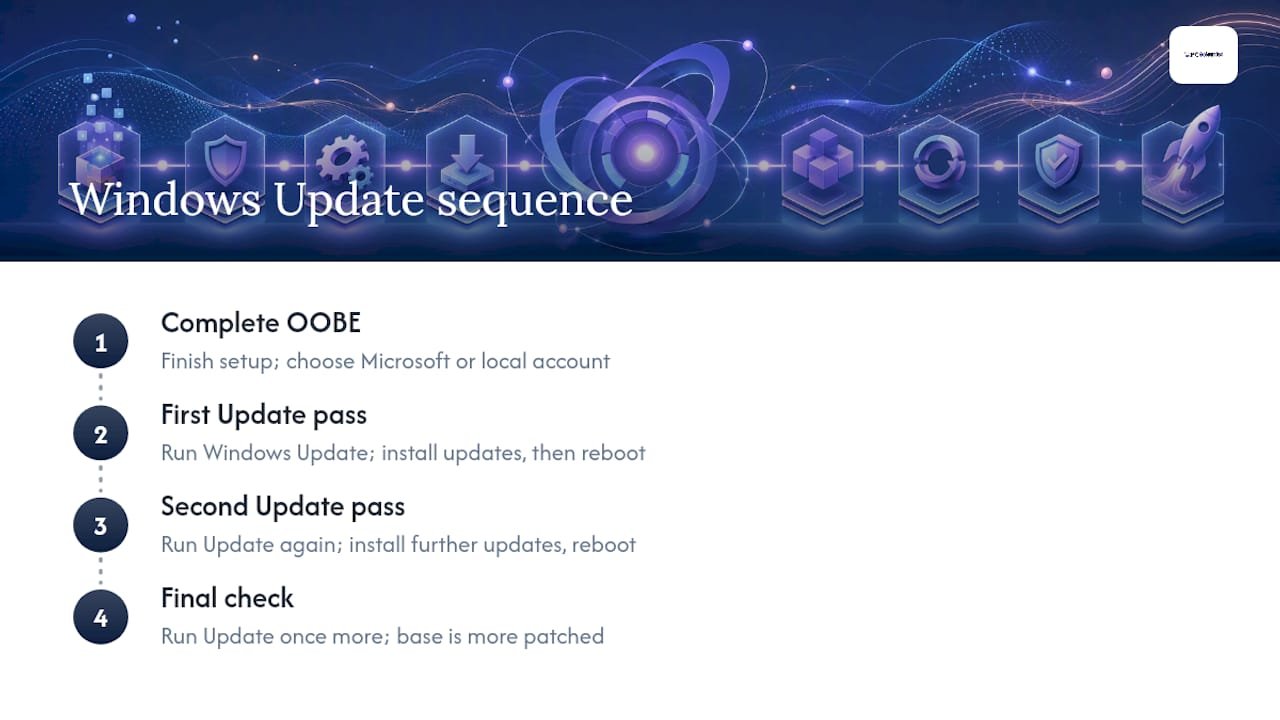
This matters more than it sounds. Every update you install now closes security gaps before you've added a single app or personal file, and it means every app you install afterward lands on a patched, stable base rather than one full of known holes.
If your PC is running Windows 10, use PC Health Check to confirm Windows 11 readiness and follow the supported upgrade path Microsoft provides, rather than a third-party workaround. It's the safest route and the one least likely to leave you with driver headaches afterward.
How do I secure a new Windows PC on day one?
Set up your accounts properly before anything else touches this machine. Create a standard, non-admin account for everyday use and keep a separate administrator account reserved purely for installing software and making system changes. The Australian Cyber Security Centre recommends exactly this separation, because it means malware or a bad click while browsing can't silently gain system-level access.
From there, work through this list:
- Turn on device encryption or BitLocker, then copy the recovery key somewhere that isn't this PC (a printed copy or a different account entirely)
- Confirm Windows Security shows real-time protection active, and turn on Controlled Folder Access to block unauthorised changes to your personal files
- Set up Windows Hello if your webcam or a USB fingerprint reader supports it, so you're not typing a password every single time
- Set a short screen lock timeout, and if this is a laptop, enable Find My Device
Security-conscious techs treat these as day-one, non-negotiable steps, not a "get to it eventually" list, because a stolen or lost device without encryption means every file on it is readable by whoever finds it.
Pro Tip: Write your BitLocker recovery key on paper and store it somewhere separate from the PC, like a filing cabinet or with a family member. Losing that key means losing access to your own files if the drive ever gets moved to another machine.
What software should you actually install on a new PC?
Resist the urge to install everything you've ever used. A lean stack is a browser, a password manager, a cloud backup or sync tool, a PDF reader, and whatever single communication app you rely on daily. That's genuinely most people's entire list, and installing far more than that on day one is a common cause of a sluggish new PC before you've even opened a work file.
A batch installer like Ninite lets you tick the apps you want and installs all of them in one pass, skipping the bundled toolbars and browser extensions that sneak in when you download installers one at a time from individual websites. It's free, and it's one of the fastest ways to get a clean batch of trusted software onto a new machine.
Your core list:
- A browser (whichever you prefer, plus your existing bookmarks synced across)
- A password manager, so you're not reusing the same password everywhere
- Cloud backup or sync for your documents and photos
- A PDF reader
- One communication app you actually use
Skip anything offering a free trial of paid software you don't need yet, and turn on automatic updates for whatever you do install.
Drivers and firmware: what actually needs updating
Chipset and graphics drivers are the two worth chasing down from the manufacturer's own support page, particularly graphics drivers if you're gaming or running anything GPU-intensive. Windows Update handles a lot of driver installation automatically these days, but it doesn't always grab the latest graphics driver.
BIOS and firmware updates are a different story. Only touch these if the update specifically fixes a compatibility issue or a security vulnerability you actually have. Firmware updates carry real risk if interrupted by a power cut, so follow the manufacturer's exact steps and don't skip a reboot they've specified.
- Update chipset and GPU drivers from the manufacturer's site, not a generic driver tool
- Leave BIOS and firmware alone unless there's a specific reason to update it
- If you enable Memory Integrity (VBS) for extra security, test your hardware afterward, since it can occasionally clash with older peripheral drivers
Pro Tip: If Memory Integrity causes a device to stop working properly, turning it back off is a completely normal fix, not a failure on your part.
Backing up a new computer before you rely on it
Turn on OneDrive (or your preferred cloud sync) for Documents, Pictures and Desktop as one of your very first moves. It's not a complete backup strategy on its own, but it means anything you save in those folders survives even if the PC itself dies tomorrow.
- Enable cloud sync for your main folders
- Create a system image or recovery USB while the machine is freshly set up and clean
- Store your BitLocker recovery key somewhere separate from both the PC and your cloud account password manager
- Test a restore of at least one file, just to confirm the backup actually works before you need it
A backup you've never tested is a hope, not a plan.
Getting your printer, Wi-Fi and displays working properly
Install your printer's drivers directly from the manufacturer rather than relying on whatever Windows finds automatically, then print a test page before you assume it's sorted. For Wi-Fi, use WPA3 if your router supports it, or WPA2 with a genuinely strong passphrase if it doesn't.
- Install printer or scanner drivers from the manufacturer, then test print
- Connect to Wi-Fi using WPA3 or WPA2 with a strong passphrase
- Pair Bluetooth peripherals and check for firmware updates on webcams or headsets
- Set display scaling and arrange multi-monitor layout so windows snap where you expect
Get this right once and you won't be fiddling with display arrangement every time you open a laptop lid.
The final pass: startup apps, privacy and a quick inventory
Open Task Manager's Startup tab and disable anything you don't need launching automatically. Every unnecessary startup app adds to boot time and chews background resources you'd rather have available. Set your power plan (Balanced is fine for most desktops; laptops benefit from switching profiles based on whether you're plugged in), and confirm automatic updates are genuinely turned on, not just appearing to be.
- Disable unneeded startup apps and review scheduled tasks
- Set your power plan and confirm automatic updates are active
- Adjust privacy and telemetry settings in Settings > Privacy to your comfort level
- Note down serial numbers and warranty dates somewhere you'll find them again
If you built the PC yourself, a short stress test confirms stability under load before you trust it with real work. A machine that runs fine idle can still reveal problems once the CPU and GPU are actually working.
When a new PC setup needs a professional touch
Most of this checklist is genuinely doable solo, but a few things trip people up consistently. Driver conflicts after a Windows Update, a BIOS update that stalls partway through, or a printer that simply won't pair no matter what you try, these are the calls our techs get most often.
Try a restart and a driver rollback first; that fixes a surprising number of issues.
- Driver conflicts after an update: roll back the driver before reinstalling
- A stalled BIOS update: don't force a restart, check the vendor's recovery steps
- A peripheral that won't pair: try a different USB port before assuming it's faulty
PC Scientist's device setup service handles the fiddly parts warranty-safely, and it saves you the hour of forum-reading a stubborn firmware issue usually costs.
Pro Tip: If you're booking an onsite visit, have your Microsoft account details and any product keys ready beforehand. It cuts the visit time down considerably.
A candid word on new PC setup mistakes
Most of the mistakes we see aren't dramatic. They're small skipped steps that compound: someone installs forty apps before running a single Windows Update, or sets up encryption without ever writing down the recovery key. None of it is stupidity, it's just that nobody hands you this checklist when you buy the PC.
Work through it in order and you'll avoid nearly every headache we get called out for. And if something genuinely won't cooperate, that's what we're here for, not a sign you've done something wrong.
- PC Scientist
Let PC Scientist handle your device setup properly
If working through BIOS settings, driver conflicts and encryption recovery keys isn't how you want to spend your first weekend with a new PC, that's exactly what our Device Setup Scientist service exists for. We handle the full setup onsite: hardware connection, driver and firmware checks done the safe way, security hardening including encryption and Windows Security configuration, and migrating your files and settings across from your old machine.
It's the difference between a full day of troubleshooting forums and a couple of hours with someone who does this daily. We cover the Central Coast, Sydney Metro, Wollongong, Newcastle, Lake Macquarie, the Hills District, the Southern Highlands and the Upper North Shore. If your setup involves multiple machines or a small office rather than a single PC, our broader computer support services cover that too. Book a visit and have your new PC properly set up, secured and ready before the day's out.
Key Takeaways
A properly set up PC has every update installed, encryption active with the recovery key stored safely, backups scheduled, and only the essential apps installed, in that order.
| Point | Details |
|---|---|
| Update before installing anything | Run Windows Update repeatedly until no updates remain, before adding any software. |
| Separate your accounts | Use a non-admin daily account and reserve an administrator account for installs only. |
| Encrypt and save the key | Turn on BitLocker or device encryption, then store the recovery key away from the PC itself. |
| Install a lean app stack | Stick to a browser, password manager, cloud backup, PDF reader and one communication app. |
| Call in help for stubborn issues | PC Scientist's Device Setup Scientist service handles driver conflicts and firmware safely onsite. |
Sources
- Cyber
- Getting ready for the Windows 11 upgrade | Microsoft Support
- 4 things I do on a new Windows PC to tighten my security | XDA Developers
- Ninite: best way to install free open-source software without crapware | GroovyPost
Recommended
- Best Custom PC Builds for Sydney Gamers in 2025 | Essential Specs & Buying Guide
- Custom PC vs Prebuilt in NSW: What's Better for Gaming, Work or School?
- Custom PC vs Prebuilt in NSW: What's Better for Gaming, Work or School?
Frequently Asked Questions
Straight answers about Your new PC setup checklist: eight things to do first - without jargon or pressure. Call 0493 563 381 for advice, or get help below.
Want the quickest answer? 0493 563 381 for free advice.
Complete the OS first run setup, run every available Windows Update, create your account with a non-admin daily login, and turn on device encryption before installing any software.
A browser, a password manager, cloud backup or sync, a PDF reader, and one communication app cover most people's genuine needs without slowing the system down.
Beyond core apps, confirm chipset and graphics drivers are current from the manufacturer's own support page, since Windows Update doesn't always grab the latest version.
Back up your old PC's files, note down product keys for paid software, and have your Microsoft account details ready so sign-in and sync go smoothly on the new machine.
A Microsoft account enables syncing, Windows Hello and OneDrive backup by default, while a local account keeps everything device only at the cost of that convenience.
Device setup across NSW
Still stuck setting up a new PC?
If setup still feels unfinished, that is okay. Get help in your area and we will take it from here.
Start here
Get device setup help
Optional Need a Sydney city or region?
Choose a side of Sydney
These are Sydney cities and regions, such as the Northern Beaches or Inner West. First tap a side of Sydney. Then open the city or region that covers you.
C Sydney City / Inner 3 areas
N Northern Sydney 6 areas
NW North-West / Central Sydney 3 areas
W Western Sydney 1 area
SW South-West Sydney 3 areas
S Southern Sydney 2 areas
Optional Find your suburb
Type a suburb from our listed coverage. This opens the matching city or region page for this topic. Listed suburb pages are general technology services, not this specialist page.
If your suburb is not listed, use the city or region list above, or call 0493 563 381.
Disclaimer
The information in this article is provided for general educational and informational purposes only. While PC Scientist strives to keep all content accurate and up to date, technology issues can vary depending on your device, software, network configuration, and individual circumstances. Always back up important data before attempting repairs or system changes. If you are unsure or the issue cannot be resolved safely, contact PC Scientist today for professional onsite or remote IT support. PC Scientist is not liable for any loss of data, damage, or other issues resulting from the use of the information provided in this article.