

Outlook not receiving emails: what is usually going on
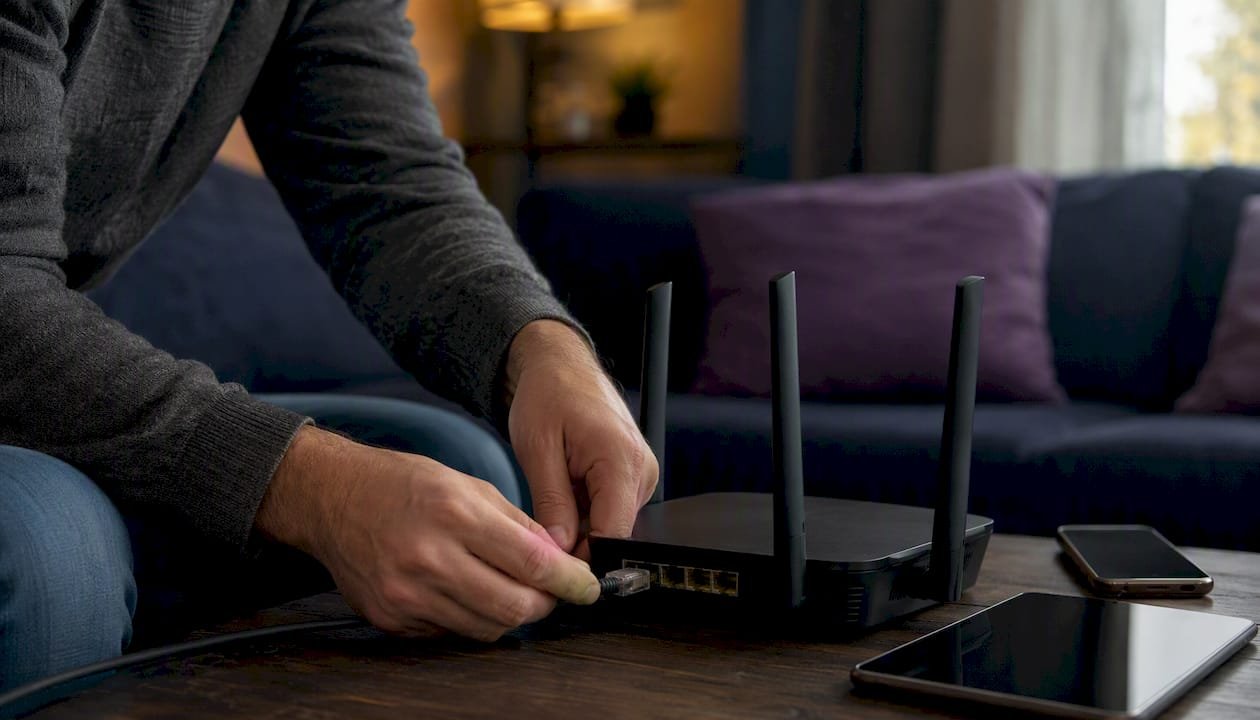
If Outlook has stopped receiving emails, the first useful step is to check whether it is set to "Working Offline" and toggle it back online, then confirm your internet connection and open webmail to see whether mail is arriving on the server. Most cases resolve within five minutes using these four steps:
- Toggle offline mode off. In classic Outlook, go to Send/Receive > Work Offline and make sure it is not highlighted. In new Outlook, go to Settings > General > Offline and disable "Enable offline email, calendar, and people" to force a live connection.
- Open webmail. Visit outlook.com or your Microsoft 365 web portal and check whether new mail appears there. If it does, the problem is client-side, not server-side.
- Check your internet connection. Open a browser and load any page. No connection means Outlook cannot sync regardless of any other setting.
- Restart Outlook. Close it fully, wait ten seconds, and reopen. A fresh connection attempt clears many transient sync errors.
According to Microsoft Support, a "Working Offline" or "Disconnected" status is one of the most common reasons new messages stop arriving, and toggling it off is the recommended first action. If those four steps do not restore mail, work through the sections below in order. If you are a business user in NSW and mail is still not flowing, us provides onsite and remote Outlook support across the Central Coast, Sydney, Newcastle, and Wollongong.
Key takeaways
Most Outlook mail delivery failures are client-side and resolve within minutes once you identify whether the fault is offline mode, a stale password, a full mailbox, or a stuck Outbox message.
| Point | Details |
|---|---|
| Check offline mode first | Toggle "Work Offline" off in classic Outlook or disable offline email in new Outlook settings. |
| Use webmail to isolate the fault | If mail appears in webmail but not the desktop client, the server is fine and the fix is local. |
| Full mailbox bounces mail permanently | Senders receive a bounce; freeing storage does not recover those messages - they must be resent. |
| Rebuild .ost before creating a new profile | Rename the .ost file to force a resync; only create a new profile if that fails. |
| PC Scientist for escalation | PC Scientist provides onsite and remote Outlook and Microsoft 365 support across NSW for cases that self-troubleshooting cannot resolve. |
Table of Contents
- Outlook not receiving emails: connection and status checks
- Why "missing" messages are often hiding, not lost
- Account and authentication checks
- Outbox jams and large attachments that block send/receive
- Fixing corrupted local data: resync, rebuild .ost, or create a new profile
- Microsoft 365 and Exchange-specific causes to check
- Antivirus, firewall, and network settings that block sync
- When to escalate to a technician
- A technician's perspective on what actually goes wrong
- PC Scientist can get your Outlook working again
- Sources
- FAQ
Outlook not receiving emails: connection and status checks
1. Verify your internet connection
Outlook needs a live connection to pull mail from the server. Open a browser and load a page you have not visited recently. If it fails, fix the connection first. On a metered mobile connection or weak Wi-Fi, Outlook may time out silently without showing an obvious error.
Pro Tip: Switch to a mobile hotspot temporarily. If mail starts arriving immediately, your regular network or its firewall is the culprit, not Outlook itself.
2. Check the Outlook status bar and offline indicator
In classic Outlook, look at the bottom-right of the window. "Connected," "Disconnected," or "Working Offline" appears there. If you see anything other than "Connected," click Send/Receive > Work Offline to toggle it off.
In new Outlook for Windows, there is no manual sync button for non-Microsoft accounts. Instead, go to Settings > General > Offline and turn off "Enable offline email, calendar, and people." This forces a live connection and often restores automatic delivery within seconds.
3. Confirm mail is arriving in webmail
Open outlook.com or your organisation's Microsoft 365 web portal and sign in. If new mail is sitting there, the server is working and the fault is in the desktop client. If webmail is also empty, the problem is account-level or server-side.
4. Check Microsoft service health
Go to the Microsoft 365 Service Health dashboard or, for admins, the Microsoft 365 admin centre under Health > Service Health. Known outages affecting specific account types (such as Gmail-to-Outlook.com delivery) are listed there with workarounds. If a service incident is active, wait for Microsoft to resolve it rather than spending time on client-side fixes.
Why "missing" messages are often hiding, not lost
Before assuming mail has not arrived, check where Outlook may have moved it.
- Focused Inbox / Other tab. Outlook's Focused Inbox splits your inbox into "Focused" and "Other." Legitimate mail lands in "Other" regularly. Click the Other tab and scan it. To check both tabs, search from the top search bar rather than just scrolling the Focused view.
- Junk / Spam folder. Open the Junk Email folder and look for the missing message. If you find it, right-click and select "Mark as Not Junk" to move it to your inbox and train the filter.
- Blocked senders list. Go to Settings > Junk Email > Blocked senders and domains. A sender added there by accident will never reach your inbox.
- Inbox rules and filters. Go to Settings > Rules (Outlook.com) or Home > Rules > Manage Rules & Alerts (classic Outlook). A rule that moves, deletes, or marks mail as read can make messages appear to vanish.
- Forwarding settings. Check Settings > Mail > Forwarding. If forwarding is enabled and "Keep a copy" is not ticked, mail leaves the server without appearing in your inbox at all.
Pro Tip: In classic Outlook, go to View > Current View > Show All Mail Items. Sorting by "Date" descending and then checking "From" can surface a message that a filter moved to a subfolder.
Use the search bar and type the sender's email address or a subject keyword. Outlook searches all folders by default, which is the fastest way to confirm whether a message arrived at all.
Account and authentication checks
A password change, an expired token, or a two-factor authentication prompt that was dismissed can silently stop Outlook from syncing without displaying a clear error.
Signs your account needs re-authentication:
- A yellow warning bar appears at the top of the Outlook window asking you to sign in again.
- The status bar shows "Need Password" or "Authentication Required."
- Webmail works but the desktop client does not sync.
- You recently changed your Microsoft account or work password.
Steps to re-authenticate:
- In classic Outlook, go to File > Account Settings > Account Settings, select the affected account, and click Repair or Change.
- In new Outlook, go to Settings > Accounts > Email accounts, select the account, and click Manage.
- Enter your current password. If your organisation uses two-factor authentication, you may need an app password rather than your regular password. Create one at account.microsoft.com under Security > Advanced Security Options > App passwords.
- Click Next and let Outlook test the connection. A green tick confirms the account is authenticated.
Why account protocol matters. Exchange and Exchange Online accounts sync mail, calendar, and contacts in real time and support server-side rules. IMAP accounts sync mail only and poll the server on a schedule, which means a short delay is normal. POP3 accounts download mail and remove it from the server by default, so mail may appear on one device only. To check your account type in classic Outlook, go to File > Account Settings > Account Settings and look at the Type column.
Outbox jams and large attachments that block send/receive
A single stuck message in your Outbox can prevent Outlook from completing its send/receive cycle, which means incoming mail stops arriving too. This is more common than most users expect.
- Click the Outbox folder in the left panel. If any messages are sitting there, note the oldest one.
- Double-click the stuck message to open it. If Outlook prevents editing, switch to offline mode first (Send/Receive > Work Offline), then open the message.
- Remove the attachment or save the message as a draft. Do not try to send it again yet.
- Toggle back online (Send/Receive > Work Offline again to deselect it) and press F9 or click Send/Receive All Folders.
Outlook.com and Exchange Online typically reject attachments over 20MB. If your file is larger, upload it to OneDrive and share the link instead.
Pro Tip: If the desktop client will not let you delete the stuck message, log into webmail, open the Outbox or Drafts folder there, and delete it from the server directly. The desktop client will sync the deletion on the next connection.
Fixing corrupted local data: resync, rebuild .ost, or create a new profile
When webmail works but the desktop client does not, the fault is usually in the local cache file (.ost for Exchange/Microsoft 365 accounts, .pst for POP3). Microsoft documents that a corrupted .ost causes mismatches between what Outlook shows and what is on the server.
Before deleting any data file, export your local-only items. Go to File > Open & Export > Import/Export > Export to a file and save a .pst backup. Items stored only in local folders (not synced to the server) will be permanently lost if you delete the .ost without exporting them first. For a large mailbox, this export can take 20-40 minutes.
Step-by-step to rebuild the .ost:
- Close Outlook completely.
- Open File Explorer and navigate to
C:\Users\[YourName]\AppData\Local\Microsoft\Outlook. - Find the file ending in
.ost, right-click it, and rename it to.ost.old. - Reopen Outlook. It will create a fresh .ost and begin resyncing from the server. For a mailbox of substantial size, expect a full resync to take some time, varying by mailbox capacity.
When to run ScanPST.exe (Inbox Repair tool): ScanPST is built into Outlook and repairs minor corruption in .pst files. Find it at C:\Program Files\Microsoft Office\root\Office16\SCANPST.EXE. Open it, browse to your .pst file, and click Start. It fixes structural errors but does not recover deleted items or repair .ost files directly. For .ost issues, renaming the file (as above) is more reliable.
Creating a new Outlook profile is the next step when rebuilding the .ost does not help. Microsoft recommends this when sync errors persist after simpler fixes, because deep profile corruption cannot always be repaired in place. Go to Control Panel > Mail > Show Profiles > Add, create a new profile, and add your account fresh. Set it as the default and restart Outlook.
Microsoft 365 and Exchange-specific causes to check
Some delivery failures happen at the server or admin level, not on your device at all.
Mailbox storage and quota behaviour. When a Microsoft 365 mailbox hits its storage limit, incoming messages are bounced back to the sender immediately. They are not queued and delivered later once you free space. Senders must resend after you clear storage. Check your usage in Outlook.com under Settings > General > Storage, or in the Microsoft 365 admin centre under Users > Active Users > select the user > Mail tab.
Admin checklist for business users:
- Check the user's mailbox quota in the Exchange admin centre (EAC) under Recipients > Mailboxes.
- Confirm the user's Microsoft 365 licence is active and assigned correctly. A lapsed licence can suspend mailbox access.
- Review mailbox storage limits by subscription tier. Admins can increase per-user limits in Exchange Online.
- Check for transport rules or mail flow rules in the EAC that may be blocking, redirecting, or deleting messages before delivery.
- Review the Microsoft 365 Service Health dashboard for any active incidents affecting Exchange Online.
Delegated and shared mailboxes add another layer. If a user's permissions to a shared mailbox were recently changed, mail may stop appearing in their Outlook even though the mailbox itself is healthy.
Antivirus, firewall, and network settings that block sync
Third-party security software and Windows network settings are a less obvious but genuine cause of Outlook sync failures.
- Antivirus email scanning. Some antivirus products intercept IMAP/SMTP traffic to scan it. If the scanner malfunctions or its certificate is not trusted by Outlook, the connection fails silently. Temporarily disable email scanning (not the full antivirus) and test whether mail arrives.
- Windows Firewall or third-party firewall. Check that Outlook.exe is listed as an allowed app in Windows Defender Firewall > Allow an app through the firewall. A recent Windows update can reset these permissions.
- Metered connection setting. If Windows treats your connection as metered (Settings > Network & Internet > Wi-Fi or Ethernet > your network > Set as metered connection), background sync for some apps is restricted. Toggle it off and test.
- Battery saver and background app restrictions. On laptops, Windows Battery Saver mode can suspend background app activity. Go to Settings > System > Battery and check whether Battery Saver is active. Also check Settings > Apps > Outlook > Background app permissions and set it to "Always."
- Test with a different network. Connect your device to a mobile hotspot and open Outlook. If mail arrives immediately, your regular network, its router, or a corporate firewall is blocking the connection. This is a clean test that does not require changing any security settings permanently. For a business environment, a network assessment can identify the exact block.
When to escalate to a technician
Most Outlook mail problems resolve with the steps above. Call a technician when:
- You have rebuilt the .ost, created a new profile, and mail is still not arriving.
- Webmail also shows no new mail, suggesting a server-side or admin-level block.
- You suspect mailbox corruption or data loss and need to recover local items.
- Business-critical mail has been missing for more than a few hours and the cause is not clear.
- Your organisation's Exchange admin is unavailable and you need mail flowing urgently.
What a technician will check:
- Advanced .ost and .pst repair beyond what ScanPST can handle.
- Exchange admin logs and mail flow traces to identify where messages are being dropped.
- Profile migration to a clean environment without losing existing data.
- Network packet analysis to confirm whether Outlook traffic is reaching Microsoft's servers.
- Antivirus and firewall configuration specific to your environment.
Before you call, have ready: your account email address, the account type (Exchange, IMAP, or POP3), the approximate date and time when mail stopped, any error messages Outlook has displayed, and whether the problem affects one device or multiple.
Pro Tip: Note whether webmail was working at the time mail stopped. That single data point tells a technician immediately whether the fault is client-side or server-side, cutting diagnostic time significantly.
For same-day onsite support across NSW, PC Scientist can attend your home or business and run these diagnostics in person.
A technician's perspective on what actually goes wrong
The most common pattern we see is not a dramatic server failure. It is a password change that was applied to the Microsoft account but not updated in the desktop Outlook client. The client keeps trying with the old credentials, fails silently, and the user assumes mail has stopped. Re-authenticating takes two minutes and fixes it completely.
The second most common cause is a full mailbox. Many users do not realise that a full Microsoft 365 mailbox does not hold mail in a queue. Senders receive a bounce, the user sees nothing, and the assumption is that Outlook is broken. Freeing storage is the fix, but the bounced messages must be resent by the original sender.
Offline mode is the third pattern, and it is almost always accidental. A user presses the wrong keyboard shortcut or clicks the wrong menu item, Outlook goes offline, and mail stops. It looks serious but takes ten seconds to fix.
Profile corruption and.ost rebuild jobs take longer, typically 45-90 minutes depending on mailbox size, and they carry a small risk to local-only data. That is why the triage order matters: confirm the quick wins first, preserve local data before touching any files, and only rebuild the profile when simpler steps have genuinely failed.
We can get your Outlook working again
When self-troubleshooting has not restored your mail flow, PC Scientist's email and Microsoft 365 support covers the full range: re-authentication, profile and .ost repair, Exchange admin checks, mailbox quota management, and network-level diagnostics. Jobs are booked per service, with no lock-in contracts, and remote assistance is available for straightforward fixes.
For businesses across the Central Coast, Sydney, Newcastle, and Wollongong, onsite attendance is available when remote access is not enough. Whether it is a single user's inbox or a company-wide delivery failure, PC Scientist diagnoses the root cause and fixes it, not just the symptom. To book business IT support or request a remote session, contact PC Scientist directly through the website.
Sources
The following Microsoft resources are the most reliable references for Outlook troubleshooting:
- I can't send or receive messages in Outlook | Microsoft Support
- Synchronization issues occur in Outlook or Outlook Web App - Microsoft Learn
- Outlook not syncing? 9 fixes for the Windows app | Technobezz
Recommended
- Business Email & Microsoft 365 NSW | PC Scientist
- Email Systems Scientist | Mail & Sync Help NSW | PC Scientist
- Same-Day IT Support Near Me | Fast Local Help
- Business IT Support NSW | Onsite & Remote | PC Scientist
Frequently Asked Questions
Straight answers about Outlook not receiving emails: what is usually going on - without jargon or pressure. Call 0493 563 381 for advice, or get help below.
Want the quickest answer? 0493 563 381 for free advice.
Start by checking whether Outlook is set to "Working Offline" and toggling it back online, then confirm your internet connection and open webmail to verify mail is arriving on the server. If those quick checks do not resolve it, work through account re-authentication, Outbox clearance, and .ost rebuild in that order.
The most common causes are Outlook switching to offline mode accidentally, a password change that was not updated in the desktop client, or a full mailbox that is bouncing incoming messages. Check webmail first to determine whether the problem is on your device or at the server level.
New messages may be arriving but landing in the Focused Other tab, Junk folder, or a subfolder controlled by an inbox rule. Search by sender name or subject across all folders to confirm whether the message arrived before assuming a delivery failure.
If basic checks (offline toggle, internet, webmail) do not help, re-enter your account password, clear any stuck messages from the Outbox, and then rebuild the local .ost cache by renaming it and restarting Outlook. For persistent issues, PC Scientist offers remote and onsite Outlook support across NSW to diagnose and fix the root cause.
Email help across NSW
Mail still not arriving?
If you have tried the steps and mail still is not coming through, that is okay. Get email help in your area and we will take it from here.
Start here
Get email help
Optional Need a Sydney city or region?
Choose a side of Sydney
These are Sydney cities and regions, such as the Northern Beaches or Inner West. First tap a side of Sydney. Then open the city or region that covers you.
C Sydney City / Inner 3 areas
N Northern Sydney 6 areas
NW North-West / Central Sydney 3 areas
W Western Sydney 1 area
SW South-West Sydney 3 areas
S Southern Sydney 2 areas
Optional Find your suburb
Type a suburb from our listed coverage. This opens the matching city or region page for this topic. Listed suburb pages are general technology services, not this specialist page.
If your suburb is not listed, use the city or region list above, or call 0493 563 381.
Disclaimer
The information in this article is provided for general educational and informational purposes only. While PC Scientist strives to keep all content accurate and up to date, technology issues can vary depending on your device, software, network configuration, and individual circumstances. Always back up important data before attempting repairs or system changes. If you are unsure or the issue cannot be resolved safely, contact PC Scientist today for professional onsite or remote IT support. PC Scientist is not liable for any loss of data, damage, or other issues resulting from the use of the information provided in this article.
