

PC keeps freezing? The 20-minute Safe Mode test
Overheating, a driver conflict, failing RAM, a dying hard drive, or a struggling power supply cause most freezes. Shut down safely, back up anything important the moment your PC responds again, and work through the checklist below before you touch any hardware.
Key takeaways
- Running Safe Mode for 20 to 30 minutes can identify whether freezing is caused by software or drivers, as issues tend to stop in Safe Mode if software conflict is the cause.
- Checking Event Viewer for errors like WHEA-Logger, Kernel-Power 41, or display driver issues directly points to hardware instability, power problems, or driver conflicts, guiding precise troubleshooting.
- Monitoring CPU and GPU temperatures with HWiNFO or HWMonitor helps detect overheating issues if temperatures exceed 85°C for CPUs or 80°C for GPUs under load, indicating cooling problems.
- Conducting thorough RAM testing with MemTest86 and inspecting storage health via CrystalDiskInfo can isolate faulty memory modules or failing drives as sources of random freezes.
- If troubleshooting does not resolve the problem, diagnostic tests with professional tools and equipment are recommended to identify hardware faults such as faulty power supplies or motherboard issues.
Table of Contents
- Why does my PC keep freezing? Start here
- How do I tell if my PC freezing is software or hardware?
- What's the fix for a PC that keeps freezing?
- How do I know if the freezing is actually fixed?
- When should I stop troubleshooting and call a technician?
- Real diagnostic habits from PC Scientist's technicians
- The freezing fix most people skip
- When troubleshooting has run its course, get proper diagnostics
- Where to go for more detail
- Sources
- FAQ
Why does my PC keep freezing? Start here
A frozen PC feels like an emergency, but the first ten minutes matter more than any fix you'll read about later. Get this part right and you'll avoid losing files or making the underlying problem worse.
Here's the order to follow the moment your screen locks up:
- Wait briefly first. Some freezes are the system catching up on a background task. If the cursor still won't move or nothing responds to Ctrl+Alt+Delete, move to the next step.
- Force shut down properly. Hold the power button for 8 to 10 seconds until the machine switches off completely. On a laptop, remove external power and hold the button if the first attempt doesn't work.
- Restart once with some delay before powering on again. Give it 30 seconds before powering back on. Repeated forced restarts in quick succession can compound file system errors, especially if a drive is already unhealthy.
- Back up straight away if the PC comes back. Copy anything irreplaceable to a USB drive or cloud storage the moment you're back at the desktop. Do this before you start troubleshooting, not after.
- Disconnect external devices. Unplug printers, USB hubs, external drives, and second monitors. A faulty peripheral or driver conflict is a surprisingly common trigger, and Dell's own hardware troubleshooting guidance lists this as a first step for good reason.
- Check for physical warning signs. Feel the vents for excessive heat, listen for grinding or clicking from the drive bay, and sniff for anything burning. Any of these point towards hardware rather than software.
- Note the pattern. Does it freeze on boot, only under load (gaming, video editing), or completely at random? Write this down. It's the single most useful clue for the diagnostic steps that follow.
Pro Tip: Keep a simple note on your phone each time your computer freezes. Log the time, what you were doing, and anything you noticed (fan noise, heat, a specific app). Three or four entries usually reveal a pattern your memory alone would miss.
How do I tell if my PC freezing is software or hardware?
This is the step most people skip, and it's the one that saves the most time. Guessing at fixes without narrowing the cause first is how people end up reinstalling Windows for a problem that was actually a failing stick of RAM.
Run the Safe Mode test
Boot into Safe Mode (hold Shift while clicking Restart, then go to Troubleshoot > Advanced Options > Startup Settings) and use the PC normally for 20 to 30 minutes. Safe Mode loads only the essential drivers, so it's the fastest way to split causes down the middle. RebootDoctor's diagnostic approach treats this as the single most valuable early test: if the freezing stops, you're almost certainly dealing with a software or driver conflict; if it continues, the fault is likely hardware.
Check Event Viewer for the real cause
Windows quietly logs every crash and freeze, and Event Viewer is where that evidence lives. Search "Event Viewer" in the Start menu, then open Windows Logs > System. Look for red "Error" entries around the time of your last freeze.
A few Event IDs matter more than the rest:
- WHEA-Logger events usually point to CPU, RAM, or PCIe instability, according to Microsoft's own troubleshooting documentation.
- Kernel-Power, Event ID 41 on its own (without other errors nearby) typically means the PC lost power unexpectedly, which points towards the power supply rather than software.
- Display driver entries (often referencing nvlddmkm.sys, amdkmdap.sys, or similar) suggest a graphics driver crash or conflict.
Screenshot anything relevant. If you end up needing a technician, these logs cut diagnostic time significantly because you're handing over evidence instead of a vague description.
Monitor temperatures under load
Download HWiNFO or HWMonitor and run either while doing something demanding, like watching a 4K video or playing a game. As a rough guide, most consumer CPUs should sit well under 85°C under sustained load, and GPUs under 80°C. Anything higher, or a fan spinning constantly at full speed during light browsing, is a strong signal of a cooling problem, a pattern XDA Developers has documented as one of the clearest overheating tells before a full shutdown or freeze occurs.
Test your RAM
Faulty memory is one of the sneakiest causes because it often produces freezes that look random and unrelated to anything you're doing. Run Windows Memory Diagnostic first (search for it in the Start menu, restart, and let it scan), then follow up with MemTest86 for a more thorough pass. MemTest86 runs from a bootable USB and can take several hours for a full test, but it's far more likely to catch intermittent errors that the quick Windows tool misses. If you've got more than one RAM stick, remove all but one and test each individually. This isolates a single faulty module instead of condemning the whole set.
Check your storage drive's health
Download CrystalDiskInfo and check the SMART status of your main drive. A rating of "Good" means the drive is healthy. "Caution" or "Bad" means the drive is on borrowed time and you should be backing up now, not later.
Then open Command Prompt as administrator and run:
chkdsk C: /f /r
This scans for and attempts to repair file system errors and bad sectors, though it requires a restart to complete on your main drive.
By the end of this sequence, most home users can say with real confidence whether they're looking at a software fix or a hardware replacement, which is exactly the outcome a consistent diagnostic order is meant to deliver.
What's the fix for a PC that keeps freezing?
Once you know your likely cause, the fix is usually straightforward. Match your symptoms to the section below rather than trying everything at once.
Overheating
- Open the case (or the back panel on a laptop) and clear dust from vents, fans, and heatsinks with compressed air.
- Confirm every fan actually spins when the PC is under load, not just at idle.
- Improve airflow: don't run a laptop on a doona or a desktop jammed against a wall with blocked vents.
- Use a cooling pad for laptops that run hot during video calls or gaming.
- If temperatures stay high after cleaning, the thermal paste between the CPU and heatsink has likely dried out. Repasting is a fiddly job on a laptop, and getting it wrong can damage the motherboard, so this is a sensible point to book a technician rather than risk it yourself.
Driver and software conflicts
- Boot to Safe Mode and confirm the freezing stops there, as covered above.
- If graphics drivers are the suspect, run Display Driver Uninstaller (DDU) in Safe Mode to remove GPU drivers completely, then install the current version directly from the manufacturer's site rather than letting Windows Update pick one for you.
- Roll back Wi-Fi drivers if freezes started after a recent update. Device Manager > Network Adapters > right click your adapter > Properties > Driver > Roll Back Driver.
- Pause Windows updates for a week (Settings > Windows Update > Pause updates) if the freezing began right after a patch, giving you room to test without a moving target.
Storage problems
Back up immediately if CrystalDiskInfo shows anything other than "Good". A drive flagged "Caution" can fail within days or last months, and there's no reliable way to predict which. Run chkdsk as shown above for file system errors, but treat repeated bad sector warnings as a sign the drive needs replacing, not repairing.
RAM issues
Reseat each memory module by removing it and clicking it firmly back into its slot. Loose contacts cause more freezing than people expect. Run MemTest86 overnight if you can, since a single pass often isn't enough to catch marginal faults. Test sticks individually if you have more than one, and if a specific slot or stick consistently produces errors, that's your answer.
Power supply problems
A struggling PSU produces symptoms that look exactly like other faults: random freezes under load, sudden reboots, or a Kernel-Power 41 event with nothing else nearby in Event Viewer. This is one to hand to a professional, because properly testing a PSU means measuring the 12V rail under real load with a multimeter, not just visual inspection.
Malware and runaway processes
Open Task Manager (Ctrl+Shift+Esc) and check the Processes tab while the PC feels sluggish. Run a full scan with Windows Defender or a reputable anti-malware tool, and trim your startup apps (Task Manager > Startup apps) to reduce background load. A clean boot (search "msconfig", Services tab, tick "Hide all Microsoft services", then disable the rest) helps isolate a rogue background app.
Corrupted system files
Run these two commands in an administrator Command Prompt, in this order:
sfc /scannow
DISM /Online /Cleanup-Image /RestoreHealth
sfc /scannow checks and repairs core Windows files. DISM repairs the underlying Windows image that sfc relies on, so run it if sfc reports errors it can't fix on its own. Both are safe to run and won't delete personal files.
How do I know if the freezing is actually fixed?
Don't declare victory after one clean session. A proper verification routine catches intermittent faults that a quick test will miss.
- Run normal tasks for 30 to 60 minutes. Browse, stream video, open the apps you use daily, whatever triggered the freeze originally.
- Keep HWiNFO or HWMonitor running in the background and glance at temperatures every 10 minutes or so.
- Check Event Viewer afterwards for any new Error entries, particularly WHEA-Logger or Kernel-Power events.
- Repeat under heavier load if the original freeze happened during gaming or exporting video, since light use alone won't reproduce it.
- Set a SMART alert through CrystalDiskInfo so you're notified automatically if drive health drops, rather than discovering it during the next freeze.
Beyond that first check, a short maintenance routine keeps most home PCs freeze-free for the long haul. Never run more than one antivirus program at once. They conflict with each other constantly, and that conflict is a classic, underrated freezing cause. A quick monthly glance at temperatures and SMART status takes two minutes and catches problems while they're still cheap to fix.
When should I stop troubleshooting and call a technician?
Some symptoms aren't worth solving yourself, either because the risk of making things worse is too high or because proper diagnosis needs equipment most people don't own.
- Repeated Blue Screen errors with different codes each time. This pattern often means hardware instability rather than one specific driver, and it's hard to chase down without proper testing equipment.
- WHEA-Logger events appearing regularly in Event Viewer. These point to CPU, RAM, or motherboard issues that need proper stress testing to isolate.
- Clicking, grinding, or clunking sounds from the drive. Stop using the PC immediately and prioritise data recovery over any other fix.
- Any burning smell, discolouration, or a swollen battery. These are safety issues, not troubleshooting ones. Power down and disconnect the battery or mains lead straight away.
- Freezing that persists after every DIY step above. At this point you're likely looking at a PSU fault or a motherboard issue that needs a multimeter and swap testing to confirm.
A technician's process usually looks like extended stress testing under controlled conditions, measuring the power supply's voltage rails under load, and swapping in known-good parts (RAM, PSU, drive) one at a time to isolate the fault without guesswork. Depending on what turns up, you're generally looking at either a straightforward component replacement or, if a drive has failed, a data recovery job that's priced separately from the repair itself.
Before you book anything, gather what you already have: your Event Viewer screenshots, the CrystalDiskInfo SMART report, and rough timestamps of when freezes happen. Handing this over at the start of a remote diagnostic session often means a technician can narrow the cause before they even arrive onsite.
Real diagnostic habits from our technicians
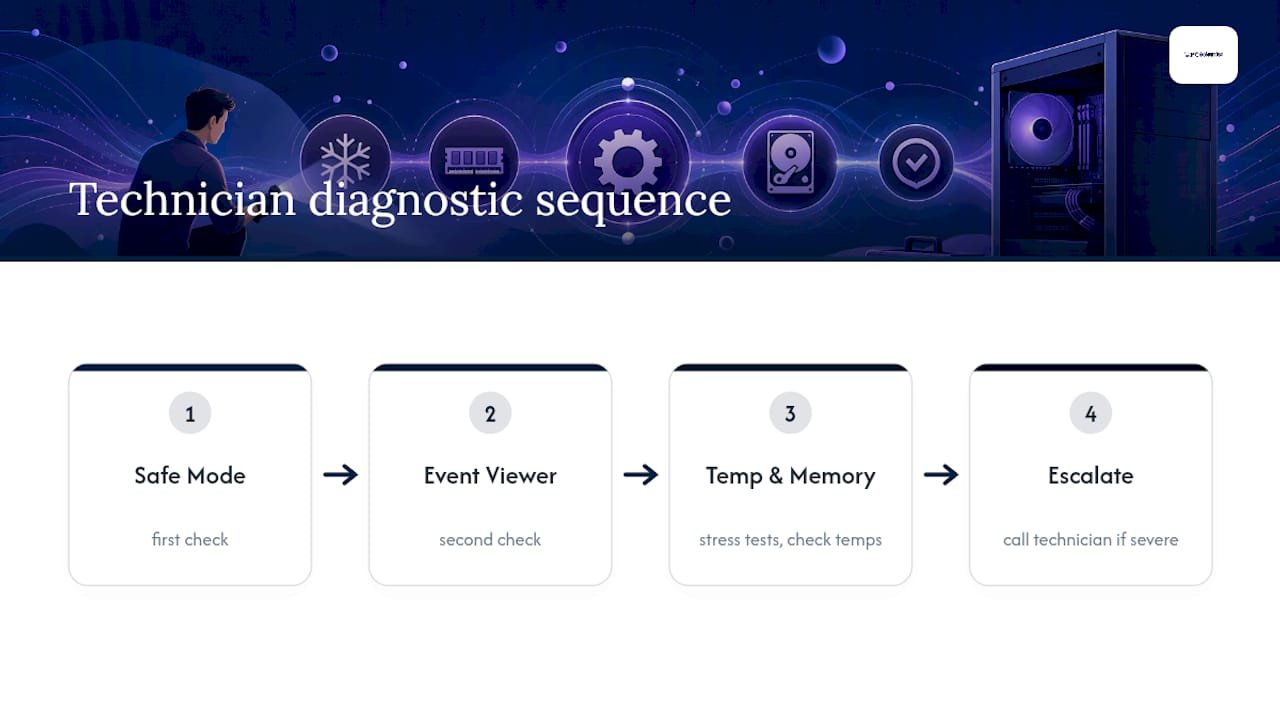
We provide onsite and remote IT support across New South Wales, including the Central Coast, Sydney Metro, Newcastle, Wollongong, and the Southern Highlands, through specialist divisions like Computer Repair Scientist and Data Recovery Scientist. The diagnostic sequence in this article, Safe Mode first, Event Viewer second, temperature and memory testing third, mirrors exactly what our technicians run through on every freezing complaint that comes through the door, because guessing at a fix without that order wastes a customer's money on parts that didn't need replacing.
That approach shows up in the outcomes documented in our case studies, where jobs that looked like mysterious random freezes were traced back to something specific and fixable, a failing drive here, a driver conflict there, once the right diagnostic order was followed instead of a straight reinstall.
Home users don't need to own a multimeter or run MemTest86 for eight hours overnight to get a confident answer. What matters is following the sequence in the right order and knowing when a symptom (a clicking drive, a WHEA-Logger event, a burnt smell) has crossed from "keep troubleshooting" into "call someone now." That judgement call, more than any specific tool, is what separates a fast fix from a PC that keeps freezing for another six months while the real cause quietly gets worse.
The freezing fix most people skip
Most guides on this topic jump straight to a list of fixes: update your drivers, run a virus scan, clean your fans. What they skip is the ten minutes of actual diagnosis that tells you which fix is worth trying in the first place. That's backwards, and it's why so many people reinstall Windows, buy new RAM, or replace a perfectly good power supply chasing a fault that was never there.
The Safe Mode test is underrated because it's free, takes 20 minutes, and immediately halves the list of possible causes. Event Viewer is underused for the same reason people avoid reading terms and conditions: it looks intimidating, but a WHEA-Logger entry or a Kernel-Power 41 tells you more in one glance than an hour of forum searching.
If there's one thing to prioritise, it's this: diagnose before you spend money. A new stick of RAM won't fix a thermal problem, and a repaste won't fix a dying hard drive.
- PC Scientist
When troubleshooting has run its course, get proper diagnostics
If you've worked through Safe Mode, checked Event Viewer, tested your RAM, and the freezing still won't quit, you've hit the point where the right move is proper equipment, not another forum thread. PC Scientist is the straightforward alternative to guesswork: our technicians run the same diagnostic sequence covered here, but with stress-testing tools and multimeters most home users don't have on hand, so the cause gets confirmed rather than guessed at.

Both options are on the table depending on how comfortable you are going further. If you'd rather finish the job yourself, that's a completely valid call for a straightforward driver or software fix. But if you're seeing hardware warning signs, WHEA-Logger events, a clicking drive, or freezing that's outlasted every fix above, it's time to bring in a professional rather than keep guessing.
Booking is simple: get in touch through the PC Scientist contact page and, if you've got them, send through your Event Viewer screenshots, the timestamps of your freezes, and a CrystalDiskInfo SMART report. That handful of detail lets a technician start narrowing the cause before they even open the case, whether that's onsite hands-on work through Computer Repair Scientist or a remote session for software and driver conflicts. Either way, you walk away with an actual answer, not another guess.
Where to go for more detail
For readers who want to dig deeper into any of the steps above, a few sources are worth bookmarking. Microsoft's own guidance covers advanced memory dump collection and Event Viewer techniques in far more technical depth than most home users will need, but it's the definitive reference if you want to go further. Dell's hardware lockup troubleshooting guide is useful even if you don't own a Dell, since the peripheral and diagnostic steps apply broadly. XDA Developers has a solid explainer on overheating symptoms and monitoring worth reading before you buy any new cooling gear. For tools, stick with HWiNFO for temperature monitoring, CrystalDiskInfo for drive health, MemTest86 for thorough RAM testing, and Display Driver Uninstaller (DDU) for a clean graphics driver reset.
Sources
- Windows-based computer freeze troubleshooting - Microsoft Docs
- Signs your CPU is overheating and what to do | XDA Developers
- Computer restarts or shuts down intermittently, locks up, stops responding | Dell
- Computer Freezes Randomly? How to Find and Fix It | RebootDoctor
Recommended
- Custom PC vs Prebuilt in NSW: What's Better for Gaming, Work or School?
- Custom PC vs Prebuilt in NSW: What's Better for Gaming, Work or School?
Frequently Asked Questions
Straight answers about PC Keeps Freezing? 20 Minute Safe Mode Test for Home PCs - without jargon or pressure. Call 0493 563 381 for advice, or get help below.
Want the quickest answer? 0493 563 381 for free advice.
Run the Safe Mode test first to check whether the cause is software or hardware, then work through Event Viewer logs, temperature checks with HWiNFO, MemTest86 for RAM, and CrystalDiskInfo for drive health to narrow the exact fault before applying a fix.
Faulty RAM is a common and often overlooked cause of random freezing. Run Windows Memory Diagnostic followed by a full MemTest86 pass, and test individual sticks separately if you have more than one installed.
Open Event Viewer and check Windows Logs > System for red Error entries around the time of the freeze. WHEA-Logger events usually point to CPU, RAM, or PCIe instability, while a standalone Kernel-Power Event ID 41 suggests a power supply issue.
Random freezing is typically caused by overheating, a driver conflict, failing RAM, a drive nearing failure, or an unstable power supply. The Safe Mode test and Event Viewer logs are the fastest way to work out which one applies to your PC.
Call a technician if you see repeated Blue Screen errors with different codes, regular WHEA-Logger events, clicking sounds from the drive, or any burning smell. PC Scientist offers both remote diagnostics and onsite repair across New South Wales for exactly these cases.
Computer help across NSW
Need a hand with a PC that keeps freezing?
If the steps above did not get your computer feeling right, that is okay. Get help in your area and we will take it from here.
Start here
Get computer help
Optional Need a Sydney city or region?
Choose a side of Sydney
These are Sydney cities and regions, such as the Northern Beaches or Inner West. First tap a side of Sydney. Then open the city or region that covers you.
C Sydney City / Inner 3 areas
N Northern Sydney 6 areas
NW North-West / Central Sydney 3 areas
W Western Sydney 1 area
SW South-West Sydney 3 areas
S Southern Sydney 2 areas
Optional Find your suburb
Type a suburb from our listed coverage. This opens the matching city or region page for this topic. Listed suburb pages are general technology services, not this specialist page.
If your suburb is not listed, use the city or region list above, or call 0493 563 381.
Disclaimer
The information in this article is provided for general educational and informational purposes only. While PC Scientist strives to keep all content accurate and up to date, technology issues can vary depending on your device, software, network configuration, and individual circumstances. Always back up important data before attempting repairs or system changes. If you are unsure or the issue cannot be resolved safely, contact PC Scientist today for professional onsite or remote IT support. PC Scientist is not liable for any loss of data, damage, or other issues resulting from the use of the information provided in this article.
