
14 phishing email examples you need to recognise now
A phishing email is a fake message dressed up as a trusted sender, sent to trick you into handing over money, passwords, or personal details. The most common phishing email examples you'll find sitting in your inbox right now fall into a handful of predictable patterns: fake invoices, account or security alerts, delivery notices, payment or refund requests, credential-harvesting login pages, CEO or supplier fraud, job scams, and social media takeover lures. Scamwatch reports that these scams routinely impersonate myGov, the ATO, banks like NAB, and utility providers, which is exactly why they work. The Australian Cyber Security Centre backs this up, noting that spear-phishing versions go further by weaving in real personal details to look convincing.
Here's the shortlist worth memorising:
- Fake invoice or unpaid bill notice
- Account suspended or security alert
- Delivery or shipping notification
- Payment or refund confirmation
- Credential-harvesting login page
- CEO or supplier fraud (business email compromise)
- Job or recruitment scam
- Social media account takeover lure
If one of these lands in your inbox and something feels off, the move is simple: don't click anything, verify the claim through the organisation's real website or app, and report the message before you delete it.
Key Takeaways
Phishing emails work by manufacturing urgency around a trusted brand, and the single most reliable defence is verifying every request through a channel you found yourself, never one supplied in the email.
| Point | Details |
|---|---|
| Pause before clicking | Urgency is the biggest tell, so give yourself three seconds before acting on any request. |
| Verify elsewhere, always | Use the organisation's official app or website, never a link or number from the message. |
| Never enter credentials via email links | Type known addresses manually instead of trusting a login page reached through a link. |
| Report before you delete | Forward suspicious emails to your provider and to Scamwatch or the ACSC to help block them. |
| Get professional help when needed | PC Scientist handles account recovery, malware removal, and email hardening across NSW. |
Table of Contents
- What are the most common phishing email examples?
- The anatomy of a phishing email and the red flags that give it away
- How to check links, attachments and QR codes without putting yourself at risk
- Recent phishing techniques you haven't seen before
- What to do the moment you've clicked, opened, or handed over information
- How and where to report a phishing email
- Real outcomes: what happens when phishing damage gets professionally fixed
- What technicians actually do differently when it comes to phishing
- Getting help after a phishing scare, or before one happens
- Where to go for further guidance
- Sources
- FAQ
What are the most common phishing email examples?
Every phishing email follows a script, even when the disguise changes. Below are the ten patterns that show up most often, each with the tells that give the game away and the one action that keeps you safe.
1. The fake invoice. You get an email that looks like it's from a supplier, software provider, or even your own accounting platform, telling you a payment is overdue and attaching a PDF or link to "view invoice." The red flags: the sender's display name looks right but the email address doesn't match the real company, the invoice number references a product or service you've never bought, and the attachment wants you to enable macros or click through to a login page. Anyone who handles bookkeeping or accounts payable is a prime target. Don't open the attachment. Check your actual accounting software or call the supplier using a number you already have on file, not one from the email.
2. Account or security alert. "Your account has been suspended," "unusual sign-in detected," or "update your payment details within 24 hours." These rely on panic. Red flags include generic greetings ("Dear Customer" instead of your name), a countdown-style deadline, a login button that goes to a domain that's almost but not quite right, and formatting that mimics a real brand closely enough to fool a quick glance. This one targets everyone equally, from retirees to office workers. Log into the account directly through the official app or by typing the address yourself, never through the email's link.

3. Delivery or shipping notice. A message claiming a parcel couldn't be delivered, needs a customs fee paid, or requires you to "confirm your address" via a link. Watch for courier names that don't match who you're actually expecting a delivery from, tracking numbers that lead nowhere useful, and a request for card details to release a $2 or $3 "redelivery fee." These spike hard around major shopping periods and target anyone who shops online. Check tracking directly on the courier's official site using the order confirmation you already have.
4. Payment or refund notification. "You're owed a refund, click here to claim it" or "your payment has failed, update your card." Red flags: the email pushes urgency around money you weren't expecting, the linked page asks for full card details including the CVV, and the sender domain is a lookalike for a bank or payment provider. This one often targets people during tax season, when a fake ATO refund message feels entirely plausible. Log into your actual bank or myGov account separately to check for any real refund.
5. Social media account takeover lure. A message claiming your account was reported for a policy violation, or that someone tried to log in from an unfamiliar location, with a link to "secure your account." The tells are a login page that looks identical to the real platform but sits on a different domain, urgent language about permanent account loss, and a request for your password plus a two-factor code. This targets anyone active on social platforms, and the stolen accounts often get used to scam that person's friends and followers next. Change your password through the app itself, not the link, and check your account's real security settings.
6. Credential-harvesting login page. This is less an email type and more the destination many phishing links lead to: a cloned Microsoft 365, Google Workspace, or banking login page designed purely to capture what you type. The red flags are subtle: the URL bar shows a domain close to but not identical to the real one, the page might be missing the little padlock detail your browser normally shows, and the layout can be a near-perfect copy. This is aimed heavily at business email users, since one captured Microsoft 365 login often leads to a wider account compromise. Never enter a password on a page you reached by clicking an email link.
7. CEO or supplier fraud (business email compromise). An email that appears to come from your boss, the CEO, or a regular supplier, asking for an urgent bank transfer or a change to payment details "before end of day." Cyber.gov.au flags this exact tactic, noting attackers exploit urgency and plausible internal roles to bypass normal scepticism. Red flags include a reply-to address that differs from the display name, a request that skips your usual approval process, and pressure to act "quietly" or "before the CFO gets back." This targets finance and payroll staff specifically. Call the person directly using a known number, never the one in the email signature, before moving any money.
8. Job or recruitment scams. A recruiter offers a suspiciously easy remote job, then asks for your bank details, a copy of your ID, or upfront payment for "equipment" or "training." Watch for job offers that arrive without you applying, poor grammar in a supposedly professional recruiter's email, and requests for sensitive documents before any interview happens. Job seekers, particularly those searching actively, are the target. Research the company independently and never pay money to secure a job.
9. File-sharing or document link scams. "John shared a document with you," pointing to what looks like a Google Docs or SharePoint link. The red flags: you don't know a John, the "sign in to view" page asks for full credentials rather than just using your existing session, and the file name is vague ("Invoice_Final_Signed.pdf"). This one targets office workers used to receiving shared documents. Confirm with the supposed sender through a separate message before opening anything.
10. QR-code phishing (quishing). An email or attached flyer contains a QR code instead of a clickable link, asking you to scan it to "verify your account" or "claim a reward." NAB's security guidance points out this trick specifically because it pushes you onto your phone, where checking a URL properly is harder. Red flags include QR codes in unsolicited emails, a lack of any alternative text link, and a vague call to action. It targets anyone comfortable enough with phones to scan without thinking twice. Never scan a QR code from an email you didn't expect. Type the known website address into your phone's browser instead.
| Example | Common red flags | Immediate action |
|---|---|---|
| Fake invoice | Mismatched sender address, unfamiliar product, macro-enabled attachment | Verify with supplier using a known contact number |
| Account/security alert | Generic greeting, urgent deadline, lookalike login link | Log in directly through the official app or site |
| Delivery notice | Wrong courier name, small "redelivery fee" request | Check tracking on the courier's own website |
| Payment/refund notice | Unexpected refund, request for full card details | Check your bank or myGov account separately |
| Social media takeover lure | Cloned login page, urgent account-loss warning | Change password via the app, not the email link |
| Credential-harvesting page | Subtly wrong domain, missing security indicators | Never enter credentials from an email link |
| CEO/supplier fraud | Reply-to mismatch, urgency, bypassed approval process | Call the sender on a known number before transferring funds |
| Job/recruitment scam | Unsolicited offer, upfront payment request | Research the employer independently |
The anatomy of a phishing email and the red flags that give it away
Every phishing email is built from the same handful of parts, and once you know where to look, spotting fakes gets a lot faster. Start with the header: the display name might read "NAB Security Team," but the actual email address behind it often belongs to a completely unrelated domain. The subject line typically leans on urgency ("Action Required," "Final Notice") because panic short-circuits careful reading. The greeting is frequently generic, since scammers blast the same message to thousands of addresses and rarely have your name.
The body content usually mixes a plausible cover story with a specific, time-pressured demand. The signature and footer might copy a real company's logo and formatting pixel-for-pixel, which is exactly why BeConnected's guidance warns that a tidy-looking email is not proof of anything. Links are the crux of most scams, engineered to look like a familiar destination while pointing somewhere else entirely. Attachments and embedded QR codes carry the same risk in a different wrapper.
Here's your scan checklist for any suspicious message:
- Sender address doesn't match the organisation it claims to represent
- Domain uses a lookalike spelling (a single swapped letter, an extra hyphen, a different suffix)
- Greeting is generic rather than using your actual name
- Message creates urgency or threatens a consequence for inaction
- Attachment is unexpected, especially if it asks you to "enable content"
- Logos look right but the surrounding domain doesn't
- Payment details have changed from what you'd normally expect
- Message asks for a password, PIN, or one-time code
A classic lookalike domain trick swaps one character for something visually similar: "nab.com.au" becomes "nab.com-au.net" or "naab.com.au." On a desktop, hover your mouse over any link without clicking, and the real destination will appear in a small preview at the bottom of your browser window. Scamwatch recommends this exact check as a first line of defence, and it takes about two seconds once it becomes habit.
Pro Tip: Never trust a link based on the text it displays. Scammers can make a link say "nab.com.au" while the actual destination is something else entirely. Hover first, always, and if you're on mobile, long-press the link to preview the address before you commit to tapping it.
How to check links, attachments and QR codes without putting yourself at risk
Follow these steps in order whenever a message makes you pause, even for a second.
- Don't click anything first. Read the email in full before you touch a single link or button. Your first instinct to click "unsubscribe" or "verify now" is exactly what the scam is counting on.
- Hover to preview the URL on desktop. Rest your cursor over the link without clicking and check the address shown at the bottom of your browser window against the domain you'd expect.
- On mobile, long-press or use "copy link." Most phones let you hold down on a link to bring up a preview or copy the underlying URL so you can inspect it in a notes app before deciding.
- Check the domain carefully for substitutions. Look for extra characters, swapped letters, or an unfamiliar suffix tacked onto an otherwise familiar name.
- Only open attachments after a virus scan, and treat anything asking you to "enable macros" or "enable editing" as an immediate red flag.
- Treat unsolicited QR codes as suspicious. Type the organisation's known website address into your browser manually instead of scanning a code from an email you didn't ask for.
A few extra habits make this second nature. Never enter a password, PIN, or one-time code through a link sent in an email, no matter how official it looks. Never call a phone number provided inside a suspicious message. Look up the organisation's number yourself. If you want a fast sanity check, search the sender's domain alongside the word "scam" in Google, or paste a suspicious URL into a URL-scanning tool like VirusTotal before opening it. Your browser's own safe-browsing warning, the one that pops up before you land on a known malicious site, is also worth taking seriously rather than clicking through.
Here's what that hover-preview step looks like in practice: an email claims to be from NAB, the button reads "Verify Your Account," but hovering reveals a destination like nab-secure-verify.com, a domain NAB has never used. That mismatch alone is enough to stop and verify elsewhere.
Recent phishing techniques you haven't seen before
Phishing has moved well past the obviously broken English and pixelated logos that made older scams easy to spot. Attackers now use several techniques that specifically target the assumptions people rely on to feel safe.
- AI-crafted spear-phishing produces grammatically flawless, personally tailored messages, sometimes referencing a real recent purchase or a colleague's actual name.
- Exact brand impersonation copies a real company's logo, colour scheme, and email template so precisely that visual polish stops being a useful signal at all.
- Callback phishing (vishing) sends an email with no link at all, just a phone number to call, moving the scam into a voice conversation where there's no text to screenshot or report easily.
- Shipping and delivery lures exploit how normal it feels to receive courier updates, especially during high online-shopping periods.
- Living-off-trusted-sites scams abuse real file-sharing platforms like Google Docs or SharePoint to host malicious links, since the email itself points to a legitimate domain that security filters trust.
- QR-code phishing (quishing) deliberately pushes victims onto mobile devices, where inspecting a destination URL is far harder than on desktop.
- Invoice and payment redirection targets businesses specifically, altering bank details mid-transaction so a legitimate-looking payment ends up in the wrong account.
The shift that matters most here: a scam no longer needs to look sloppy to be dangerous. Cyber.gov.au's guidance on socially engineered messages points out that attackers now lean on urgency, plausible internal roles, and step-by-step instructions rather than obvious mistakes, which makes the old advice of "check for typos" far less reliable than it used to be. Spam and phishing traffic remains a persistent share of global email volume according to Statista's tracking of spam email traffic, a reminder that this isn't a shrinking problem, it's an evolving one.
What to do the moment you've clicked, opened, or handed over information
If you've already clicked a bad link, opened a suspicious attachment, or typed your details into a fake page, move through these steps without waiting.
- Disconnect the device from the internet if you suspect malware has been installed, whether that's turning off Wi-Fi or unplugging an ethernet cable.
- Change passwords immediately for the affected account and for any other account sharing that same password.
- Enable or reconfigure multi-factor authentication on every account that offers it, particularly email and banking.
- Contact your bank straight away if you've entered card or account details, and ask them to freeze the card or monitor for suspicious transactions.
- Run a full scan with reputable antivirus software, and if anything looks abnormal afterwards, get professional help rather than guessing.
- Preserve the evidence. Save the original email, including its full header information, before you delete or report it.
Here's a rough timeline for how urgently each step matters:
- Within the first hour: disconnect if malware is suspected, change the most sensitive passwords (email and banking first), and call your bank if money is at risk.
- Within the first day: run a device scan, enable MFA everywhere it's missing, and report the email to your provider and to Scamwatch or the ACSC.
- Within the first week: review your bank statements line by line, check for any new account sign-ins you don't recognise, and consider a professional check-up if anything still feels unresolved.
If any of this feels like more than you can handle alone, that's a completely normal reaction, and it's exactly the kind of job PC Scientist handles for households and businesses across NSW every week.
How and where to report a phishing email
Reporting does two things: it protects you, and it helps get the scam blocked before it reaches someone else's inbox. Start with your email provider's built-in report function, usually a "Report Phishing" or "Report Spam" button, which feeds directly into that provider's filtering system.
Next, forward the email to Scamwatch or lodge it through the Australian Cyber Security Centre's reporting channels. These are the two primary destinations for phishing reports, and both feed into broader efforts to track and shut down active scam campaigns. If the email requested money or you've already sent any, contact your bank immediately, separately from reporting the email itself, since your bank's fraud team works on a different timeline and different priorities. If the email arrived at a work address, loop in your workplace's IT team too, since one phishing email landing in your inbox often means colleagues received the same one.
When you report, include as much as you can:
- The full email header, not just the visible sender name
- The exact time you received it
- Any attachments or links, without opening them again
- A screenshot of the message in case the original gets deleted accidentally
Preserving this evidence matters more than it might seem. Investigators use header data to trace where a message actually originated, which is invisible in the display name alone.
Real outcomes: what happens when phishing damage gets professionally fixed
Phishing incidents rarely look identical twice, but the patterns of damage and recovery repeat often enough to be worth describing plainly.
- Scenario one: a compromised business email account. A staff member clicked a fake Microsoft 365 login link and entered their credentials. Within hours, the account was sending invoice-redirect emails to real clients. The fix involved locking the account, forcing a password reset across the business, configuring multi-factor authentication properly, and auditing mail-forwarding rules the attacker had quietly set up. The outcome: account fully recovered, no client payments diverted, and email hardening put in place to stop a repeat.
- Scenario two: malware from a fake delivery notification. A home user opened an attachment from what looked like a courier update, which installed malware in the background. The device slowed down and started showing unusual pop-ups within a day. Remediation involved isolating the device, running a full malware removal, and restoring clean backups of important files. The outcome: device fully cleaned, no data loss, and better antivirus protection installed going forward.
- Scenario three: attempted CEO fraud caught in time. A staff member received an urgent "transfer funds now" email that appeared to come from a senior manager. Because the request skipped the usual approval steps, the staff member paused and called the manager directly, discovering the email was fake. The outcome: zero financial loss, and a quick review of internal payment-approval processes to close the gap.
These situations point to the same handful of service outcomes: device remediation, account recovery, proper password and MFA configuration, and stronger email system hardening. PC Scientist's case studies cover the kind of hands-on engagements this work involves in more detail. As a general rule, the DIY steps earlier in this article handle most everyday phishing scares. It's worth calling in professional help when malware is confirmed, when a business account has been compromised, or when you're simply not confident you've closed every gap yourself.
What technicians actually do differently when it comes to phishing
Working in IT support day to day teaches you something the general advice doesn't always capture: the people who get caught by phishing aren't careless, they're just busy. A convincing invoice email lands in the middle of a hectic afternoon, and the split-second decision to click happens before the analytical brain catches up. That's not a character flaw. It's how attention works under pressure, and scammers design their messages specifically to exploit that.
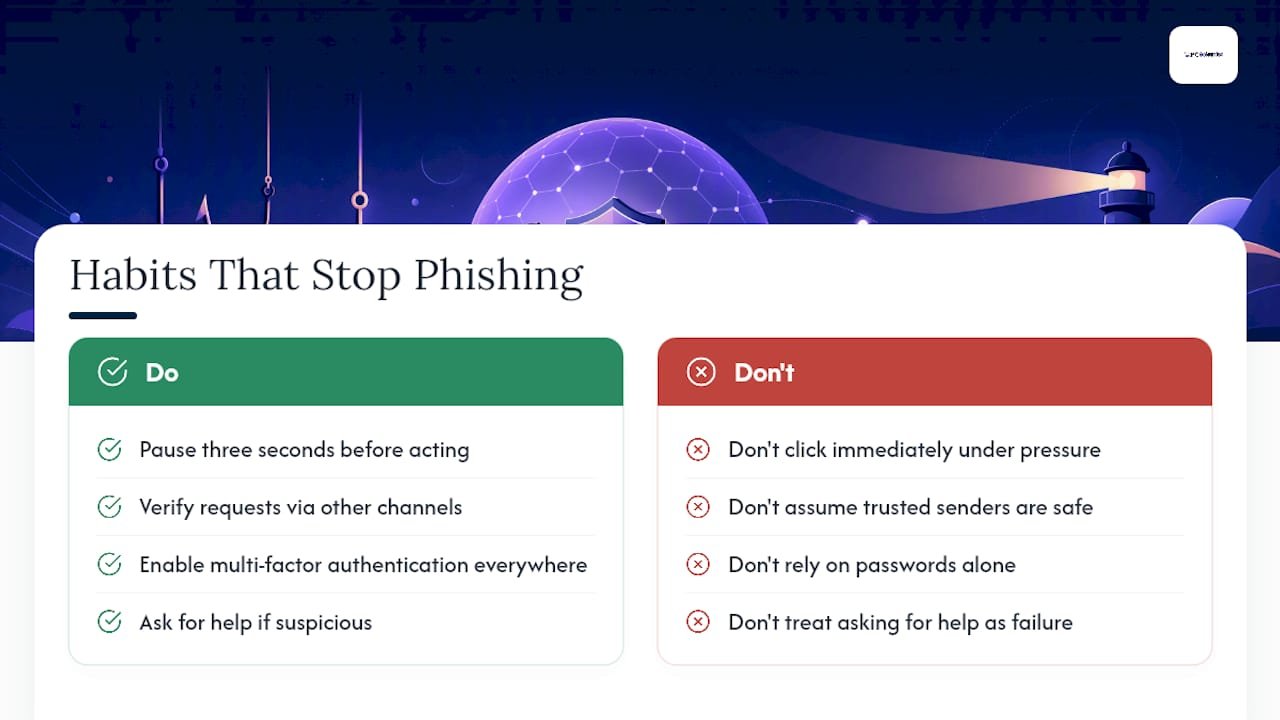
The habit that separates people who dodge these scams from people who don't isn't cleverness, it's a pause. A three-second gap between seeing an urgent request and acting on it is often the entire difference between a near-miss and a genuine incident. Verify elsewhere, every time, no exceptions, even when the message claims to come from someone you trust completely. Multi-factor authentication is the second habit worth building into every account you own, because it turns a stolen password from a disaster into a minor inconvenience.
None of this is about becoming paranoid or treating every email as a threat. It's about building two or three small habits that run on autopilot, so the decision to double-check becomes automatic rather than something you have to remember under pressure. Even genuinely careful, tech-literate people get caught sometimes, because the good scams are built to look exactly like something you'd normally trust. Asking for help afterwards isn't a failure. It's the sensible next step.
Getting help after a phishing scare, or before one happens
If a phishing email has already caused damage, whether that's a compromised inbox, a device behaving strangely, or money sent to the wrong account, PC Scientist provides hands-on incident remediation for homes and businesses across NSW, both onsite and remotely. Rather than leaving you to piece together password resets, malware scans, and account recovery on your own, our technicians handle the full clean-up in one visit or one remote session.
For businesses wanting to close the gaps before an attacker finds them, that means proper multi-factor authentication setup, Microsoft 365 and email system hardening, and device clean-up that goes beyond a quick antivirus scan. Accounting and professional services firms in particular carry extra risk here, since client financial data makes a tempting target, a point covered well in this guide to protecting client data. Whether you need an urgent fix after a scare or want ongoing cybersecurity support to prevent one, book a visit and we'll take it from there.
Where to go for further guidance
- Scamwatch: the primary Australian destination for reporting scams and checking current scam trends.
- Australian Cyber Security Centre: government guidance on phishing, spear-phishing, and broader cyber threats.
- Cyber: detailed breakdown of manipulation tactics used in CEO fraud and similar scams.
- NAB's phishing and spam identification tips: practical checks for lookalike domains and QR-code scams from a major bank's own security team.
This article is general information, not a substitute for advice from a qualified financial advisor. Consult a qualified financial professional about your own circumstances before acting on anything here.
Sources
Recommended
- Business Cybersecurity NSW | After a Scare | PC Scientist
- Business Email & Microsoft 365 NSW | PC Scientist
- Email Systems Scientist | Mail & Sync Help NSW | PC Scientist
- Tech for Professional Offices | PC Scientist
Frequently Asked Questions
Straight answers about 14 phishing email examples you need to recognise now - without jargon or pressure. Call 0493 563 381 for advice, or get help below.
Want the quickest answer? 0493 563 381 for free advice.
Common signs include a sender address that doesn't match the organisation, generic greetings, urgent or threatening language, unexpected attachments, and links that lead to a domain that looks almost, but not quite, right.
Newer phishing emails often use AI-generated writing that reads naturally, copy real brand logos exactly, and increasingly rely on QR codes or phone callback requests instead of obvious links.
A typical phishing email impersonates a trusted brand, like a bank or delivery company, creates urgency around an account issue or payment, and pushes you toward a link or attachment designed to steal your details.
The main types include fake invoices, account or security alerts, delivery notifications, and CEO or supplier fraud (business email compromise), though credential-harvesting login pages and job scams are also widespread.
Call in professional help if malware is confirmed on a device, a business email account has been compromised, or you've followed the remediation steps and still aren't confident everything's secure. PC Scientist handles this kind of recovery across NSW.
Cybersecurity across NSW
Still stuck spotting phishing email examples?
If the device still does not feel safe, that is okay. Get help in your area and we will take it from here.
Start here
Get cybersecurity help
Optional Need a Sydney city or region?
Choose a side of Sydney
These are Sydney cities and regions, such as the Northern Beaches or Inner West. First tap a side of Sydney. Then open the city or region that covers you.
C Sydney City / Inner 3 areas
N Northern Sydney 6 areas
NW North-West / Central Sydney 3 areas
W Western Sydney 1 area
SW South-West Sydney 3 areas
S Southern Sydney 2 areas
Optional Find your suburb
Type a suburb from our listed coverage. This opens the matching city or region page for this topic. Listed suburb pages are general technology services, not this specialist page.
If your suburb is not listed, use the city or region list above, or call 0493 563 381.
Disclaimer
The information in this article is provided for general educational and informational purposes only. While PC Scientist strives to keep all content accurate and up to date, technology issues can vary depending on your device, software, network configuration, and individual circumstances. Always back up important data before attempting repairs or system changes. If you are unsure or the issue cannot be resolved safely, contact PC Scientist today for professional onsite or remote IT support. PC Scientist is not liable for any loss of data, damage, or other issues resulting from the use of the information provided in this article.