

Printer keeps going offline? The check worth doing first
If your printer keeps going offline, power-cycle the printer and your router, then check the printer's control panel to confirm it's on the same Wi-Fi network as your computer or phone. This one move clears most temporary glitches because it resets the network handshake between devices and flushes whatever error caused the printer to drop its connection in the first place. Try this before anything else:
- Turn the printer off and unplug it from power briefly
- Restart your router (unplug it too, wait briefly)
- Turn the printer back on first, then let it reconnect
- Confirm the Wi-Fi name shown on the printer's screen matches your device
- Send a test print
Key Takeaways
Most offline printer errors stem from a network mismatch, a stuck print queue, or an IP address that changed after a router restart, and each has a direct fix.
| Point | Details |
|---|---|
| Start with a power cycle | Turn off the printer and router, wait briefly, then power the printer on first. |
| Check the printer's own display | Error codes or paused jobs often explain an "offline" message better than network settings do. |
| Restart the Print Spooler | On Windows, this clears queue memory without a full reboot and fixes many stuck jobs. |
| Assign a static IP | A DHCP reservation stops the printer's address changing after a router restart, a common repeat cause. |
| Book professional help if it persists | PC Scientist offers onsite and remote troubleshooting across NSW when DIY steps don't hold. |
Table of Contents
- How to fix a printer that keeps going offline: the six-step checklist
- Fixing printer offline errors on Windows
- Fixing printer connection issues on Mac and mobile
- Diagnosing network and Wi-Fi problems
- Advanced fixes when the basics don't hold
- Stopping the offline error from coming back
- When to call an IT technician for printer problems
- Get help from PC Scientist when the printer still won't stay online
- Sources
- FAQ
How to fix a printer that keeps going offline: the six-step checklist
If the power cycle didn't stick, work through these steps in order and test a print after each one. Jumping straight to a reinstall often masks a simpler fix.
- Check the printer's display for error codes, paused jobs, or a flashing light before touching your computer.
- Confirm the network name on the printer matches the SSID your laptop or phone is connected to, especially if your router broadcasts separate 2.4GHz and 5GHz networks.
- Check the physical connection if you're using USB or Ethernet, a loose cable is a common, invisible culprit.
- Cancel any stuck print jobs sitting in the queue, since one jammed document can block everything behind it.
- Set the printer as your default device in your computer's settings.
- Restart devices in this order: printer first, then router, then your PC last.
Pro Tip: The restart order matters more than people expect. Powering the printer on before your PC boots up gives it time to fully broadcast on the network, which fixes a surprising share of persistent detection problems that a simple reboot alone won't touch.
Fixing printer offline errors on Windows
Windows problems account for a big share of "why does my printer go offline" complaints, mostly because of how Windows manages default printers and spooler queues.
- Run the built-in Windows printer troubleshooter from Settings, it automatically checks connectivity, driver status, and queue health.
- Open the print queue and cancel all pending jobs. A single corrupted file can hold every future job hostage.
- Restart the Print Spooler service: search "Services," find "Print Spooler," right-click, and select restart. This clears the memory that manages your print jobs without needing a full reboot.
- Remove duplicate printer entries in Settings > Printers & Scanners, then delete and re-add the printer entirely if problems continue.
- Turn off "Let Windows manage my default printer" so your printer stops flip-flopping between devices on a multi-printer network.
- Update drivers from your manufacturer's support page rather than relying solely on Windows Update, which sometimes installs a generic driver that doesn't fully support your model.
Community troubleshooting threads consistently point to the same combination: clear the queue, confirm the network, reinstall if needed.
Pro Tip: Removing and re-adding the printer feels drastic, but it's often faster than chasing a driver conflict for an hour. It takes two minutes and resolves a huge chunk of "offline" errors that nothing else touches.
Fixing printer connection issues on Mac and mobile
- On macOS: open System Settings > Printers & Scanners, remove the problem printer, then re-add it. This forces macOS to rebuild the AirPrint connection from scratch.
- AirPrint checks: confirm your printer supports AirPrint and sits on the same Wi-Fi network as your Mac or iPhone, not a guest network.
- On mobile: try printing from a second device first. If it works there, the fault sits with your original device's settings, not the printer.
- Wired workaround: if wireless keeps failing on a laptop near the printer, a direct USB connection sidesteps the whole problem while you troubleshoot.
Diagnosing network and Wi-Fi problems
A printer that keeps disconnecting is often a network problem wearing a printer costume. Start by checking your printer's own network report or embedded web server (usually accessible by typing its IP address into a browser), which shows signal strength and connection status in plain language.
- Guest networks and 5GHz-only bands are common troublemakers. Many printers only support 2.4GHz, so if your router splits its bands into separate names, make sure the printer is joined to the 2.4GHz one.
- Weak signal strength on the printer's report usually means it's too far from the router or fighting interference.
- Reserve a static IP or set a DHCP reservation for the printer through your router's settings. This stops the printer's address from changing after a router restart, which is one of the most common causes of repeat offline messages.
- If wireless keeps dropping despite everything, plug in via Ethernet or USB as a diagnostic step to confirm whether the fault is genuinely on the network side.
Pro Tip: Printer placement matters more than most people realise. A microwave running mid-print, a thick brick wall, or a printer tucked inside a cabinet can all degrade Wi-Fi signal enough to trigger an offline error, even when everything else checks out fine.
Advanced fixes when the basics don't hold
If your printer keeps disconnecting despite working through the checklist, it's time to dig into drivers, firmware, and hardware.
- Visit your manufacturer's official support page (HP, Canon, Epson, or Brother) and search your exact model number. Generic drivers cause more offline errors than they solve.
- Manufacturer guidance commonly recommends checking cables, confirming network settings, and updating firmware as the first line of defence before deeper troubleshooting.
- If network settings seem corrupted, perform a factory network reset from the printer's control panel. This wipes saved Wi-Fi credentials, so you'll need to rejoin the network afterward.
- Check for physical faults: paper jams, carriage errors, low ink or toner, and loose power connections can all present as a generic "offline" message rather than a specific error.
- If the printer disconnects at random even after a firmware update and factory reset, that pattern often points to a failing wireless card or power supply rather than a settings issue.
Pro Tip: An "offline" message doesn't always mean network trouble. Industry technicians note that "offline" is often used as a catch-all code, so always check the printer's own panel for a flashing light or error text before assuming the router is at fault.
Stopping the offline error from coming back
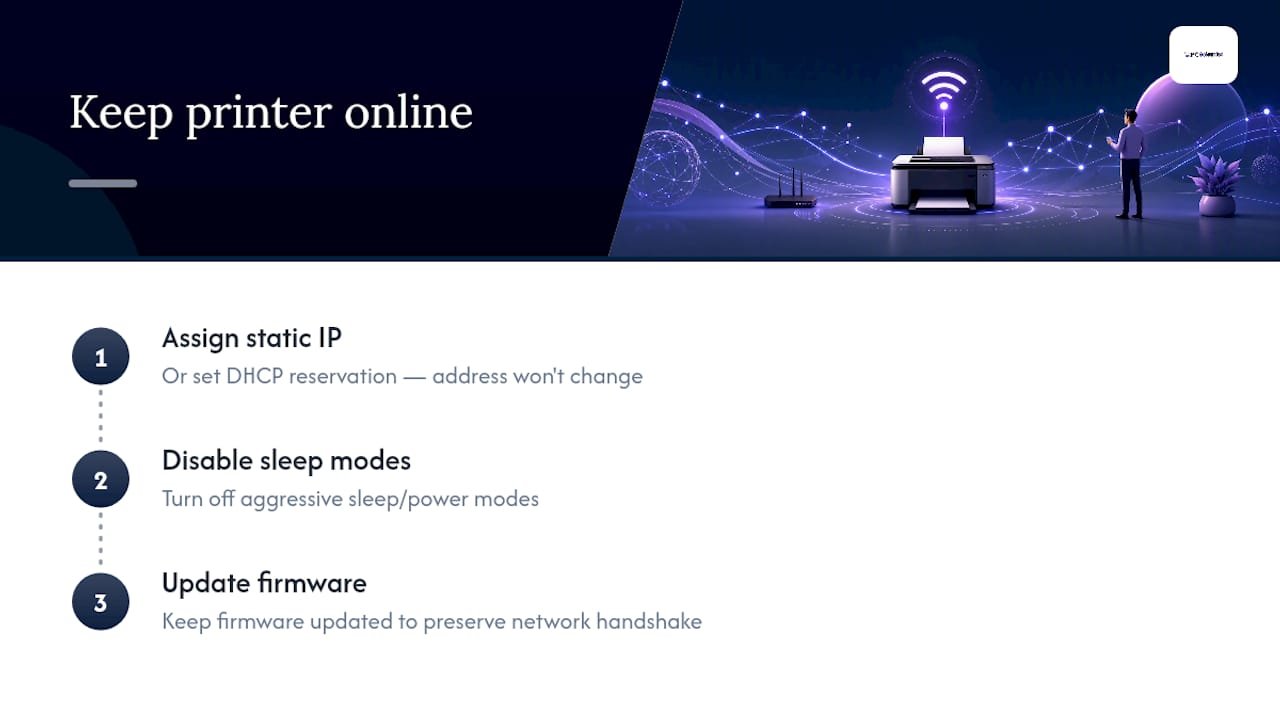
- Turn off aggressive power-saving or deep-sleep modes, since some printers drop off the network entirely to save power and don't reconnect cleanly.
- Set a static IP or DHCP reservation so the printer's address never changes after a router restart.
- Update firmware and drivers every few months, and use a wired connection wherever reliability really matters, like a shared office printer.
When to call an IT technician for printer problems
Some offline issues genuinely need a second pair of eyes, especially in a small office where downtime costs more than a service call. Call for help if:
- The printer keeps going offline after you've tried every step above, more than once
- You're seeing hardware errors, unusual noises, or intermittent power loss
- The same IP conflict keeps returning even after you've set a static address
- Multiple devices on your network can't reliably reach the printer
A technician will typically check the network packet flow, set a proper reserved IP on the router, test the printer against a different network to isolate the fault, and reinstall firmware if it's corrupted. Costs generally run on an hourly or call-out basis, and starting with a remote troubleshooting session is usually the fastest, cheapest way to confirm whether the problem needs an onsite visit at all.
A note from PC Scientist
We see this fault constantly, and the good news is most cases are genuinely fixable with a stepwise approach rather than a new printer. Printers are mechanical devices bolted onto a network connection, so a hardware hiccup often disguises itself as a Wi-Fi problem, and vice versa. Don't guess at firmware updates. Back up your settings first, follow official manufacturer steps, or ask someone who does this daily.
Get help from us when the printer still won't stay online
We are the practical alternative to spending your Saturday afternoon fighting with a router and a printer that won't cooperate. Our technicians handle onsite and remote troubleshooting across NSW, including router and IP configuration, driver and firmware fixes, and full printer setup for home offices and small businesses.

We offer same-day visits where available, so a printer that's costing you billable hours doesn't have to wait a week for a fix. If you've worked through the checklist above and the printer keeps dropping offline, book a business IT support visit and we'll sort the network, the driver, and the printer itself in one session.
Sources
- Troubleshooting offline printer problems in Windows | Microsoft Support
- Fix printer offline error - Fixable
- Why printer says offline and how to fix it | TonerInk Australia
- Industry expert note on printer offline as a catch-all error (archived document)
Recommended
- Business Network & Wi-Fi Assessment NSW | PC Scientist
- Device Setup Scientist | New Tech Setup NSW | PC Scientist
- Network Scientist | Wi-Fi & Router Help NSW | PC Scientist
- Hotel, Motel, Airbnb & Strata Tech | PC Scientist
Frequently Asked Questions
Straight answers about Printer keeps going offline? Here's the fix that works first - without jargon or pressure. Call 0493 563 381 for advice, or get help below.
Want the quickest answer? 0493 563 381 for free advice.
Power-cycle the printer and router first, confirm the printer's Wi-Fi network matches your device, then clear the print queue and restart the Print Spooler service if you're on Windows.
Follow the same steps as any other brand: check the control panel for errors, confirm the network, restart the Print Spooler, and download the latest driver directly from HP's support page rather than relying on a generic Windows driver.
"Offline" is a communication status, not a power status, so it usually means a network mismatch, a paused queue, or a changed IP address rather than the printer actually being switched off. Checking the printer's own display first usually reveals the real cause faster than restarting your computer.
If you've worked through the full checklist, including a factory network reset and driver update, and the printer still drops offline, a technician can check for hardware faults or persistent IP conflicts that DIY steps can't fix.
Device setup across NSW
Need a hand with a printer that keeps going offline?
If setup still feels unfinished, that is okay. Get help in your area and we will take it from here.
Start here
Get device setup help
Optional Need a Sydney city or region?
Choose a side of Sydney
These are Sydney cities and regions, such as the Northern Beaches or Inner West. First tap a side of Sydney. Then open the city or region that covers you.
C Sydney City / Inner 3 areas
N Northern Sydney 6 areas
NW North-West / Central Sydney 3 areas
W Western Sydney 1 area
SW South-West Sydney 3 areas
S Southern Sydney 2 areas
Optional Find your suburb
Type a suburb from our listed coverage. This opens the matching city or region page for this topic. Listed suburb pages are general technology services, not this specialist page.
If your suburb is not listed, use the city or region list above, or call 0493 563 381.
Disclaimer
The information in this article is provided for general educational and informational purposes only. While PC Scientist strives to keep all content accurate and up to date, technology issues can vary depending on your device, software, network configuration, and individual circumstances. Always back up important data before attempting repairs or system changes. If you are unsure or the issue cannot be resolved safely, contact PC Scientist today for professional onsite or remote IT support. PC Scientist is not liable for any loss of data, damage, or other issues resulting from the use of the information provided in this article.
