


Printer won't connect to Wifi: quick fixes that work
If your printer won't connect to wifi, start here: restart your router and printer, double-check the wifi name and password, then re-run the printer's wireless setup. That combination clears up most home connection problems in under ten minutes, no technician required.
Before you dig into router settings or firmware, try the fast stuff first. It costs you nothing but a few minutes, and it's the fix that works more often than any other single step.
- Power off the router, printer, and computer. Wait 30 seconds, then turn the router on first, followed by the printer, then the computer.
- Confirm you're entering the exact wifi name (SSID) and password, watching for capital letters and numbers that look similar (0 vs O, 1 vs l).
- Open the printer's control panel and run the built‑in Wireless Setup Wizard, or use the manufacturer's app (HP Smart, Canon PRINT, Epson Smart Panel, or the HP/Brother/Canon utility for your model).
- Move the printer closer to the router temporarily, just to get through initial setup.
If you've recently changed your router, changed your wifi password, or the printer keeps dropping out after working fine for months, skip ahead to the router settings and static IP sections below. Those repeat‑offender cases usually need a firmer fix than a simple restart.
Key Takeaways
A restart sequence, correct wifi credentials, and a static IP address resolve the overwhelming majority of printer wifi connection failures without any technician needed.
| Point | Details |
|---|---|
| Restart in the right order | Power cycle router first, then printer, then computer, waiting two minutes between each. |
| Check the band | Most printers only support 2.4 GHz, so band steering or a 5 GHz‑only network causes drops. |
| Fix repeat offline issues | A static IP or DHCP reservation stops the router from reassigning the printer's address. |
| Read the network report | The printer's own network configuration page shows the exact cause in seconds. |
| Call PC Scientist if stuck | PC Scientist offers remote diagnosis and onsite wifi and printer setup when DIY fixes don't hold. |
Table of Contents
- Restart devices and run the basic checks first
- Is weak wifi signal causing the problem?
- How do I reset my printer's wifi settings?
- Router settings that quietly block printer connections
- Do I need to update my printer's firmware?
- Why does my printer keep going offline, and how do I fix it?
- How do I read my printer's network test report?
- Expert tip: why printers drop off networks more than other devices
- When to call a pro (and what to have ready)
- A technician's note on the mistakes we see most
- If you'd rather we just sorted it out for you
- Sources
- FAQ
Restart devices and run the basic checks first
The order you restart things in actually matters. Turn off the router or modem, wait 30 seconds, turn it back on and give it a full two minutes to reconnect to the internet. Then power cycle the printer. Only after both of those are back online should you restart your computer or phone.
While you're at it, run through a few basics that get overlooked constantly:
- Check the printer's display or indicator light shows wifi is switched on, not just powered on.
- Confirm the printer isn't still connected by USB. Some printers default to a wired‑first mode and won't attempt wireless setup while a cable is plugged in.
- Test that another device, like your phone, has working internet. If it doesn't, the problem is your internet connection, not the printer.
- If your phone also can't load a webpage, call your internet provider before troubleshooting the printer further.
- If everything else is online but the printer isn't, move on to the next steps.
Is weak wifi signal causing the problem?
A printer that connects fine in one spot and drops out in another almost always has a signal problem, not a software fault. Try moving the printer to where the router is, connect it, then slowly move it back to its usual position while printing test pages. If it fails partway, you've found your answer.
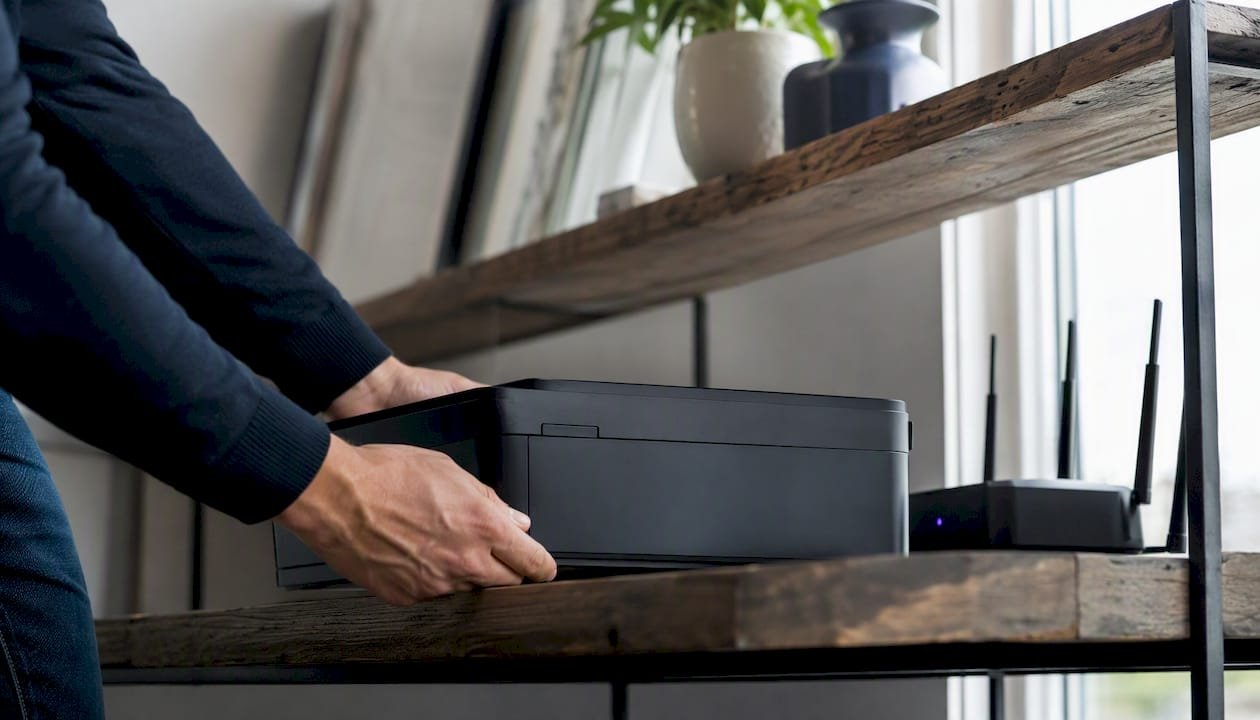
Brick walls, metal filing cabinets, and large mirrors all weaken wifi signals more than plasterboard does. As a rule of thumb, keep the printer within about one to five metres of the router, with as few solid obstacles between them as possible. If that's not realistic in your home, a wifi extender or a wired ethernet connection to the printer solves the problem permanently.
Pro Tip: Printers almost always carry a weaker wifi radio than your phone or laptop. Your phone might show full bars in a spot where the printer barely gets a whisper of signal, so don't assume the printer is faulty just because your other devices connect fine there. Weak, unstable signal is one of the most common causes of connection failures, and it's rarely the printer's fault.
How do I reset my printer's wifi settings?
When the printer has old, incorrect, or leftover network details stored, sometimes the cleanest fix is wiping them and starting fresh. This is the right move after a router replacement, a wifi password change, or repeated failed connection attempts.
- Open the printer's menu and find Network Settings or Wireless Settings.
- Select Restore Network Defaults (wording varies by brand: HP calls it "Restore Network Settings", Canon and Epson use similar phrasing under Network menus).
- Once reset, run the Wireless Setup Wizard again from the printer's screen.
- Select your SSID from the list and re-enter the password carefully, character by character.
- For HP printers, the HP Smart app walks you through the whole process with prompts, which is easier than the on‑screen menu for most people.
- Canon, Epson, and Brother all offer equivalent apps: Canon PRINT, Epson Smart Panel, and Brother's iPrint&Scan.
- WPS (push-button setup) can work as a shortcut if your router supports it, but it's unreliable on networks with band steering enabled, and some newer routers have disabled it by default for security reasons.
Router settings that quietly block printer connections
Plenty of "broken" printers are actually being blocked by router settings that were never designed with printers in mind. This is the section worth reading properly if you've already restarted everything and re-entered your password twice.
2.4 GHz vs 5 GHz. Most home printers only support the 2.4 GHz band. If your router combines both bands under a single network name (common on newer mesh routers), the printer may connect to 5 GHz by mistake and fail, or get bumped there later by band steering, which can force a printer between bands even when the signal looks strong. Since most consumer printers only speak 2.4 GHz, this mismatch causes sudden, unexplained disconnections. The fix is to log into your router and either disable band steering (sometimes labelled "Smart Connect") temporarily during setup, or create a separate SSID just for the 2.4 GHz band.
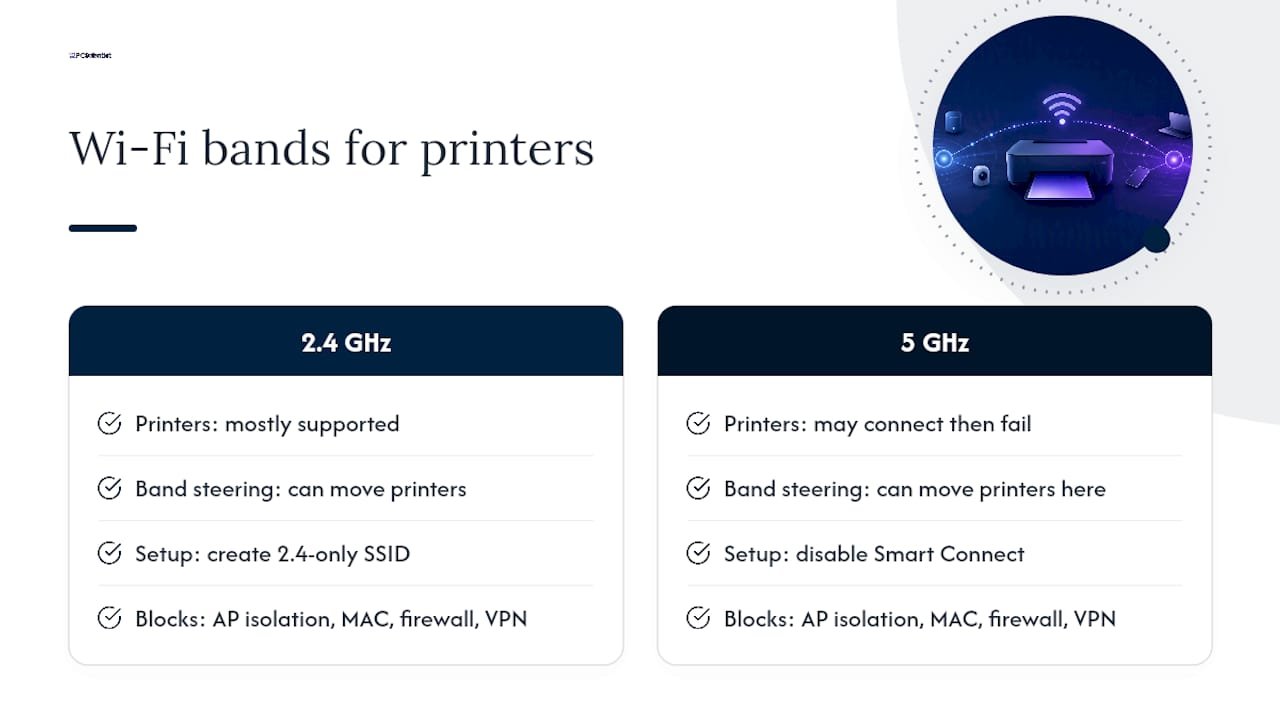
Client isolation. Also called AP isolation, this router feature stops devices on the same wifi network from seeing or talking to each other, usually enabled for guest networks or extra security. It's great for keeping visitors off your files, but it also stops your computer from discovering the printer. Check your router's wireless settings for anything labelled "Client Isolation" or "AP Isolation" and switch it off for your main network.
MAC filtering, firewalls, and VPNs. If your router has MAC address filtering enabled, it might be silently blocking the printer because its address isn't on the approved list. A VPN running on your computer can also interfere with local network discovery. Temporarily disable any active VPN and check the router's MAC filter list to confirm the printer's address is allowed through.
Pro Tip: Home printers are especially sensitive to these settings because they don't have the same network smarts as laptops or phones. Band steering, client isolation, and firewall rules are common, overlooked causes of a printer that connects, then mysteriously vanishes from the network an hour later.
If you're dealing with a more complex setup, like a mesh network across a large home or a shared property, a partner guide on resolving office wifi problems covers similar signal and configuration issues in more depth.
Do I need to update my printer's firmware?
Firmware updates get ignored constantly, but they matter more than most people realise. Manufacturers regularly patch compatibility issues with newer router security standards, and these updates often fix problems that started right after a router or modem swap, including WPA3 transitions that older printer firmware simply doesn't understand yet.
- Open the manufacturer's app (HP Smart, Canon PRINT, Epson Smart Panel, or Brother's utility) and check for a firmware update option, usually under Printer Settings or Tools.
- If no update shows in the app, go directly to the manufacturer's official support site and search by your printer's exact model number.
- On your computer, update or reinstall the printer driver through Windows Settings > Printers & Scanners, or macOS System Settings > Printers & Scanners, removing and re-adding the printer if it still shows as offline.
Only download firmware from the manufacturer's own support website or their official app. Third‑party download sites sometimes host outdated or altered firmware files that can cause more problems than they solve.
Why does my printer keep going offline, and how do I fix it?
If your printer connects fine for a day or two, then randomly shows "offline," the router is probably handing it a new IP address every so often. This is DHCP churn, and it's the single most common cause of a printer that "just stops working" without any obvious trigger.
The fix is to give your printer an address that never changes.
- Router-side reservation (easiest): log into your router, find the DHCP client list, locate your printer by its MAC address, and set a reservation so it always receives the same IP.
- Manual IP on the printer: through the printer's network menu, switch from automatic (DHCP) to manual, and enter an IP address outside your router's DHCP range, along with the correct subnet mask and gateway address.
- Confirm the chosen address won't clash with another reserved device, and note down the details somewhere for future reference.
Assigning a static IP resolves the majority of repeated "printer offline" complaints, and it's a fix you only need to do once.
Pro Tip: If dropouts continue even after setting a static IP, check the printer's power‑save or sleep settings. Deep sleep modes can stop the printer from waking properly to accept a print job, which looks exactly like a connection failure even though the network side is fine.
How do I read my printer's network test report?
Every wifi printer can print a network configuration page, usually through Menu > Network Settings > Print Report, or via the manufacturer's app. This one page tells you almost everything you need to know.
- Print the report and look for the printer's IP address, MAC address, connected SSID, and signal strength.
- Run the printer's built‑in wireless connectivity test, which checks whether it can actually reach the router and the internet, not just whether it's technically connected.
| Diagnostic Result | What It Means |
|---|---|
| No IP address listed | Printer isn't connected to the network at all; re-run wireless setup. |
| IP address shown, but wrong SSID | Connected to the wrong network, often a guest network or neighbour's wifi. |
| Connected, but test print fails | Router or firewall may be blocking communication; check client isolation. |
| Signal strength shown as weak or poor | Move the printer closer to the router or add an extender. |
If the PC itself shows the printer as "offline" despite a valid IP, removing and re-adding the printer in Windows, along with checking network discovery and firewall settings, is the standard fix.
Expert tip: why printers drop off networks more than other devices
Printers aren't built like phones or laptops when it comes to wifi hardware. Manufacturers fit them with simpler, cheaper radio chips because most people don't expect a printer to roam around the house the way a laptop does. That's exactly why environmental changes, like a shifted piece of furniture or a new neighbour's router, cause disconnections that a phone in the same spot wouldn't even notice.
The two changes that fix the most stubborn, recurring dropouts are a static IP address and a check of the printer's power‑save settings. Between them, they resolve the connection issues that survive a basic restart.
Firmware deserves a second mention here too, specifically because it's the fix people skip. After a router or ISP equipment change, outdated firmware is often the actual cause, not a weak signal or wrong password. If you've tried everything else and the printer still won't hold a connection, checking for a firmware update before you do anything else is worth the five minutes it takes.
When to call a pro (and what to have ready)
Some situations are worth handing to a technician rather than spending another evening on it. Persistent dropouts that survive a static IP assignment and a firmware update usually point to a failing wifi module inside the printer, a more complex network setup, or router hardware that's simply reached the end of its useful life.
Before you book a visit, have these ready:
- Printer model and serial number (usually on a sticker on the back or inside the ink cover)
- The printed network configuration page
- Router make and model
- Anything that changed recently: new router, new password, ISP visit, or software update
- Any exact error messages you've seen on the printer screen or computer
| Point | Details |
|---|---|
| Fastest fix | A restart and password recheck resolves most first‑time connection failures. |
| Long‑term fix | A static IP or DHCP reservation stops the "offline" issue from returning. |
| Signal matters most | Printers have weaker radios than phones, so placement changes outcomes. |
A technician's note on the mistakes we see most
Most calls we get start the same way: "It was working fine, then it just stopped." Nine times out of ten, it's not the printer at all. It's a router that got a firmware push overnight, a new mesh node that changed the wifi channel, or band steering quietly moving the printer to a 5 GHz network it can't actually use.
The first thing we check is almost never the printer itself. We check the network configuration page and the router's band settings before touching a single printer menu. It's rarely a hardware fault. Once you know where to look, these fixes take minutes, and the printer that seemed "broken" turns out to be perfectly fine.
If you'd rather we just sorted it out for you
Some of these steps take five minutes. Others, like tracking down a router setting buried three menus deep, can eat your whole evening if you've never done it before. PC Scientist handles this exact problem for homes and small offices across the region, both remotely and onsite, so you don't have to become a network technician just to print a boarding pass.

A typical session starts with a quick remote check of your printer's network status and router settings. If the issue turns out to be physical, a dead wifi module, a router that needs replacing, or a more involved setup with multiple access points, we'll book an onsite visit and sort it properly the first time. We'll usually ask for your printer model, your router make, and anything that changed recently before we start, which speeds things up considerably. For anything beyond a single printer, like a wider wifi and router assessment or setup of new devices, our Device Setup Scientist team can take care of the whole job in one visit. If you'd rather just book a session and skip the troubleshooting altogether, our computer support team can take it from here.
Sources
- Help: My HP printer keeps losing the wifi connection (HP Support Community)
- Printer won't connect to Wi‑Fi? Try these fixes (PCMag how‑to)
- Fix printer connection and printing problems in Windows (Microsoft Support)
Recommended
- Network Scientist | Wi-Fi & Router Help NSW | PC Scientist
- Business Network & Wi-Fi Assessment NSW | PC Scientist
- Device Setup Scientist | New Tech Setup NSW | PC Scientist
- Hotel, Motel, Airbnb & Strata Tech | PC Scientist
Frequently Asked Questions
Straight answers about Printer won't connect to Wifi: quick fixes that work - without jargon or pressure. Call 0493 563 381 for advice, or get help below.
Want the quickest answer? 0493 563 381 for free advice.
Usually it's a wrong or outdated wifi password, the printer sitting on the wrong band (5 GHz instead of 2.4 GHz), or a router setting like client isolation blocking it. Running the HP Smart app's guided wireless setup fixes most cases quickly.
Restart the router and printer, then use the printer's Wireless Setup Wizard or the manufacturer's app to select your SSID and re-enter the password. If it drops out repeatedly, assign a static IP so the router stops changing its address.
The most likely cause is a router change you might not have noticed, a firmware update, a new mesh node, or band steering moving the printer to an incompatible band. Check the printer's network configuration page to see which network it's actually on.
Open the HP Smart app, select your printer, and follow the network setup prompts, making sure you're selecting the 2.4 GHz version of your network if your router broadcasts both bands separately. If it still won't appear, restore the printer's network defaults and try again.
Call for help if dropouts continue after you've tried a static IP, a firmware update, and checked router settings, since that usually points to failing hardware or a more complex network setup. PC Scientist offers both remote diagnosis and onsite visits for exactly this situation.
Device setup across NSW
Still stuck connecting a printer to Wi-Fi?
If setup still feels unfinished, that is okay. Get help in your area and we will take it from here.
Start here
Get device setup help
Optional Need a Sydney city or region?
Choose a side of Sydney
These are Sydney cities and regions, such as the Northern Beaches or Inner West. First tap a side of Sydney. Then open the city or region that covers you.
C Sydney City / Inner 3 areas
N Northern Sydney 6 areas
NW North-West / Central Sydney 3 areas
W Western Sydney 1 area
SW South-West Sydney 3 areas
S Southern Sydney 2 areas
Optional Find your suburb
Type a suburb from our listed coverage. This opens the matching city or region page for this topic. Listed suburb pages are general technology services, not this specialist page.
If your suburb is not listed, use the city or region list above, or call 0493 563 381.
Disclaimer
The information in this article is provided for general educational and informational purposes only. While PC Scientist strives to keep all content accurate and up to date, technology issues can vary depending on your device, software, network configuration, and individual circumstances. Always back up important data before attempting repairs or system changes. If you are unsure or the issue cannot be resolved safely, contact PC Scientist today for professional onsite or remote IT support. PC Scientist is not liable for any loss of data, damage, or other issues resulting from the use of the information provided in this article.