

Slow home internet: start with a five-minute wired test
Most slow internet at home comes down to one of two things: something inside your house (Wi-Fi placement, an old router, too many devices) or congestion outside it (busy-hour provider slowdowns). The fastest way to tell which is which is a wired Ethernet speed test next to your router, followed by a power cycle. If the wired test comes back strong but Wi-Fi is weak, the problem is inside your home. If both are slow, especially in the evening, it's likely your provider or the wider network.
Key takeaways
- Wired Ethernet tests near the router can confirm if in-home equipment or Wi-Fi coverage causes slow internet, especially if results are below plan speeds.
- Moving the router to a central, elevated location and avoiding interference from appliances can significantly improve Wi-Fi performance within the home.
- Bottlenecks are often caused by outdated or damaged cabling, or routers that are more than five years old, rather than the internet plan itself.
- Nighttime slowdowns are typically due to provider congestion during busy hours, and consistent evening dips should be logged and reported to your provider.
- If speed issues persist after basic troubleshooting and logging, a technician can diagnose and fix wiring or hardware faults that are not accessible through simple measures.
Table of Contents
- How to test whether the problem is your home or your provider
- Why is my Wi-Fi slow in one room but not others?
- Is your router or cabling the actual bottleneck?
- Why is my internet slow at night, and is that normal?
- When should you call a technician instead of troubleshooting yourself?
- Quick troubleshooting checklist to run right now
- Where to check the official numbers yourself
- Our take: stop guessing, start logging
- Get a technician to sort it properly
- Sources
- FAQ
How to test whether the problem is your home or your provider
Before you touch a single setting, run the tests that actually tell you something. Guessing wastes time; a wired speed test next to the router gives you a clean baseline within minutes.
- Plug a laptop or desktop directly into the router with an Ethernet cable and run a speed test. This removes Wi-Fi entirely from the equation.
- Run the same test over Wi-Fi, standing near the router, then again from the room where the problem usually happens.
- Compare both results against your plan's advertised speed. A big gap between wired and Wi-Fi points to an in-home issue; a gap between wired and your plan points to your provider.
- Test at different times, particularly during the 7pm to 11pm busy-hour window, and again first thing in the morning. Save screenshots with timestamps.
The Measuring Broadband Australia program has found that some households are limited by in-home equipment capped at 100 Mbps on their Ethernet ports, not by their plan at all. Don't just look at download speed either. Latency (the delay before data starts moving) matters for video calls and online gaming even when download numbers look fine.
Why is my Wi-Fi slow in one room but not others?
Wi-Fi signal degrades every time it passes through a wall, floor, or large appliance, and it weakens further with distance. A router tucked in a cupboard, behind the TV cabinet, or on the floor in a back room is fighting a losing battle before it even starts.
Placement fixes that actually work:
- Move the router to a central, elevated position, a shelf in a hallway usually beats a corner of the study.
- Keep it away from microwaves, cordless phone base stations, and baby monitors, all of which share frequencies with 2.4 GHz Wi-Fi.
- If you've got a two-storey home, position the router near the stairwell so the signal has a shorter path both up and down.
- Avoid placing it inside metal cabinets or behind fish tanks. Both block signal surprisingly well.
Your router likely broadcasts on two bands, 2.4 GHz and 5 GHz (some newer routers add 6 GHz). The 2.4 GHz band travels further and penetrates walls better, which suits smart plugs, doorbells, and other low-demand IoT devices. The 5 GHz band is faster but shorter range, better suited to streaming, gaming, and video calls where you're closer to the router. If your phone is auto-connecting to 2.4 GHz Wi-Fi while sitting next to the router, switch it to the 5 GHz network manually in your Wi-Fi settings.
Interference from neighbouring routers is common in units and townhouses where dozens of networks compete for the same channels. Most modern routers can auto-select a clearer channel, but forcing a manual channel scan in the router's admin panel sometimes helps in crowded buildings.
Device count matters more than most people expect. A house running fifteen smart devices, three streaming boxes, and a few laptops can bottleneck an older router even on a fast plan. Choice's troubleshooting guidance recommends upgrading to Wi-Fi 6 or a mesh system once a household has this many connected devices, since older routers simply weren't built to juggle that load. For multi-storey homes, a mesh system generally covers the whole house more evenly than a single Wi-Fi extender bolted on as an afterthought.
Pro Tip: Schedule big downloads, game updates, and device backups for overnight rather than during the evening. This frees up bandwidth for the things you're actually trying to do in real time. Your Wi-Fi keeps dropping? Check whether it happens at the same time every night, that pattern usually points to scheduled updates or a neighbour's peak usage.
Is your router or cabling the actual bottleneck?
Sometimes the plan is fine and the problem is what's connecting to it. A modem converts the signal coming into your house; a router shares that connection around your home over Wi-Fi and Ethernet; and on fibre-to-the-node or fibre-to-the-building connections, a Network Termination Device or wall socket determines your connection quality before any of that even begins.
VDSL2 connections on FTTN or FTTB have a hard ceiling that depends heavily on the copper run from the node to your house, and older or damaged internal wiring drags that ceiling down further. The ACMA recommends CAT5 or better cabling for in-home wiring, and specifically suggests plugging your modem into the first phone socket on FTTN or FTTB connections, since that's usually the point with the least signal loss.
What to check before assuming your plan is broken:
- Look at the Ethernet cable itself. A cheap or damaged CAT5 cable (not CAT5e or CAT6) can cap your wired speed at 100 Mbps regardless of what you're paying for.
- Log into your router's admin panel and check for a pending firmware update, outdated firmware causes real, measurable slowdowns.
- Check how many devices are connected and whether any unfamiliar ones are hogging bandwidth.
- If your router is more than four or five years old, it may not support the speeds your current plan is capable of, even if everything else checks out.
If you've swapped cables, updated firmware, and confirmed the router isn't the ceiling, and speeds are still capped, the fault likely sits in your home's internal wiring or the NTD itself. That's a job for a registered cabler or technician, not a DIY fix.
Why is my internet slow at night, and is that normal?
Evening slowdowns are common, and often aren't a fault at all. Between roughly 7pm and 11pm, more households in your area are streaming, gaming, and video calling simultaneously, and the wholesale bandwidth your retail provider has purchased from the network gets shared across more active users at once.
The ACCC's broadband performance data consistently shows busy-hour download speeds falling below advertised speeds, and performance varies noticeably between retail providers depending on how much capacity they've provisioned. nbn itself acknowledges that evening congestion can be a normal part of network behaviour rather than a fault, and recommends home setup checks first before escalating.
What to do if the slowdown is consistent every evening:
- Run and log timed speed tests at the same time each night for a week, this builds evidence rather than a one off complaint.
- Take screenshots including the date and time, your ISP will ask for this if you lodge a fault.
- Contact your provider and request an nbn fault check if wired tests show a genuine shortfall against your plan.
- If your provider's evening performance is consistently poor across several weeks, switching plans or providers is often more effective than repeated troubleshooting.
Satellite services like Sky Muster carry inherently higher latency than fixed-line or fixed-wireless connections, which is worth knowing if you're in a regional area and comparing your experience to a friend on the NBN in Sydney; for those rural locations, Offline First rural stable connectivity for Australia: Free Trial offers valuable options to improve your experience.
When should you call a technician instead of troubleshooting yourself?
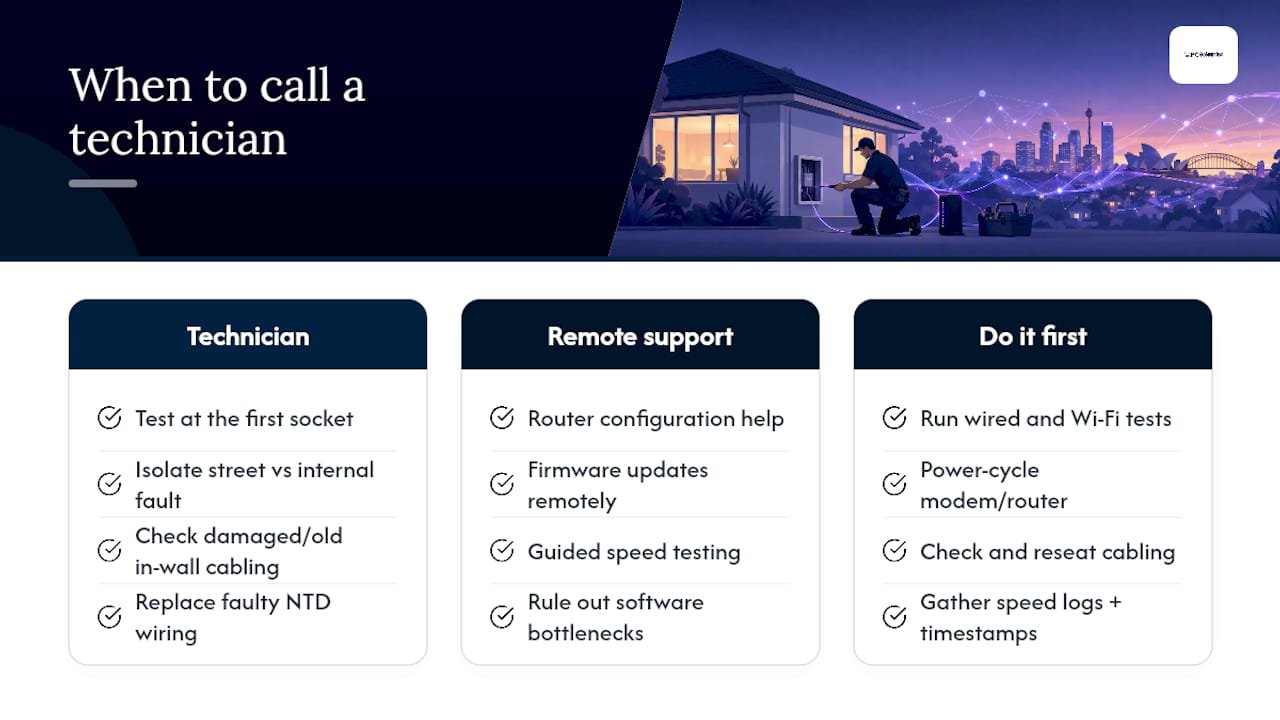
If you've run wired and Wi-Fi tests, power cycled everything, and checked your cabling, and speeds are still well below what you're paying for, it's worth bringing in someone who can look at what's actually happening in the wall.
Technicians can test at the first socket to isolate whether the fault is in the street connection or your internal wiring, check for damaged or outdated cabling behind walls, and replace faulty NTD wiring where needed. For issues that don't need a physical visit, remote support covers router configuration, firmware updates, and guided speed testing to rule out software-side bottlenecks like background updates or malware quietly consuming bandwidth.
Before booking, gather your speed test logs with timestamps, note which rooms and times of day are worst, and mention what you've already tried. If your symptoms are Wi-Fi weak in one room only, a technician visit usually resolves it in one session. If speeds are capped everywhere including wired, that's a stronger sign of a provider or cabling fault worth investigating before paying for a callout.
Quick troubleshooting checklist to run right now
Run this in order before calling anyone. Most fixes resolve within the first three steps.
- Power cycle properly: unplug the modem, wait 30 seconds, plug it back in and let it fully reconnect, then power cycle the router the same way.
- Run a wired Ethernet test next to the router. nbn's own guidance recommends rebooting the modem/NTD first, then the router, in that order.
- Move the router to a central, elevated spot and switch your device to the 5 GHz band if you're close to it.
- Run a channel scan in your router's admin panel if you live in a unit or crowded street.
- Isolate the problem device or room by testing Wi-Fi in different locations and noting the results.
The ACCC's Measuring Broadband Australia program tracks exactly this kind of busy-hour and equipment gap, evidence that a proper test, not a guess, is what actually separates a real fault from normal evening congestion. If none of this helps, you've already got the logs an ISP or technician will ask for.
Where to check the official numbers yourself
For a second opinion beyond this checklist, the ACCC's broadband performance data shows how individual retail providers perform during busy hours across the country. The ACMA's home internet guidance covers cabling standards and socket placement in more technical detail than most households need day to day. Choice's Wi-Fi troubleshooting guide and nbn's own FAQ on service issues are both worth bookmarking if problems recur.
Our take: stop guessing, start logging
Most advice on slow home internet tells you to restart your router and hope. That's fine as a first step, but it's not troubleshooting, it's a coin flip. What actually separates a five-minute fix from a week of frustration is evidence: a wired speed test, timestamped, repeated at the same time each evening for several days.
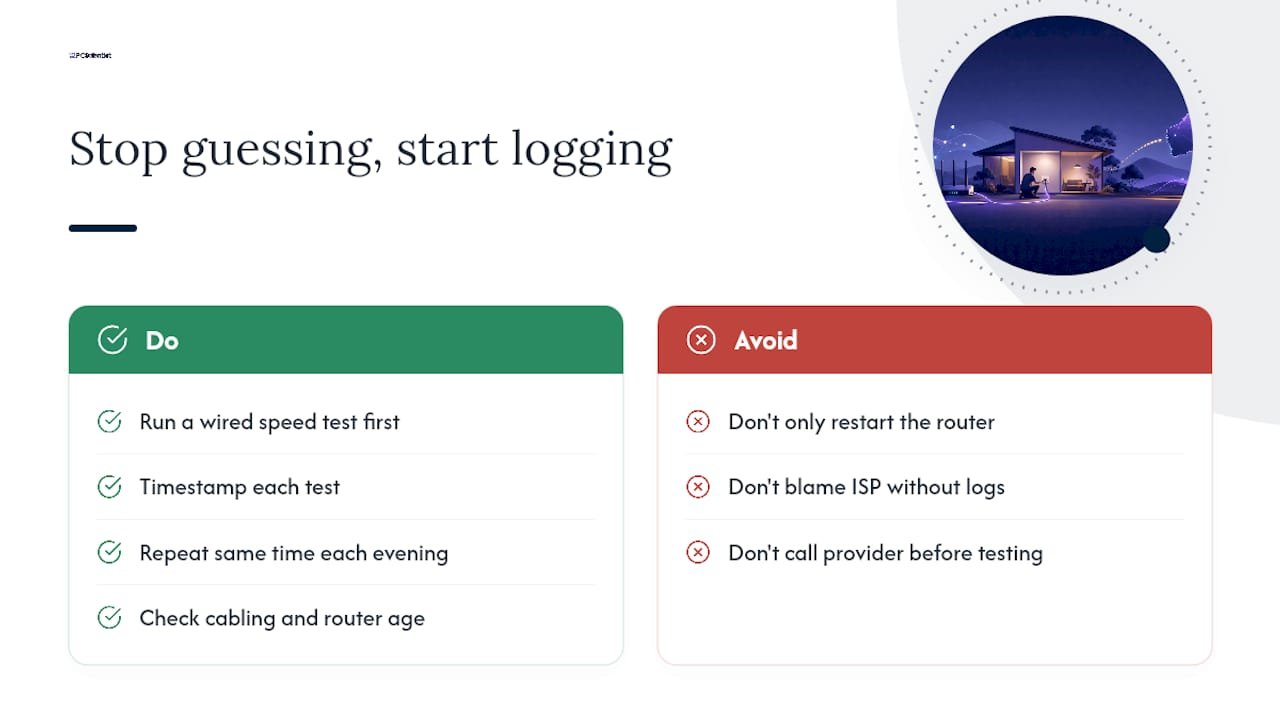
We think the conventional advice undersells how often the real fault sits in cabling or an outdated router rather than the plan itself. Households blame their provider for months when a $15 CAT6 cable or a four-year-old router was the actual ceiling. Equally, plenty of people ring their ISP demanding answers when the numbers show a completely normal busy-hour dip that everyone on their street is experiencing.
Prioritise the wired test first, always. It tells you in five minutes whether you're arguing with the right party. If it's clean and the fault is in Wi-Fi coverage or cabling, that's a fixable, physical problem. If it's slow everywhere including wired, that's a conversation for your provider, backed by logs rather than frustration.
- PC Scientist
Get a technician to sort it properly
Reading a checklist only gets you so far when the fault is behind a wall or buried in old cabling. This is a practical alternative to another round of live chat with your provider. A technician can be sent to test at the first socket, check your internal wiring, and replace whatever's actually causing the bottleneck, rather than asking you to keep restarting things and hoping. For issues that don't need a visit, remote support can reconfigure your router, update firmware, and run guided speed tests to rule out software causes.

If you've already run the wired test from this guide and it's still not adding up, book an onsite visit through Computer Support Scientist for a proper look at your home setup, or check our network and Wi-Fi assessment service if you want the whole house properly mapped out. Bring your speed test logs and the times you noticed the slowdown, it saves everyone time.
Sources
- Improving your home internet | ACMA
- Measuring Broadband Australia report (Dec 2025)
- Common Wi‑Fi problems and how to fix them | Choice
- Resolving service issues: 8 FAQs answered | nbn
Recommended
- Home Wi-Fi setup: get online in under 30 minutes
- Wi-Fi keeps dropping? Here's what actually fixes it
Frequently Asked Questions
Straight answers about Fix slow home internet in Australia: 5 minute wired test first - without jargon or pressure. Call 0493 563 381 for advice, or get help below.
Want the quickest answer? 0493 563 381 for free advice.
It's usually one of two things: an in-home issue like router placement, old cabling, or too many connected devices, or provider congestion during busy hours. A wired Ethernet speed test next to your router tells you which one you're dealing with.
If the slowdown is recent and happens mainly in the evening, it's often busy-hour congestion, which the ACCC's performance data shows varies by provider. If it's slow all day, check your router's firmware and cabling first.
A sudden drop usually points to a fault rather than normal congestion, particularly if wired speeds have also dropped. Run a timed speed test, save the results, and request an nbn fault check through your provider if the wired test confirms the shortfall.
Start with a proper power cycle of the modem and router, then run a wired speed test to isolate whether the fault is inside your home or with your provider. From there, move the router to a central spot, switch to the 5 GHz band where possible, and check your cabling before assuming you need a new plan.
If your household runs more than a dozen connected devices or you've got a multi-storey home with weak coverage in some rooms, Choice recommends upgrading to Wi-Fi 6 or mesh over sticking with a single ageing router.
Wi-Fi help across NSW
Need a hand with slow internet at home?
If the steps above did not get Wi-Fi behaving, that is okay. Get help in your area and we will take it from here.
Start here
Get Wi-Fi help
Optional Need a Sydney city or region?
Choose a side of Sydney
These are Sydney cities and regions, such as the Northern Beaches or Inner West. First tap a side of Sydney. Then open the city or region that covers you.
C Sydney City / Inner 3 areas
N Northern Sydney 6 areas
NW North-West / Central Sydney 3 areas
W Western Sydney 1 area
SW South-West Sydney 3 areas
S Southern Sydney 2 areas
Optional Find your suburb
Type a suburb from our listed coverage. This opens the matching city or region page for this topic. Listed suburb pages are general technology services, not this specialist page.
If your suburb is not listed, use the city or region list above, or call 0493 563 381.
Disclaimer
The information in this article is provided for general educational and informational purposes only. While PC Scientist strives to keep all content accurate and up to date, technology issues can vary depending on your device, software, network configuration, and individual circumstances. Always back up important data before attempting repairs or system changes. If you are unsure or the issue cannot be resolved safely, contact PC Scientist today for professional onsite or remote IT support. PC Scientist is not liable for any loss of data, damage, or other issues resulting from the use of the information provided in this article.
