

Windows won't boot? Try this fix order first
If Windows won't boot, work through this order: unplug USB devices and power cycle, let Startup Repair run from the Windows Recovery Environment, then move to BOOTREC and CHKDSK if Startup Repair fails. Most boot failures come from a corrupted boot record, a bad system file, or a peripheral confusing the firmware, not a dead hard drive.
Try these first, in this order:
-
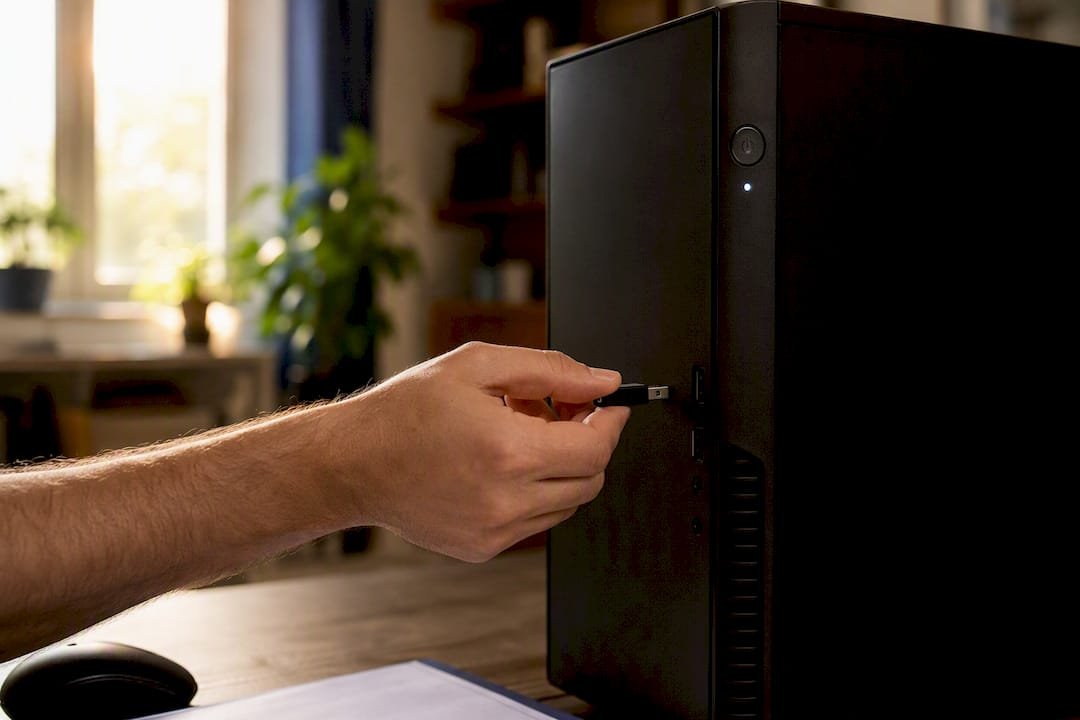
Unplug every USB drive, external hard drive, and unnecessary peripheral, then restart.
-
Hold the power button sufficiently long to fully power down, wait briefly, then turn it back on.
-
Let Windows attempt Startup Repair automatically. If it doesn't trigger, interrupt the boot twice by holding the power button during startup.
-
Check your BIOS/UEFI boot order hasn't switched to the wrong drive.
-
If none of that works, you're heading into WinRE for Startup Repair or the BOOTREC/CHKDSK commands covered below.
If you see grinding noises, burning smells, or a drive that won't show up in BIOS at all, skip the software fixes and jump to the hardware diagnostics section further down, or get a technician to look at it before you lose data.
Key Takeaways
Most boot failures resolve through phase identification followed by Startup Repair, and only need BOOTREC or CHKDSK when the boot manager or file system itself is damaged.
| Point | Details |
|---|---|
| Identify the failing phase first | Match your symptom (POST, boot manager, loader, kernel) to narrow down the right fix before trying anything. |
| Try low-risk fixes before recovery tools | Unplug peripherals, power cycle fully, and check BIOS boot order before opening a command prompt. |
| Run WinRE tools in order | Try Startup Repair first, then BOOTREC, then CHKDSK, SFC, and DISM if the problem persists. |
| Image the drive before risky writes | Clone a failing or suspect drive before running commands that write to the boot sector. |
| Call PC Scientist when DIY stalls | PC Scientist handles hardware diagnostics, drive cloning, and BCD rebuilds when repeated repairs fail. |
Table of Contents
- What to do when Windows 11 won't boot at all
- Quick checks before you touch recovery tools
- How to access Windows Recovery Environment and run Startup Repair
- Command-line recipes for BOOTREC, CHKDSK, SFC and DISM
- Matching symptoms to the right fix
- Ruling drives, memory, and firmware in or out
- When to stop troubleshooting and call a technician
- Stopping the next boot failure before it happens
- A technician's take on boot troubleshooting
- Get it fixed without the guesswork
- Sources
- FAQ
What to do when Windows 11 won't boot at all
Every Windows startup goes through four distinct phases, and figuring out which one is failing tells you exactly which fix to reach for. Guess wrong, and you'll waste an hour running commands that were never going to help.
PreBoot. This is the firmware stage, before Windows even starts loading. Your motherboard runs its Power‑On Self Test (POST), checks connected hardware, and hands control to the boot manager. If this phase fails, you won't see a Windows logo at all, just a blank screen, beep codes, or a firmware error message.
Boot Manager. Windows Boot Manager reads the Boot Configuration Data (BCD) to find your Windows installation and load the boot loader. A corrupted BCD or a boot manager that can't find the OS produces messages like "Bootmgr is missing" or "No boot device found."
OS Loader. Winload.exe takes over here, loading the Windows kernel and essential drivers. Problems at this stage often show up as a stop error (a Blue Screen) referencing a missing or corrupt file, or the system rebooting in a loop right after the Windows logo appears.
Kernel initialisation. The kernel starts loading drivers and services to bring the full OS online. If a driver conflict or corrupted system file causes a crash here, you'll typically see a Blue Screen with a specific stop code rather than a silent freeze.
Practical troubleshooting almost always starts with identifying which phase failed, because a firmware problem needs a completely different fix to a corrupted system file three phases later.
Here's how the symptoms map out:
- No POST, no lights, no fans spinning: power supply or motherboard issue, not a Windows problem at all.
- POST completes but "No boot device" appears: boot manager can't locate the drive, often a BCD or connection issue.
- Windows logo appears then a Blue Screen or reboot: loader or kernel phase, usually pointing to drivers or system files.
- Blinking cursor on a black screen: boot manager found something but can't proceed, frequently a corrupted boot sector.
One detail catches a lot of people out: an interrupted power event during startup can trip a boot status flag and launch WinRE automatically even when the drive itself is perfectly healthy. Before you run anything that writes to your boot sector, it's worth ruling that out first.
Quick checks before you touch recovery tools
A surprising number of "Windows won't boot" calls get resolved before anyone opens a command prompt. Work through these in order and check the result after each step.
- Disconnect everything non‑essential. Unplug USB drives, printers, external monitors, and card readers. A device your BIOS is trying to boot from ahead of your hard drive is one of the most common causes of a stuck startup.
- Power cycle properly. Hold the power button until the device shuts off completely, then wait briefly before restarting. This clears temporary firmware states that a normal restart won't touch.
- Reseat internal drives if you're comfortable opening the case. A SATA or NVMe cable that's worked loose is a common, boring cause of "No boot device" errors.
- Check your BIOS/UEFI boot order. A firmware update, a new peripheral, or even a stray keypress can shift the boot priority away from your Windows drive.
- Try Safe Mode. If you can get to the Advanced Startup menu, Safe Mode loads a minimal driver set and can confirm whether a recent driver or app is the culprit.
If there's data on that machine you can't afford to lose, stop here and back off from anything more invasive until you've read the data recovery section below.
Dell's own support documentation lists this exact sequence, unplugging externals, hard resetting, and checking drive detection in firmware, before recommending any software‑level repair, and it resolves more cases than most people expect.
Pro Tip: Nine times out of ten when someone tells us their PC is "stuck on boot," there's a USB stick or external drive still plugged in from the last time they used it. The firmware tries to boot from it, fails silently, and the screen just sits there. Always check the ports first.
How to access Windows Recovery Environment and run Startup Repair
Windows Recovery Environment (WinRE) is the built‑in toolkit that handles most boot failures without needing installation media. It includes Startup Repair, System Restore, and a Command Prompt for the manual fixes covered further down, and it's designed to trigger automatically after two failed boot attempts in a row.
If it doesn't launch on its own, you've got several ways in:
- Interrupt the boot twice. Turn the PC on, then hold the power button to force a shutdown as soon as you see the Windows logo. Repeat once more. On the third attempt, Windows should drop into Automatic Repair.
- Shift + Restart, if you can still reach the sign‑in screen or desktop, holds Shift while clicking Restart to boot straight into Advanced Startup.
- Settings > System > Recovery, if Windows is at least partially usable, has an "Advanced startup" option with a Restart Now button.
- A dedicated recovery button or key combination, on some laptops, F11 or a physical recovery button during startup opens the manufacturer's recovery partition directly.
- Bootable USB installation media, covered in the next section, if none of the above get you anywhere.
Once you're in WinRE, go to Troubleshoot > Advanced Options > Startup Repair. It scans for the usual suspects: corrupted BCD, damaged Master Boot Record, missing system files, and registry errors, then attempts an automatic fix.
Startup Repair attempts to fix the problem and generates a diagnostic report if unsuccessful, which helps technicians identify the fault.
Two warnings worth knowing before you start. First, if your drive has BitLocker encryption, some repair actions will demand your recovery key. Have it ready (check your Microsoft account or printed copy) before you begin, because getting locked out mid‑repair is its own headache. Second, watch for an automatic repair loop, where Startup Repair fails, reboots, and tries again endlessly. Break it by choosing "Advanced options" the moment the repair screen reappears rather than letting it retry automatically.
Command-line recipes for BOOTREC, CHKDSK, SFC and DISM
When Startup Repair can't fix things on its own, the WinRE Command Prompt gives you the same tools a technician would reach for. Open it via Troubleshoot > Advanced Options > Command Prompt, and work through these in order rather than trying everything at once.
1. Repair the boot code and BCD with BOOTREC.
bootrec /fixmbr
bootrec /fixboot
bootrec /rebuildbcd
/FixMbr writes a fresh Master Boot Record without touching the partition table. /FixBoot writes a new boot sector. /RebuildBcd scans your drives for Windows installations and rebuilds the Boot Configuration Data from scratch. These three commands are the standard sequence when the boot manager can't find or load Windows.
2. Inspect the BCD directly with BCDEdit if you need finer control:
bcdedit /enum
This lists current boot entries so you can see whether the OS entry is missing, pointing to the wrong partition, or duplicated. BCDEdit is a scalpel compared to BOOTREC's sledgehammer, useful once you know exactly what's wrong.
3. Check and repair the file system with CHKDSK. First identify your Windows drive letter (it's often D: or E: in WinRE, not C:), then run:
chkdsk C: /f /r
This scans for bad sectors and file system errors, which is exactly the kind of corruption that produces a blinking cursor or a "No boot device" message even though the drive is physically fine.
4. Verify system files with SFC. From an offline WinRE prompt, you need to point SFC at the offline Windows installation:
sfc /scannow /offbootdir=C:\ /offwindir=C:\Windows
5. Restore the Windows image with DISM if SFC reports errors it can't fix on its own, run this from the full desktop after you've regained access, since DISM needs an internet connection or install media as a source:
DISM /Online /Cleanup-Image /RestoreHealth
Run these in the order given: BOOTREC first, then CHKDSK, then SFC, then DISM. A few things to keep in mind before you start typing:
- BOOTREC's
/FixMbrand/FixBootare low risk and reversible in practice, but they do write to the boot sector, so don't run them on a drive you suspect is failing until you've imaged it. - CHKDSK with
/rcan take a long time on a large or ageing drive. Don't interrupt it partway through. - If any command reports it "cannot lock the current drive" or similar, you're likely targeting the wrong drive letter. Double‑check with
diskpartandlist volumebefore retrying.
Matching symptoms to the right fix
The exact error you're staring at tells you a lot about what's actually broken, and it saves you from running commands that were never going to help.
| Symptom | Likely cause | Try this |
|---|---|---|
| "Bootmgr is missing" | Corrupted or missing boot manager files | bootrec /fixboot then /rebuildbcd |
| "No boot device found" | Wrong boot order, loose cable, or dead drive | Check BIOS boot order and physical connections first |
| Blinking cursor, black screen | Boot manager found a drive but the boot sector is damaged | bootrec /fixmbr then /fixboot |
| Blue Screen with a stop code | Driver, storage controller, or system file fault at the loader/kernel phase | Note the stop code, then run CHKDSK and SFC |
| Automatic repair loop | Startup Repair keeps failing and restarting | Interrupt to Advanced Options, review SrtTrail.txt |
Stop codes are worth reading properly rather than dismissing as random gibberish. 0x0000007B, labelled INACCESSIBLE_BOOT_DEVICE, typically points to file system corruption, a missing or corrupted storage driver, or an incorrect storage controller mode in firmware (AHCI versus RAID, most commonly). Technicians read the stop code first precisely because it narrows the fix to driver, controller, or file system, rather than starting from scratch.
As a general rule: a message about a missing device or wrong boot order usually means hardware or firmware settings. A stop code that appears well after the Windows logo, referencing a specific file or driver, usually means software, and responds to the SFC/DISM combination above.
Ruling drives, memory, and firmware in or out
Software fixes go nowhere if the actual problem is a failing drive or bad memory stick. Before you sink another hour into command prompts, rule hardware in or out.
Start with firmware. Enter BIOS/UEFI setup (usually Del, F2, or F10 at startup) and check whether your drive is even detected. If it's missing from the list entirely, that's a strong signal pointing to a connection or hardware fault rather than anything Windows can fix. While you're in there, note the boot order and reset to defaults if settings look wrong after a firmware update.
From there:
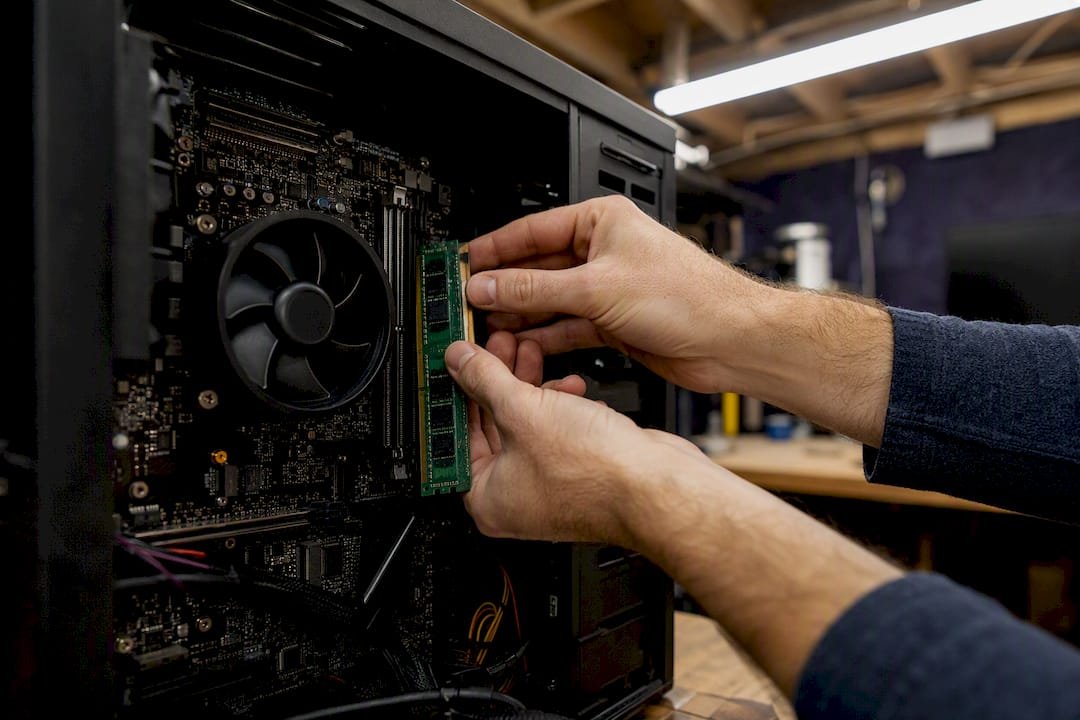
- Reseat the drive. For desktops, disconnect and reconnect the SATA or NVMe cable. For laptops, this usually means a trip to a technician.
- Run built‑in diagnostics. Most motherboards and laptops include a hardware self‑test accessible at startup (often F12 or a dedicated diagnostics key), covering drive, memory, and battery health.
- Test memory with Windows Memory Diagnostic or a tool like MemTest86, run overnight if you can, since intermittent RAM faults don't always show up in a quick pass.
- Check the power adapter and cable, especially on laptops, since a failing charger can cause shutdowns mid‑boot that look exactly like a software crash.
If your drive's SMART status comes back as failing, or firmware simply can't see it at all, that's your answer: the drive needs replacing, not repairing. At that point, clone it (or attempt to) before doing anything else, since every write operation reduces your odds of recovering what's on it.
Pro Tip: A failing drive that "sometimes" shows up in BIOS is often worse news than one that never shows up at all. Intermittent detection usually means the drive is dying, not just misconfigured, and every reboot is another chance for it to fail permanently.
When to stop troubleshooting and call a technician
Some situations are worth recognising early, before you've spent hours on fixes that were never going to work, or worse, made data recovery harder.
Call for professional help if you're seeing any of these:
- SMART failures that keep recurring after a reseat or cable swap.
- A drive that won't show up in BIOS/UEFI no matter what you try.
- Physical damage: clicking, grinding, or a drive that's been dropped or exposed to liquid.
- BOOTREC, CHKDSK, and Startup Repair have all been tried and none of them stuck.
- A RAID array or BitLocker‑encrypted drive where you don't have the recovery key.
- You simply don't have time to keep troubleshooting and need the machine working today.
A technician's process usually starts where yours left off: bench diagnostics on the drive itself, cloning it before attempting anything risky, offline BCD rebuilds, and secure data extraction if the drive is failing. From there it's either a repaired boot, a fresh reinstall with your data restored, or a full image recovery onto a new drive.
If there's data you can't lose, PC Scientist's data recovery service clones the drive first and works from the clone, so the original stays untouched. Costs and outcomes vary depending on drive condition, so it's worth getting an assessment before assuming the worst.
Stopping the next boot failure before it happens
The fastest fix for a boot failure is not needing one. A recent system image backup turns a multi‑hour repair job into a 20‑minute restore, and it costs nothing but a bit of drive space.
- Keep both a file backup (documents, photos) and a full system image, stored on an external drive or cloud service, not just the same PC.
- Update storage drivers and firmware when your manufacturer releases them, since outdated storage drivers are a recurring cause of INACCESSIBLE_BOOT_DEVICE errors.
- Create a bootable USB recovery drive now, while everything works, rather than scrambling for one during an outage.
- Store your BitLocker recovery key somewhere accessible outside the PC itself.
A technician's take on boot troubleshooting
Every boot fault gets the same first question from us: which phase failed? That single check separates a five‑minute firmware fix from a job that needs a cloned drive and careful command work. We check the low‑risk stuff first, always, and we image a drive before running anything that writes to it. Data survives more often when nobody rushes the diagnosis.
Get it fixed without the guesswork
Reading through BOOTREC syntax and stop codes at 11pm because your PC won't start is not most people's idea of a good night, and you shouldn't have to become a systems administrator just to get back to work. PC Scientist handles the exact repair path covered in this guide, phase identification, WinRE recovery, command line fixes, and hardware diagnostics, onsite or remotely across NSW, so you get a working PC back without burning a weekend on it.

If there's a chance your data is at risk, that's the moment to stop DIY repairs and get it looked at properly rather than pushing further. Our computer support service covers everyday boot failures for homes and small offices, while our computer repair service handles drive and hardware faults that need bench diagnostics. Book a visit or a remote session, tell us what you've already tried (this guide is a good starting point), and we'll pick up from there rather than starting over.
Sources
- Windows Recovery Environment
Recommended
- Business Tech for NSW Owners | PC Scientist
- Computer Repair Scientist | Laptop & Desktop Hardware Help NSW | PC Scientist
- Custom PC vs Prebuilt in NSW: What's Better for Gaming, Work or School?
- Custom PC vs Prebuilt in NSW: What's Better for Gaming, Work or School?
Frequently Asked Questions
Straight answers about Windows won't boot? Try this fix order first - without jargon or pressure. Call 0493 563 381 for advice, or get help below.
Want the quickest answer? 0493 563 381 for free advice.
The power supply and firmware are working, but something is failing further along, most often a corrupted boot manager, damaged system files, or a drive that firmware can't properly read. Identify which startup phase is failing first to narrow down the fix.
Unplug all USB devices and peripherals, then do a full power cycle by holding the power button for 10 seconds. This resolves a surprising number of cases before you need any recovery tools.
Interrupt the normal startup twice by holding the power button as soon as the Windows logo appears, and Windows should automatically launch into Automatic Repair on the third attempt. You can also hold Shift while clicking Restart from the sign-in screen if you can reach it.
Open Command Prompt from WinRE's Advanced Options, then run bootrec /fixmbr, bootrec /fixboot, and bootrec /rebuildbcd in that order to repair the boot record. If the drive still won't boot, follow up with CHKDSK to check the file system and SFC to verify system files.
If BOOTREC, CHKDSK, and Startup Repair have all failed, or your drive shows SMART failures or isn't detected in BIOS at all, stop before you risk the data further. PC Scientist can clone the drive, run offline BCD rebuilds, and recover data safely from that point.
Computer repair across NSW
Still stuck when Windows will not boot?
If the steps above did not get the repair sorted, that is okay. Get help in your area and we will take it from here.
Start here
Get computer repair
Optional Need a Sydney city or region?
Choose a side of Sydney
These are Sydney cities and regions, such as the Northern Beaches or Inner West. First tap a side of Sydney. Then open the city or region that covers you.
C Sydney City / Inner 3 areas
N Northern Sydney 6 areas
NW North-West / Central Sydney 3 areas
W Western Sydney 1 area
SW South-West Sydney 3 areas
S Southern Sydney 2 areas
Optional Find your suburb
Type a suburb from our listed coverage. This opens the matching city or region page for this topic. Listed suburb pages are general technology services, not this specialist page.
If your suburb is not listed, use the city or region list above, or call 0493 563 381.
Disclaimer
The information in this article is provided for general educational and informational purposes only. While PC Scientist strives to keep all content accurate and up to date, technology issues can vary depending on your device, software, network configuration, and individual circumstances. Always back up important data before attempting repairs or system changes. If you are unsure or the issue cannot be resolved safely, contact PC Scientist today for professional onsite or remote IT support. PC Scientist is not liable for any loss of data, damage, or other issues resulting from the use of the information provided in this article.