

Broken USB Port on Your Laptop? What to Check and Fix
Most laptop USB ports that stop working are not broken at all. Often it's a driver, a power setting, lint in the socket or a faulty cable. Sometimes, though, the socket really is damaged: loose, bent, or dead after a knock or a power surge. This guide shows you how to tell the difference in about fifteen minutes, which fixes are safe to try yourself, and when it's time to hand it to a technician.
Key takeaways
- Test the port with a different device, a different cable and a different port before you assume it's broken.
- Software causes are common: restart, update drivers, and check Windows power settings first.
- Clean only with a dry, soft tool and short bursts of compressed air. No liquids, no metal, no force.
- A loose, wobbly or bent port, or one that works only at an angle, is physical damage and needs a repair.
- If the USB-C port is your charging port, treat it as urgent, because a dead battery means no laptop.
Table of Contents
First, is the port really broken?
A failing port rarely announces itself neatly. Dell's troubleshooting guide lists the usual signs: a device that isn't detected, one that keeps connecting and disconnecting by itself, driver error messages, and slower-than-normal transfers. The messages you might see include "USB Device Not Recognized" and "Device Descriptor Request Failed".
Those signs point in two directions:
| What you notice | Most likely cause |
|---|---|
| One port dead, others fine | Dirt in that socket, or physical damage to it |
| All ports dead at once | Software, driver, power setting or BIOS setting |
| Device works in one port, not another | Port fault, or a port with different capabilities (common with USB-C) |
| Device works only when held at an angle | Worn or damaged connector |
| Error message but the device works on another computer | Driver or Windows setting on your laptop |
| Port gets warm, smells burnt or sparks | Electrical fault. Stop using it |
That last row is the exception to everything else here. If a port is hot, smells burnt or has been through a power surge, unplug everything, shut the laptop down and get it looked at rather than experimenting.
The three-question test
Before touching any settings, ask three things. They come from a USB diagnosis guide and they save a lot of guessing:
- Does the device receive power at all (a light, a charge, a spinning fan)?
- Does it work in another port, or on another computer?
- Does it work without a hub or dock in between?
If the device works elsewhere but not in your port, the fault is on the laptop side. If it fails everywhere, the device or cable is the culprit, and your laptop is fine. It sounds obvious, but it's the step people skip, and it's the one that most often ends the problem in two minutes.
Safe fixes to try yourself, in order
Work down this list. Stop when the port comes back.
1. Look, restart, swap
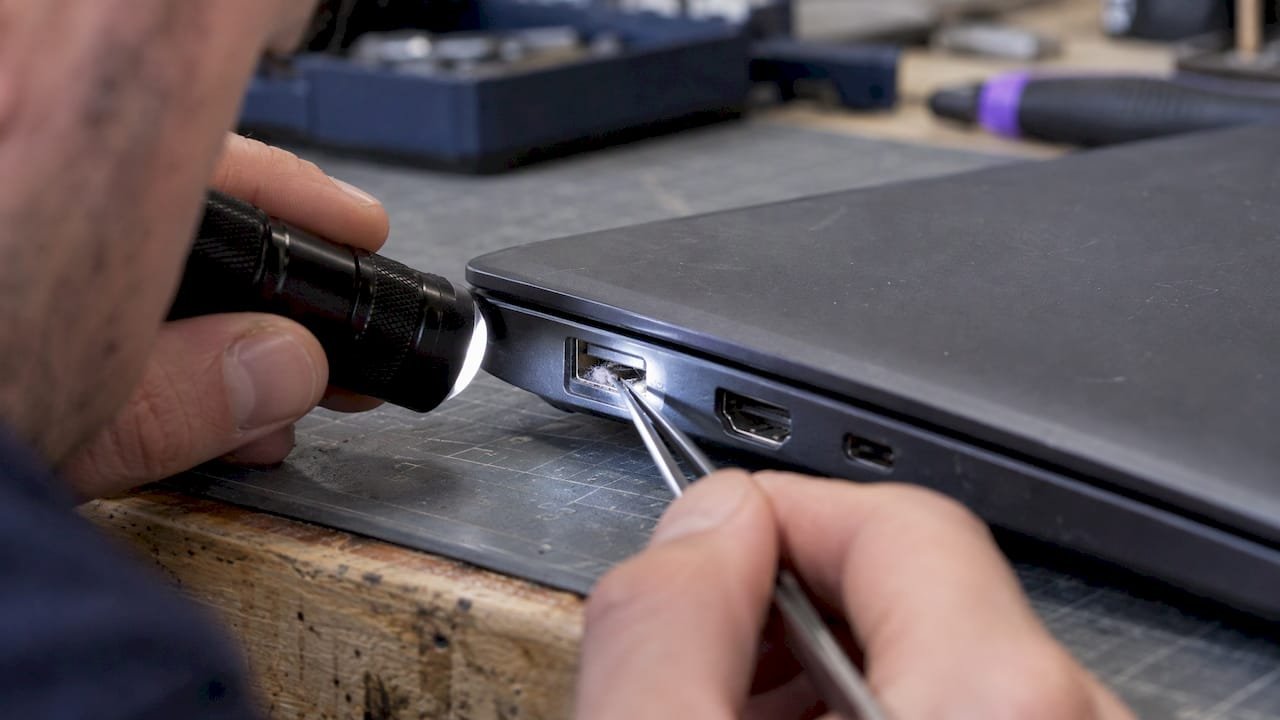
Unplug everything. Shine a torch into the port. You're looking for lint, crumbs, a bent tongue in the middle of the socket, or a plug that doesn't sit snug. Then restart the laptop and try a different port. Dell's guide starts exactly here: inspect the port and cable, restart, try another port.
While you're at it, try a different cable. Cables fail far more often than sockets do.
2. Clean it properly
Pocket lint packs into USB sockets over the years, especially on laptops that live in bags. A few safe rules, drawn from Engadget's cleaning guide and iFixit's port-cleaning guide:
- Switch the laptop off and disconnect anything plugged in first.
- Use short bursts of compressed air with the can held upright.
- Break up packed debris gently with a dry, soft toothbrush or a plastic or wooden toothpick, using light pressure.
- Never blow into the port with your mouth. Moisture from your breath can harm the contacts.
- Never use metal tools such as paperclips or safety pins, and avoid WD-40, cleaning sprays and cotton buds, which can leave residue or fibres behind.
If liquid has gone anywhere near the port, don't charge it. On Macs, Apple's guidance is to shut down, disconnect from power, leave it for at least a day, and check the port is dry before trying again. It also says not to use a heat source, compressed air or a bag of rice. The same caution applies to any laptop that's had a spill.
3. Check Windows power settings
Windows can switch USB ports off to save power, and sometimes it forgets to switch them back on. Dell's guide suggests adjusting power management so Windows can't turn the ports off, and disabling USB Selective Suspend. In Device Manager, you can also uninstall the USB controllers under "Universal Serial Bus controllers" and restart. Windows rebuilds them on boot, which fixes a surprising number of "dead port" cases.
4. Update drivers and BIOS
Update Windows, the chipset drivers and the BIOS from your laptop maker's support page. On Dell laptops, SupportAssist does this for you. Other brands have their own equivalent tool. Check also that USB ports haven't been disabled in the BIOS, which can happen after a reset or update.
5. Run the maker's built-in hardware test
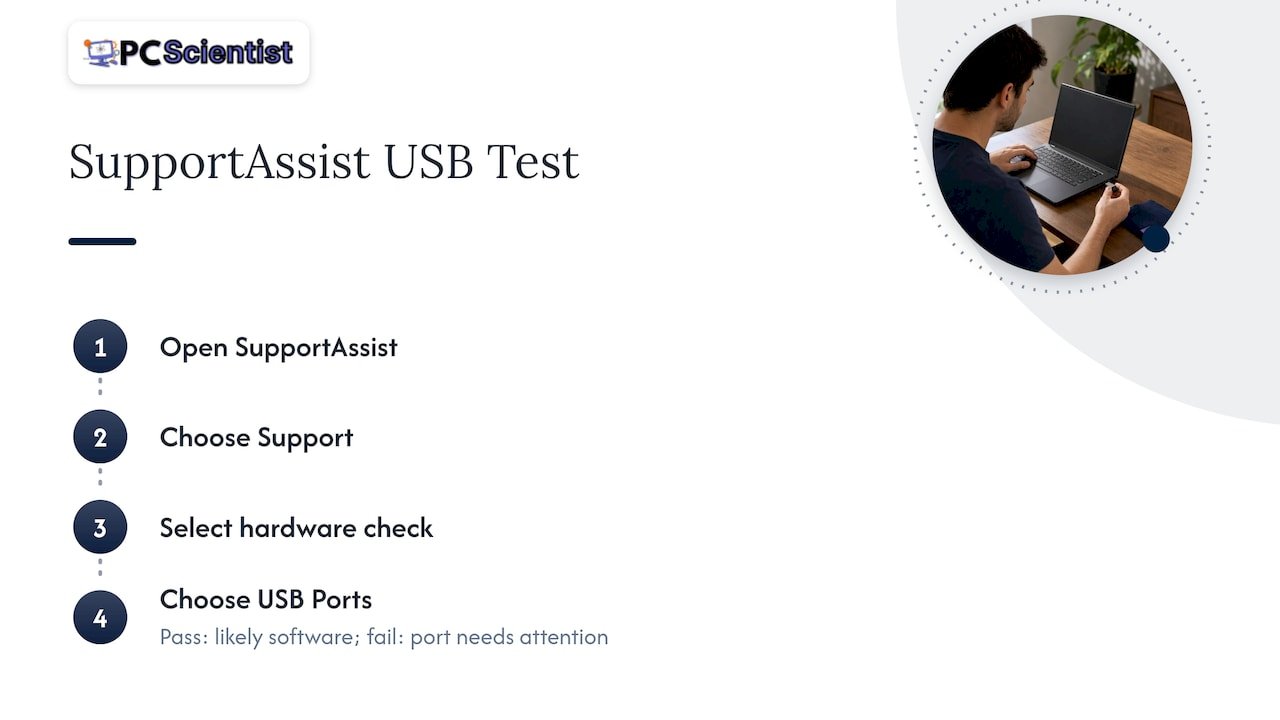
Most brands include a hardware diagnostic that tests the ports. On a Dell, the steps are: open SupportAssist, go to Support, choose to check a specific piece of hardware, then select USB Ports. A pass means the hardware is probably fine and the cause is software. A fail means the port itself needs attention.
If you want to see how a port is behaving in Windows, PCWorld explains how Device Manager shows a port's power state, and mentions a free tool called USBDeview for a more detailed view.
USB-C ports need extra thought
Two USB-C ports can look identical and do different jobs. One might charge the laptop and drive a monitor, the other might handle data only. The same goes for cables. So a USB-C "fault" is sometimes just a mismatch.
If the laptop won't charge through USB-C:
- Use a charger that matches the laptop's wattage. For Surface devices, Microsoft says to use a USB-C PD charger with at least the wattage of the power supply designed for your model.
- Plug devices straight into the laptop rather than through a hub, and use the cable that came with the device.
- Clear debris, reseat the plug firmly, try flipping the cable, and unplug the charger and cable for 10 to 15 seconds. PCWorld's USB-C charging tips cover each of these.
The same PCWorld article notes that excessive play in the plug, or charging only at an angle, can point to damage that needs professional repair. If your laptop is flat and won't power up at all, our guide on what to check when a laptop won't turn on covers the next steps.
Signs the port is physically damaged
Software fixes can't help when the hardware has failed. Treat the port as damaged if:
- The plug wobbles or sits loosely, or you can see the socket has moved inside the case.
- The connection drops when you nudge the cable.
- It only works if the plug is held at an angle.
- The metal tongue inside is bent, burnt or corroded.
- The port died right after a knock, a drop, a spill or a power surge.
One piece of guidance in the research is worth repeating: a port that is loose, bent, burned or corroded shouldn't be "adjusted" with household tools, and a connector should never be forced. Prying a socket with a pin or knife can turn a simple repair into a damaged motherboard.
What a repair involves
A broken USB port is usually a repairable fault, not a write-off. How it's fixed depends on how the port is built:
- Port on a small daughter board. On many models the USB sockets sit on a separate little board connected by a ribbon or cable. The technician swaps that board. It's the simpler job.
- Port soldered to the motherboard. The old socket is removed and a new one is soldered in. It's precision work, and it's the reason a pin-and-pliers fix at home so often goes wrong.
- Controller or power fault. If the problem is deeper, such as after a surge, it may be the circuitry behind the port. That's a diagnosis job, and it's where an honest assessment matters most.
We don't publish a flat price for USB port repairs, because the cost depends on your model, which of those three situations applies, and whether parts are available. What we do is assess first and quote before any work starts. Our repairs are no fix, no fee, and if a repair doesn't make sense for your laptop, we'll tell you.
Repair or replace?
That last point matters more than people expect. On a three-year-old laptop with one dead port, repair is usually sensible. On an older laptop that's also slow, has a tired battery and a cracked hinge, the numbers can tip the other way. Our repair or replace guide for Australian laptops walks through how to decide. If the battery is also on its way out, see laptop battery replacement, and if the machine runs hot, laptop overheating is worth a read, since heat shortens the life of every component.
Keeping things working while you wait
If the port you rely on is down and the repair is a few days away, you have workarounds:
- Use a different working port, or a hub plugged into a good one.
- Connect a mouse or keyboard over Bluetooth instead.
- Move files over Wi-Fi, cloud storage or an SD card slot if your laptop has one.
- Consider a keyboard with a built-in USB hub, which adds ports at your desk without relying on the laptop's own sockets.
If the port that failed was holding a drive with files you need, don't keep forcing the plug in. Back up what you can through another route first. And if a USB stick now shows as corrupted or asks to be formatted, don't format it: read our guide on imaging a corrupted USB before recovery.
Our view
We see this problem often, and the pattern is consistent. Around half the time, someone has already spent an evening poking at the port with a pin or a knife, and the cheap job has become a bigger one. The first rule is simple: if it's loose, bent or only works at an angle, stop pushing on it.
The other half is less dramatic. A driver, a power setting or a bit of pocket lint is causing it, and the fix takes minutes once someone checks the right thing in the right order. You shouldn't need to know which is which before you call. That's our job.
When you book us, we look at the whole machine, not just the one port, and we can handle other devices in the same visit. We explain what we found in plain English, give you the price before we start, and our repairs are no fix, no fee. If a laptop isn't worth repairing, we'll say so, and help you move your files and settings across.
PC Scientist
Need a hand with it?
If you've worked through the checks and the port still isn't right, or you'd rather not open up your laptop, we can help. Our Computer Repair Scientist service covers laptop repairs onsite across New South Wales, including the Central Coast, Sydney, Newcastle and Wollongong. Tell us the make, the model and what happens when you plug something in, and we'll take it from there.

Prefer to deal with someone local? We cover areas like the Central Coast, Western Sydney and the Northern Beaches. If your laptop is your livelihood and you need it sorted quickly, say so when you contact us.
Sources
- How to Fix USB Port Issues on Your Dell Computer (Dell US)
- How to Fix USB Port Issues on Your Dell Computer (Dell Australia)
- USB Ports Not Working on Windows (Dell Australia)
- How to check the power, current, and voltage of USB ports (PCWorld)
- USB-C not charging? Try these tricks (PCWorld)
- Troubleshoot problems with USB-C on Surface (Microsoft)
- How To Safely Clean Your USB Ports (Engadget)
- How to Clean the Ports on your Electronic Device (iFixit)
- If you see a liquid-detection alert on your MacBook (Apple Support)
- USB Port Not Working? Diagnose and Fix USB-A and USB-C
Recommended
- Laptop won't turn on? Here's what to check first
- Laptop Hinge Repair: Fix, Replace or Walk Away
- Laptop Overheating: Causes, Quick Fixes and When to Get Help
- Laptop Battery Replacement: When, How and What It Involves
Frequently Asked Questions
Straight answers about Broken USB Port on Your Laptop? What to Check and Fix - without jargon or pressure. Call 0493 563 381 for advice, or get help below.
Cracked screens Batteries Laptops Desktops Slow computers Whole NSW
Want the quickest answer? 0493 563 381 for free advice.
The most common causes are a driver glitch, a Windows power setting that has switched the ports off, or dirt in the socket. Restart, try another port and another cable, and check that the device works on another computer. If nothing helps and only one port is dead, the port itself may be damaged.
A loose port is a sign of physical damage, usually a worn connector or a cracked solder joint. Pushing, prying or using tools on it tends to make it worse. It's safer to stop using it and have it repaired, particularly if it's your charging port.
Often yes, especially when the rest of the laptop is in good shape. A dead port is usually a contained fault and doesn't mean the whole machine is finished. Where the laptop is old and has other issues, compare the repair against replacement before you decide.
Try a known-good device in each port, and test your device in another port and on another computer. Then run your laptop maker's hardware diagnostic, such as SupportAssist on Dell. In Windows, Device Manager shows the USB controllers and any error flags beside them.
Yes. A surge can damage the circuitry behind a port, and Windows may show a power surge warning on the port. If you see that message, unplug everything and have the laptop checked rather than trying the port repeatedly.
Computer repair across NSW
Still stuck with a broken USB port on your laptop?
If the steps above did not get the repair sorted, that is okay. Get help in your area and we will take it from here.
Start here
Get computer repair
Optional Need a Sydney city or region?
Choose a side of Sydney
These are Sydney cities and regions, such as the Northern Beaches or Inner West. First tap a side of Sydney. Then open the city or region that covers you.
C Sydney City / Inner 3 areas
N Northern Sydney 5 areas
NW North-West / Central Sydney 3 areas
W Western Sydney 1 area
SW South-West Sydney 3 areas
S Southern Sydney 2 areas
Optional Find your suburb
Type a suburb from our listed coverage. This opens the matching city or region page for this topic. Listed suburb pages are general technology services, not this specialist page.
If your suburb is not listed, use the city or region list above, or call 0493 563 381.
Disclaimer
The information in this article is provided for general educational and informational purposes only. While PC Scientist strives to keep all content accurate and up to date, technology issues can vary depending on your device, software, network configuration, and individual circumstances. Always back up important data before attempting repairs or system changes. If you are unsure or the issue cannot be resolved safely, contact PC Scientist today for professional onsite or remote IT support. PC Scientist is not liable for any loss of data, damage, or other issues resulting from the use of the information provided in this article.