

Ethernet Port Not Working? How to Find the Fault and Fix It
When the Ethernet port stops working, the fault is almost always in one of four places: the cable, the computer, the router's port, or the wall socket and cabling behind it. You can tell which in about ten minutes by swapping one thing at a time. This guide shows you the order that saves the most effort, what each result means, and the point where it is time to stop and call someone.
We do this work every week in homes and small offices across NSW, so we have written it the way we would talk you through it at your desk: calm, in plain words, one step at a time.
Key takeaways
- Push the cable in firmly at both ends, then try a different cable. A worn or loose cable is the most common culprit.
- Plug into a LAN port on the router, not the one labelled Internet or WAN, and look at the lights beside the port.
- Try a second device on the same cable and port. If it works, the fault is in your first computer. If it doesn't, look at the cable, router or wall.
- Wall sockets and permanent in-wall cabling are regulated work in Australia. Do the testing, but leave the repair to a registered cabler.
- Still stuck after the basics? That is the moment to book help rather than lose more of your day.
Table of Contents
- Start with the two-minute checks
- Read the lights and the Windows status
- Work out which part is at fault
- Fixes on the computer side
- Fixes on the router and modem side
- When the wall socket is the problem
- When it's time to replace the cable
- What to do, depending on who you are
- Our perspective
- Need a hand? We come to you
- FAQ
- Sources
Start with the two-minute checks
Before anything technical, rule out the simple things. They sound obvious, but they fix a surprising number of cases, and they also stop you chasing a complicated cause that doesn't exist.
- Reseat the cable at both ends. Microsoft advises connecting the cable firmly at both the router and the Windows PC. You should feel a small click when the plug locks in.
- Check you are in the right router port. Microsoft's guidance is to use one of the router's Ethernet (LAN) ports rather than the port marked Internet. Many routers have a blue or differently coloured port that looks identical but does something else entirely.
- Try another cable. If a different cable works, the first one is probably faulty. Use a cable you know works, such as the one from a TV or console that is currently online.
- Restart the modem and router. Turn them off at the power point, wait 30 seconds and switch them back on. Give them a few minutes to settle before you judge the result.
- Look at the port itself. Shine a phone torch into it. Bent pins, dust, or visible corrosion mean the port needs more than a cable swap.
If you want a quicker way to tell whether your problem is the wire or the wifi, our 5 minute wired test for slow internet uses the same logic.
Read the lights and the Windows status
Lights tell you a lot before you touch a single setting.
On most routers, each LAN port has a small light. Telstra says that when a computer is connected properly to a modem LAN port, the Ethernet light should be green and flashing, and you can confirm by opening a webpage. If nothing lights up, Telstra's advice is to turn the modem off, move the cable to a different Ethernet port, then turn the modem back on.
The computer has its own clue. In Windows, go to Settings, then Network & internet. Microsoft says Ethernet should show as Connected, and if it says Action needed, select Ethernet to view its settings. If Ethernet doesn't appear at all, the computer isn't detecting a connection, which usually points to the cable, the port or the adapter.
Here is a rough guide to what you are seeing.
| What you see | Most likely meaning | Next step |
|---|---|---|
| No light on the router port, other cables also dead in that port | Router port problem | Try another LAN port |
| No light on the router port, but the same port works with another device | Cable or computer problem | Swap the cable, then test another device |
| Light is on, Windows says Connected, but no internet | Router, provider or settings issue | Restart gear, check settings, run the nbn isolation test |
| Windows doesn't list Ethernet at all | Computer port or adapter fault | Check adapter, USB-to-Ethernet dongle, cable |
| Works in one room, dead from the wall socket | Wall socket or in-wall cabling | Test straight to the router, then involve a registered cabler |
Work out which part is at fault
The trick is to change one thing at a time and write down the result. Changing three things at once leaves you guessing which one helped.
Test a second device
Microsoft suggests testing another PC on the same network to help decide whether the problem is with the first PC, the router, your provider or an adapter. TP-Link puts it the same way: if another device works on the same cable and port, the problem is likely with the original device.
So take a laptop that you know works, plug it into the same cable and the same port, and see what happens.
- Second device works: your first computer is the problem. Go to the next section.
- Second device also fails: the cable, the port, the router, or the connection coming into the house is the problem.
Test a second port
Linksys says that if the same device works with the same cable on another LAN port, the original port may be damaged or malfunctioning. Most routers have four LAN ports, so you can usually just move to the next one and keep going. A single dead port on an otherwise healthy router is common and often perfectly livable.
Plug straight into the router
If your Ethernet comes from a wall socket in another room, the cable behind the wall is another suspect. Linksys recommends connecting directly to the router to rule out faulty in-wall wiring. Use a short, known-good cable, plug the computer into the router in the same room, and see if the connection comes up. If it does, the router and computer are fine and the wall run is where to look.
If you are comparing options for stubborn rooms, our guide on network cabling versus powerline explains how to choose between them.
Fixes on the computer side
If the second device works and yours doesn't, the problem is inside your computer or its settings. Work through these in order.
- Check the adapter. If you use a USB-to-Ethernet adapter, Microsoft lists it as one of the things that can cause trouble. Try a different USB port, or a different adapter if you have one.
- Set the device to get an IP address automatically. TP-Link recommends this setting on the device. A manually typed address left over from an old setup can stop a perfectly good cable from working.
- Turn off Wi-Fi briefly. Some computers get confused when both connections are active. Turning Wi-Fi off for a test shows you whether the wire works on its own.
- Reset the network stack. Microsoft lists commands to reset TCP/IP and flush DNS on its page. They are safe for most people, but if you are not comfortable typing commands, this is a good point to ask for a hand.
- Restart the computer. It still works more often than it should.
If the computer still can't see a wired connection after all that, the port on the computer may be faulty, or the network driver may be damaged. Both are repairs rather than settings, and both are quick for a technician with the machine in front of them. Our computer repair service covers laptops and desktops with this kind of fault.
Fixes on the router and modem side
If a second device fails too, look at the router. Two checks matter most.
The loopback test
NETGEAR describes a simple test to check a router's LAN port: connect the LAN port you are testing to the router's Internet (WAN) port with an Ethernet cable. If both matching lights come on, the ports should work. If a light stays off, that port might be faulty.
This only takes a minute and needs nothing but one short cable. Do it with the router powered on, and treat the result as one piece of evidence rather than the whole answer.
Check the nbn equipment
If your internet comes through the nbn, there are lights on the connection device too. Telstra says that if nbn equipment lights are off or red, turn the power off at the wall, wait 30 seconds, then turn it back on, and check the lights again after a few minutes.
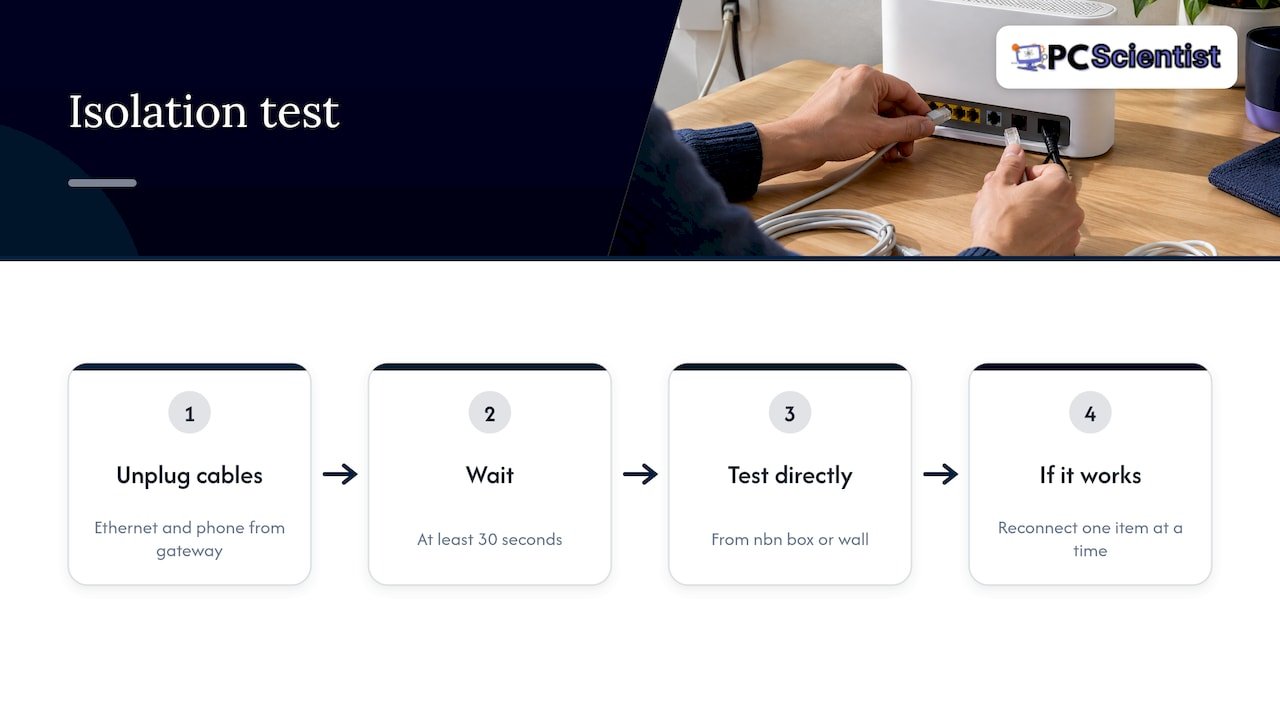
It also describes an isolation test. Unplug the Ethernet and phone cables from the gateway, wait at least 30 seconds, then test directly from the nbn connection box or wall connection. If it works directly, reconnect your equipment one item at a time to find the cause.
For homes on fibre to the curb, the nbn troubleshooting guide notes that the telephone cable to the wall should be secure and not pinched, kinked or bent, and the gateway's Ethernet cable should go into the correct WAN, Internet or nbn port. The same guide says older sockets may need an adapter and ADSL filters should be removed. If you have fibre to the premises, the nbn user guide says not to touch or unloop the fibre and to contact your service provider.
Not sure whether you even have the right box? Our piece on buying the wrong nbn device explains why most homes just need a router.
If the symptoms feel like general lag rather than a dead port, these quick network tests for video call lag help you tell a cable, port or modem problem from a wider connection issue.
When the wall socket is the problem
This is where DIY should stop short of the repair. Testing is fine. Opening the wall and rewiring is not.
In Australia, the ACMA says that cabling work not listed in Schedule 1 must be done by, or under the supervision of, a registered cabler under the Telecommunications (Types of Cabling Work) Declaration 2024. The ACMA's cabling provider rules also say a registered cabler performs telecommunications, fire, security and data cabling. Telecommunications cabling must generally be kept separate from electrical cabling, and the cabler prepares a written compliance statement after the job.
In practice that means:
- You can: swap patch cables, reseat plugs, test with another device, and plug straight into the router.
- Leave to a registered cabler: replacing or repairing a wall socket, re-terminating cable inside the wall, or running new cable. The ACMA lists socket installation, repair and maintenance among the services registered cablers provide.
If you are planning new cabling anyway, our guide on how to prewire a house for Ethernet shows what to plan before anyone picks up a drill.
When it's time to replace the cable
Cables do wear out. They get kinked behind desks, crushed by chair wheels, and yanked out of laptops until the clip snaps.
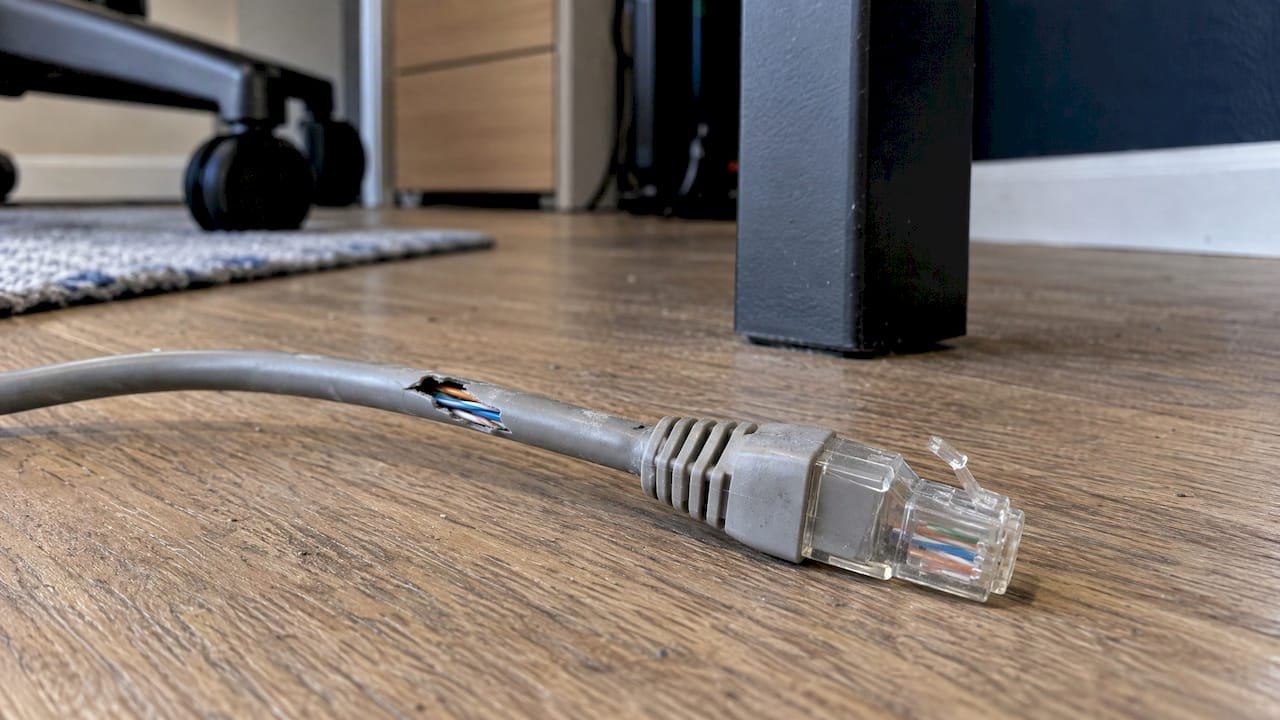
Telstra recommends replacing worn-out Ethernet cables, and says Cat5e or higher is needed for plans with download speeds over 100 Mbps. The category is printed on the cable itself, so you can read it without guessing. The ACMA also says that damaged or unsuitable home cabling can slow your internet, and that CAT5 or better is needed to carry data around the home.
A simple rule: if the clip is broken, the plug is loose, the outer sheath is cracked, or the cable has no printed category, replace it. A new patch cable is a small cost compared with an afternoon of troubleshooting.
What to do, depending on who you are
At home, one computer affected: Work through the cable swap, second device and computer-side steps. It is usually the cable or a setting.
At home, every wired device affected: Focus on the router, the nbn equipment and the isolation test. A single dead port is livable. A dead connection is a provider or equipment issue.
In a small office: A dead port can stop a till, a printer or a desk of staff. If one port goes, move the device to a spare port and note it down, then get the wall run or switch checked before the next bad day. Our Network Scientist service deals with exactly this kind of office network problem.
Helping a parent or grandparent: Ask them to read the lights to you over the phone, then walk them through the cable swap. If it isn't fixed in ten minutes, a visit is kinder than a long phone call.
Our perspective
Most people who call us about a dead Ethernet port have already tried the cable, and often a restart. What they haven't done is change one thing at a time, so they can't tell us what the fault actually is. That is the most useful thing you can do before you call: know whether a second device works on the same cable and port.
The other thing we see is people being nudged toward replacing a whole router or computer when a patch cable or a single port was the cause. We would rather find the real fault. Our approach is to check the whole path in one visit: the cable, the computer, the router and the wall, across all your devices, so you aren't booking three separate fixes.
We also draw a firm line at in-wall cabling. It is regulated work, and the right answer is a registered cabler, not a guess. When the fault is in a wall or a socket, we will tell you plainly and explain what is needed.
You also don't need to know the technical terms or pick the exact service before you contact us. Tell us what you see, and we will work out the rest.
PC Scientist
Need a hand? We come to you
If you have worked through the steps and the port is still dead, you have done the hard part: you know where it isn't. PC Scientist provides onsite and remote IT support across NSW, including Sydney, the Central Coast, Newcastle, Lake Macquarie, Wollongong and the Southern Highlands. Our approach is clear upfront pricing and no fix, no fee repairs, and we can look at several devices in a single visit.

For a computer that won't detect a wired connection, start with Computer Repair Scientist. For a router, wall socket or office network that keeps dropping out, Network Scientist is the one. If you aren't sure which fits, get in touch through our main site and describe what you see. That is enough to start.
Sources
- Fix Ethernet connection problems in Windows, Microsoft
- Connecting your computer to your modem via Ethernet, Telstra
- What to do if you have a problem with your nbn equipment, Telstra
- Great home internet starts with the right equipment, Telstra
- Ethernet Not Working? Wired and Wi-Fi fixes, TP-Link
- Ethernet Ports Not Working on Linksys Routers, Linksys
- Router port loopback test, NETGEAR
- nbn FTTC Troubleshooting Guide, nbn
- nbn FTTP user guide, nbn
- Improving your home internet, ACMA
- Cabling in your home or office, ACMA
- Telecommunications (Types of Cabling Work) Declaration 2024, ACMA
- Cabling provider rules, ACMA
Recommended
- Fix a Smart TV That Won't Connect to Wi-Fi in Under Five Minutes
- Wi-Fi keeps dropping? Here's what actually fixes it
- Fix slow home internet in Australia: 5 minute wired test first
- Smart TV Wi-Fi Dropping Out? Fixes That Work in Australia
Frequently Asked Questions
Straight answers about Ethernet Port Not Working? How to Find the Fault and Fix It - without jargon or pressure. Call 0493 563 381 for advice, or get help below.
Want the quickest answer? 0493 563 381 for free advice.
That usually means the internet itself is fine and the fault is in the wired path: the cable, the port or a computer setting. Try a different cable and a different router LAN port first. Then test a second device on the same cable. If the second device works, the issue is on your computer.
Move the same cable and device to another LAN port on the router. If it works there, the first port may be damaged. You can also do NETGEAR's loopback test, connecting a LAN port to the Internet port and checking that both lights come on.
There is no fixed lifespan. Cables fail from wear, kinks, crushed sections and broken clips rather than age alone. Telstra recommends replacing worn-out cables and using Cat5e or higher for plans faster than 100 Mbps. The category is printed on the cable.
You can test it by plugging straight into the router and trying a different cable. Repairing or replacing the socket or the cable behind the wall is cabling work, and under the ACMA rules it generally needs a registered cabler. Ask to see their registration before they start.
Check Settings, then Network & internet, to see whether Ethernet is listed. Then try another USB port or adapter if you use one, set the connection to obtain an IP address automatically, and restart. If it still fails, the port or network driver may need repair.
Network help across NSW
Still stuck with an Ethernet port that isn't working?
If the steps above did not get the network behaving, that is okay. Get help in your area and we will take it from here.
Start here
Get network help
Optional Need a Sydney city or region?
Choose a side of Sydney
These are Sydney cities and regions, such as the Northern Beaches or Inner West. First tap a side of Sydney. Then open the city or region that covers you.
C Sydney City / Inner 3 areas
N Northern Sydney 5 areas
NW North-West / Central Sydney 3 areas
W Western Sydney 1 area
SW South-West Sydney 3 areas
S Southern Sydney 2 areas
Optional Find your suburb
Type a suburb from our listed coverage. This opens the matching city or region page for this topic. Listed suburb pages are general technology services, not this specialist page.
If your suburb is not listed, use the city or region list above, or call 0493 563 381.
Disclaimer
The information in this article is provided for general educational and informational purposes only. While PC Scientist strives to keep all content accurate and up to date, technology issues can vary depending on your device, software, network configuration, and individual circumstances. Always back up important data before attempting repairs or system changes. If you are unsure or the issue cannot be resolved safely, contact PC Scientist today for professional onsite or remote IT support. PC Scientist is not liable for any loss of data, damage, or other issues resulting from the use of the information provided in this article.