
TV Says No Signal on HDMI? How to Fix It Fast

When your TV says "No Signal" while a box, console or laptop is plugged in over HDMI, the cause is usually something small: the wrong input, a loose plug, or two devices that have not finished introducing themselves. Most of the time you can sort it out in ten minutes with no tools. This guide takes you through the checks in the order that fixes the most problems first, then explains when it is time to get someone in.
If you are standing in front of a black screen right now, start at step one below and work down. Do not skip to the end.
Key takeaways
- Check the basics first: the source device is switched on and awake, and the TV is set to the same HDMI input the cable is plugged into.
- Re-seat the cable at both ends, then try a different HDMI port and a different cable to find out which part is at fault.
- Power cycle everything: unplug the TV and the source from the wall for about a minute, then start the TV first and the source second.
- Take out the middlemen (soundbar, receiver, switch) and connect the source straight to the TV. Most stubborn "handshake" faults live in the chain.
- If a known-good cable, port and device still give no picture, the fault is likely inside the TV or the source, and it is time for a service call.
Table of Contents
- Why your TV says No Signal
- Step 1: Check the input and the source
- Step 2: Re-seat the cable at both ends
- Step 3: Try another HDMI port and another cable
- Step 4: Power cycle everything in the right order
- Step 5: Remove the middlemen
- Step 6: Understand the HDMI handshake
- Step 7: If it is a computer or laptop feeding the TV
- Step 8: Streaming boxes and set-top boxes
- What we see and what we recommend
- When it is time to get help
- Need a hand? Let us come to you
- Prevent it happening again
- FAQ
- Sources
Why your TV says No Signal
The message does not mean the TV is broken. It means the TV is on an input where nothing useful is arriving. Sony's support guidance puts it plainly: a TV shows NO SIGNAL when it is not receiving a proper signal from its source, so you check that the connected device is on, the right input is selected and the HDMI connections are secure.
In practice the causes fall into four groups:
- Selection: the TV is looking at HDMI 2 and your device is on HDMI 3.
- Connection: a loose, worn or damaged cable, or a port that has stopped working.
- Source: the box, console or PC is off, asleep, frozen, or sending a format the TV does not like.
- Handshake: both ends are working, but they fail to agree on resolution, colour or copy protection.
The steps below follow that order, because it is the order of how likely each cause is and how quickly you can rule it out.
Step 1: Check the input and the source
It sounds too simple, but this is the most common fix. Use the Input, Source or TV/Video button on your remote and step through the options until you land on the one that matches the port your device is plugged into. The number is printed beside the socket on the back or side of the TV. Sony's guidance on this is to toggle through the inputs and pick the one matching the source, and to make sure the connected device is on and not sitting in standby.
Then look at the source itself:
- Is there a light on? A streaming box or console in deep standby can look off when it is not.
- Press a button on its own remote or controller to wake it.
- If it is a laptop or PC, wake it with the keyboard. LG notes that a computer entering sleep or hibernation can lose the connection, and that unplugging and re-plugging the HDMI cable can bring it back.
When the TV keeps switching input on its own
If the screen jumps to a different input without you touching anything, the cause may be HDMI-CEC, the feature that lets devices control each other. LG explains that a CEC-enabled device can cause the TV input to switch automatically. A console or streaming box turning on or off can drag the TV to its own input, or away from the one you wanted. Look in your TV's settings for a CEC option (each brand gives it its own name) and try switching it off to see if the behaviour stops.
Step 2: Re-seat the cable at both ends
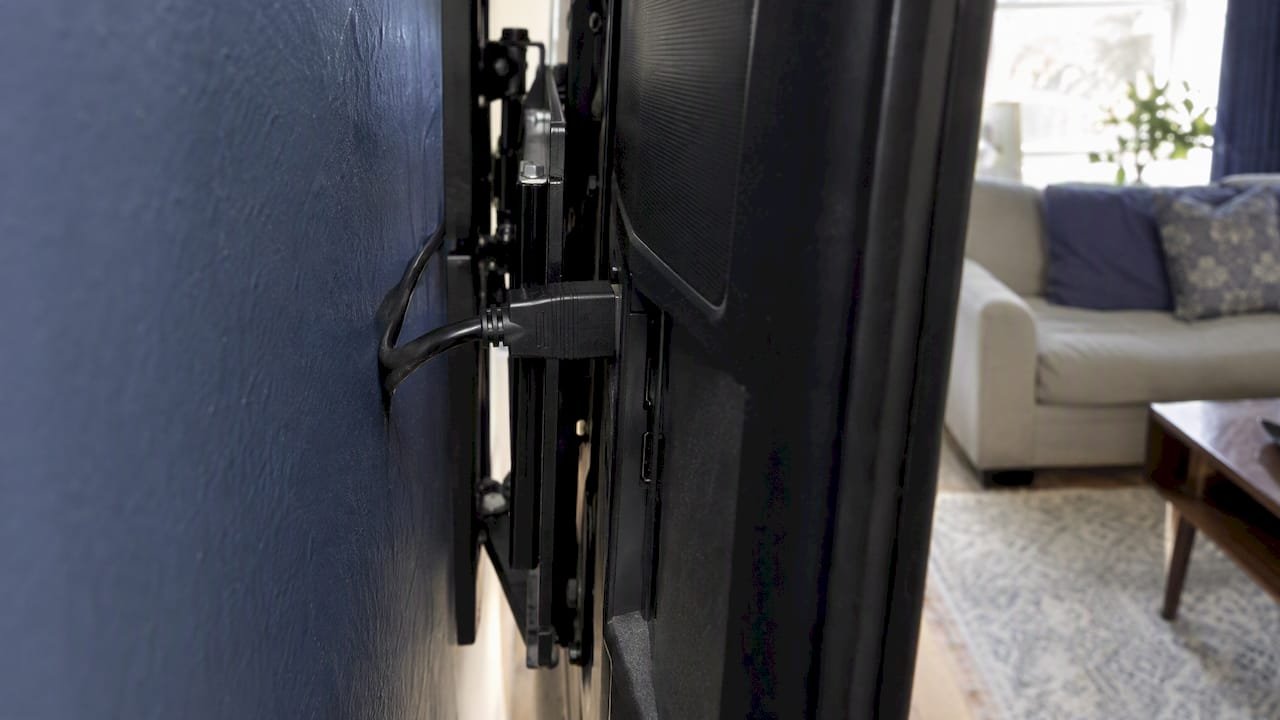
Unplug the HDMI cable from the TV and from the source, wait a few seconds, then push it back in firmly at both ends. The plug should seat fully with no wobble. This clears a surprising number of faults, especially in rooms where the TV has been moved, dusted behind or wall-mounted recently.
While you are there, look at the plug and the socket. Bent or loose contacts, a plug that falls out when the cable hangs under its own weight, or a cable pinched behind a wall mount are all signs the cable is the culprit.
Step 3: Try another HDMI port and another cable
Now separate the cable, the port and the device. This is the quickest way to find the weak link, and it is the same approach Foxtel's support team recommends: connect the cable to another TV input, select that input, and if needed try a replacement cable to see whether the cable or the input is faulty.
A simple way to read the results:
| What you try | If the picture comes back | What it points to |
|---|---|---|
| Different HDMI port on the TV | Yes | The first port has failed or is set up differently |
| Different HDMI cable | Yes | The original cable is damaged or not up to the job |
| Different device on the same port and cable | Yes | The first device has a fault or a settings problem |
| Same device on a different TV | Yes | Something in or at your TV is the issue |
| Nothing changes anywhere | No | Likely a fault in the source, or a deeper problem in the TV |
Two tips make this test more reliable. Change one thing at a time, so you know what fixed it. And use a cable you trust. Samsung recommends a certified HDMI cable that suits the connected device's specifications, which matters for 4K and high refresh rate gear. Some Samsung TVs also have a built-in HDMI Cable Test under Settings, then Support, then Device Care, then Self Diagnosis, which checks the cable for problems.
Step 4: Power cycle everything in the right order
This is the fix that quietly solves most "it worked yesterday" cases, because it forces both devices to start the HDMI conversation again from scratch.
- Turn off the TV and the source device.
- Unplug both from the wall power (not just the HDMI cable). Leave them for about a minute.
- Plug the TV back in and turn it on.
- Plug the source in and turn it on last.
The TV goes first so it is ready and listening when the source announces itself. CEDIA, the Australian home technology professionals' body, lists rebooting in reverse signal order among its standard steps for handshake faults. If you have a soundbar or receiver in the chain, the usual order is TV first, then the audio gear, then the source.
Step 5: Remove the middlemen
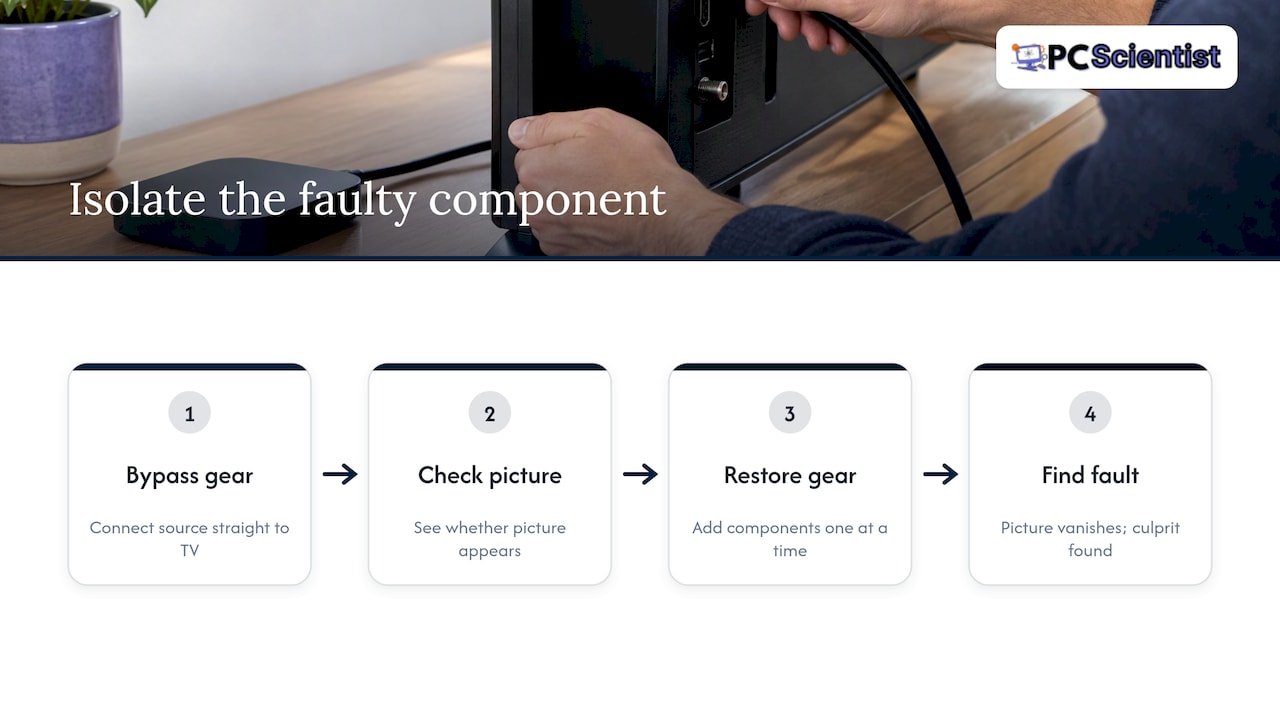
If you have a soundbar, AV receiver, HDMI switch or splitter between the source and the TV, take it out of the equation for a moment. Plug the source straight into the TV and see whether the picture appears.
This is official advice from more than one brand. Google says that when a switch, receiver or soundbar is involved, connect the streaming device directly to the TV, and also try another HDMI input and update the firmware on both the streaming device and the TV. Sony Australia suggests the same bypass for an A/V receiver, then testing another HDMI input and another known-working device to pin down whether the receiver, TV port, cable or source is at fault.
If the picture returns when you go direct, the problem sits in the gear you removed or in the cable between it and the TV. Put things back one at a time, and the moment the picture vanishes you have found the culprit.
Step 6: Understand the HDMI handshake
HDMI is not just a pipe for video. Before a picture appears, the source and the display swap information about which formats each supports and whether the content is protected. When that exchange fails, you get a black screen, a "No Signal" message, or a picture that flickers and drops out. That is what people mean by an HDMI handshake issue.
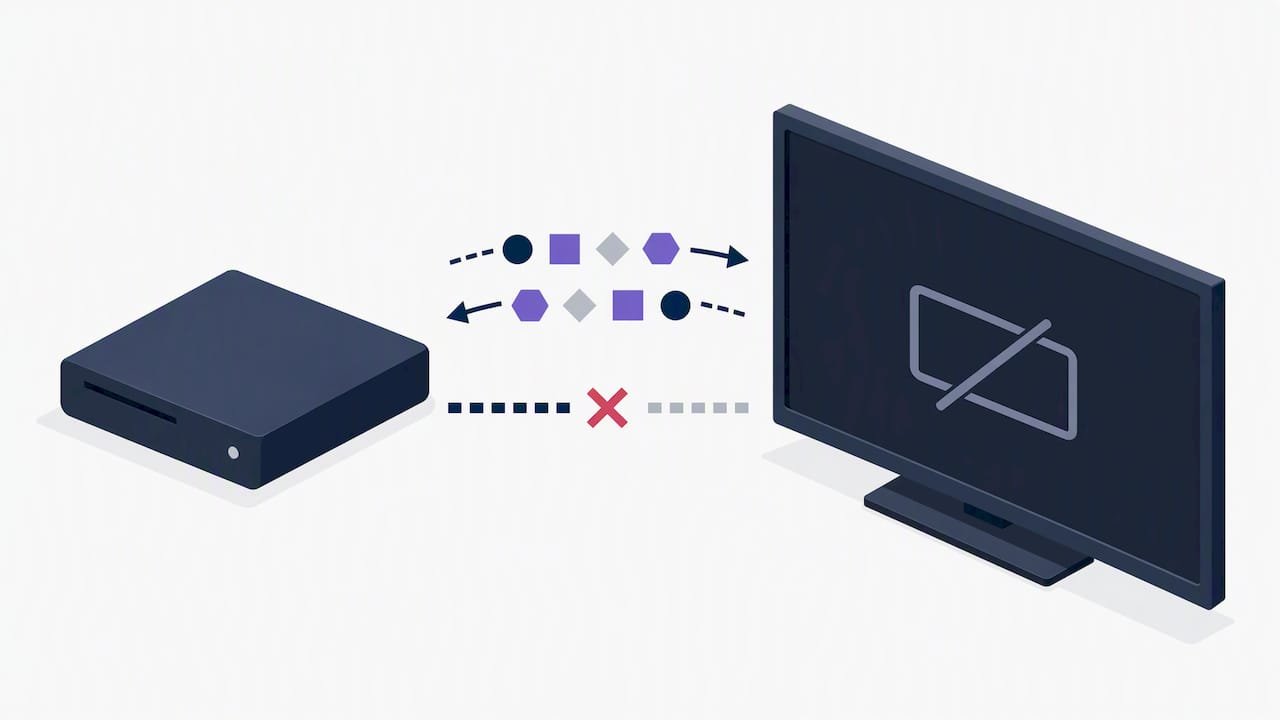
CEDIA describes it as the source and display failing to agree on supported formats or content protection. It also notes that these faults are commonly made worse by long chains of splitters, matrices or switches, because each extra device is another place for the conversation to break down.
Here is what to try, from the simplest:
- Lower the source resolution. If you can get any picture at all (on another TV, or with the cable temporarily in a different port), drop the output to 1080p and work back up. Sony Australia notes that the source's HDMI output format needs to be compatible with the TV, and that changing the source's video format may restore the picture.
- Update firmware on the TV, the streaming device or console, and any receiver in the chain.
- Shorten the chain. Fewer devices, fewer points of failure.
- Use a shorter or better-rated cable, particularly for 4K or high frame rate sources.
The practical idea of testing a direct connection before replacing any gear is worth repeating: it stops you buying a new cable, soundbar or TV for a fault that was really a negotiation failure. CEDIA also mentions EDID emulators for stubborn installations, but that is professional territory, mostly for multi-room or custom setups rather than a lounge room with one console.
Step 7: If it is a computer or laptop feeding the TV
A PC is the fussiest source, because it has its own display settings on top of everything else. If your TV says no signal when a laptop or desktop is connected:
- Wake the computer and make sure the TV is on the right input.
- On Windows, press the Windows key and P together and choose a display mode such as Duplicate or Extend. If the screen is set to "PC screen only", nothing will be sent to the TV.
- Re-seat the cable, as LG suggests after a sleep or hibernate, and try another port on the TV.
- Lower the resolution or refresh rate in display settings if the picture is unstable. TVs can reject refresh rates they do not support.
- On a desktop with a separate graphics card, check the cable is plugged into the graphics card and not the motherboard port above it. This catches out many custom builds.
If you recently built, upgraded or moved a PC and the TV still sees nothing, that is a job for a computer repair visit rather than another hour of guessing.
Step 8: Streaming boxes and set-top boxes
Streaming sticks and pay TV boxes are a common source of this message, and they have one extra trick: they can be fine, while the TV input is simply wrong or the box is stuck. Unplug the box's power, wait a minute, and plug it back in. Check the HDMI connection is firm and try a second port.
If it still shows nothing, Google recommends testing the streaming device on another TV if you have one. That single test tells you whether the box or the TV is at fault, and it saves a lot of guessing.
If your TV shows a picture but the apps will not load, that is a different problem, and it is about your network rather than HDMI. These guides cover it: what to do when a smart TV will not connect to Wi-Fi, fixes for Wi-Fi that keeps dropping out, and why the NBN box is worth checking first.
What we see and what we recommend
We visit homes and small offices across NSW, and we are regularly asked to sort out a setup where the picture simply will not appear. Our experience is that the cause is rarely an expensive failure. More often it is a chain that has grown over the years: a console, a soundbar, a streaming stick and a switch, all feeding one TV, with a cable somewhere that was never meant for 4K.
So our advice is the same each time. Change one thing at a time, write down what you tried, and simplify before you spend. Go direct from source to TV, prove that it works, then add things back. It is calm, methodical and it stops you paying for parts you did not need.
We also think you should not have to learn the jargon to get your evening back. If you do not know whether it is the cable, the TV or the box, that is fine. Tell us what you can see on the screen and what is plugged in, and we will work out the rest, in one visit where we can, covering the computer, the printer and the TV setup together if they all need attention.
- PC Scientist
When it is time to get help
You have done the work if you have confirmed the right input, re-seated the cable, tried another port and another cable, power cycled in order, removed any middlemen and tested the source on another TV (or another source on your TV). If a known-good cable and a known-good device still give nothing, the evidence points at a fault inside one of the two boxes.
That is the same conclusion the manufacturers reach. TCL Australia says that once the correct input is selected, another cable has been tried and the source is on with correct settings, a service call may be required. Sony Australia likewise says to contact support if the issue remains after its steps, because service may be needed.
How to read it:
- Fault follows the device. The source gives no picture on any TV. The source needs repair, a reset or a replacement. If it is a PC or laptop, we can look at it.
- Fault stays with the TV. Several working sources fail on every port. Contact the TV manufacturer or a TV repairer, and check your warranty and consumer guarantees before paying for anything.
- Fault only appears in a complex setup. Receivers, matrices and long cable runs behind walls may need a proper assessment of the whole installation.
Need a hand? Let us come to you
If the black screen is coming from a PC, a laptop, a new device that will not connect, or a home network that is making your TV and streaming gear misbehave, we can help. Our Computer Support Scientist service covers everyday home and office tech, onsite across NSW or remotely where that suits. We also set up new gear through Device Setup Scientist, and we work on dropouts and dead zones through Network Scientist.
We offer no fix, no fee repairs and clear pricing before work starts, so you know where you stand.
In Sydney, our computer support team can usually take a look at several devices in a single visit.
Prevent it happening again
A few habits make HDMI faults rarer:
- Buy the cable for the job. For 4K and high refresh rates, use a certified cable that matches your devices, and keep runs as short as practical.
- Do not stress the plug. Leave a little slack and avoid sharp bends right at the connector, especially behind wall-mounted TVs.
- Keep the chain short. Every splitter, switch and receiver is another thing that can fail to agree.
- Update firmware on the TV, streaming devices and consoles when updates appear.
- Label your ports. A sticker with "HDMI 2: PlayStation" saves the guessing game next time.
- Know your reset order. TV on first, source second, after any power cut or storm.
Sources
- Sony: My TV doesn't have a picture or displays a NO SIGNAL message
- Sony Australia: There is no picture when using an HDMI connection
- Sony Australia: The TV is not displaying any picture or a NO SIGNAL message
- LG: Why does my TV show no signal?
- Foxtel: Replace the HDMI cable and try another HDMI input
- Samsung: My TV doesn't detect a device connected via HDMI
- Google: TV has no signal or only shows a black screen
- CEDIA: Troubleshooting HDMI handshake failures
- TCL Australia: Support FAQ
- HDMI handshake issues: test a direct connection
Recommended
- Fix a Smart TV That Won't Connect to Wi-Fi in Under Five Minutes
- Smart TV Wi-Fi Dropping Out? Fixes That Work in Australia
- Smart TV WiFi Issues in Australia? Check the NBN Box First
Frequently Asked Questions
Straight answers about TV Says No Signal on HDMI? How to Fix It Fast - without jargon or pressure. Call 0493 563 381 for advice, or get help below.
Want the quickest answer? 0493 563 381 for free advice.
The TV is probably on a different input from the one your device uses, or the device is off or in standby. Press Input or Source on the remote and select the matching HDMI number, then wake the device. If that fails, re-seat the cable at both ends and try another port.
Move the cable to another HDMI port and select that input. If the picture returns, the first port is suspect. If it does not, swap in a different cable, and test the source on another TV if you can. Changing one thing at a time tells you which part is at fault.
It is when the source and the TV fail to agree on the formats they support or on content protection, so no picture appears even though everything is plugged in. It is most common when soundbars, receivers or switches sit in the chain. Connecting the source straight to the TV, power cycling in order, and lowering the resolution are the usual first fixes.
Not necessarily. If a different port works, you can often just use that one. If every port fails with a known-good cable and a known-good device, the fault is inside the TV, and a service call through the manufacturer or a TV repairer is the sensible next step before you consider replacing it.
Yes. A PC or laptop that has gone to sleep, is set to show only its own screen, or is sending a resolution the TV cannot display will leave the TV with nothing to show. Wake it, press Windows and P to choose Duplicate or Extend, and check the cable is in the graphics card port on a desktop.
Device setup across NSW
Still stuck with a TV that says no signal?
If setup still feels unfinished, that is okay. Get help in your area and we will take it from here.
Start here
Get device setup help
Optional Need a Sydney city or region?
Choose a side of Sydney
These are Sydney cities and regions, such as the Northern Beaches or Inner West. First tap a side of Sydney. Then open the city or region that covers you.
C Sydney City / Inner 3 areas
N Northern Sydney 5 areas
NW North-West / Central Sydney 3 areas
W Western Sydney 1 area
SW South-West Sydney 3 areas
S Southern Sydney 2 areas
Optional Find your suburb
Type a suburb from our listed coverage. This opens the matching city or region page for this topic. Listed suburb pages are general technology services, not this specialist page.
If your suburb is not listed, use the city or region list above, or call 0493 563 381.
Disclaimer
The information in this article is provided for general educational and informational purposes only. While PC Scientist strives to keep all content accurate and up to date, technology issues can vary depending on your device, software, network configuration, and individual circumstances. Always back up important data before attempting repairs or system changes. If you are unsure or the issue cannot be resolved safely, contact PC Scientist today for professional onsite or remote IT support. PC Scientist is not liable for any loss of data, damage, or other issues resulting from the use of the information provided in this article.