

Smart TV WiFi Issues in Australia? Check the NBN Box First
Switch off your TV, router and NBN box at the power point, wait 30 to 60 seconds, then restart the router and NBN box first and the TV last. That full power cycle can help with smart TV Wi-Fi problems. If it doesn't, check whether your phone gets online on the same network, then try the 5 GHz band or set the TV's DNS to 8.8.8.8.
Key takeaways
- If only one streaming app fails while others work, force close it, check for an outage, then clear its cache or reinstall it.
- If the TV works on your phone's hotspot but not at home, investigate router settings; if it fails on both, focus on the TV.
- Shared building login pages and router isolation settings can block TV connections; disable AP or client isolation and retest before changing hardware.
- ACCAN says Netflix HD needs about 5 Mbps, yet congestion or weak coverage can still cause buffering on a fast internet plan.
- Try a direct Ethernet connection before buying equipment; powerline adapters work best on the same electrical circuit, while mesh suits large homes with multiple floors.
Table of Contents
- What should you try first at the TV and router?
- How do you tell whether it's the TV, your router or your internet provider?
- How do you make streaming more reliable on your existing Wi-Fi?
- When should you switch to Ethernet, powerline, mesh or an extender?
- How do you stop smart TV Wi-Fi problems coming back?
- Do smart TV software updates fix Wi-Fi problems?
- How do you reset network settings on a smart TV?
- Can a VPN or proxy stop your smart TV connecting?
- Do WPA2 and WPA3 settings affect your TV's connection?
- What if only one app on your smart TV won't connect?
- What we see most often when we're called in
- Need a hand with a stubborn Wi-Fi or smart TV problem?
- FAQ
- Sources
What should you try first at the TV and router?
Start with the sequence, because the order matters. Switch the TV, router and any NBN connection box off at the power point, not just with the remote. A "cold boot" like this for 30 to 60 seconds clears the caches that make a device look connected while passing no data. Power the NBN box and router back on, wait until the lights settle into their normal steady pattern, then switch the TV on.
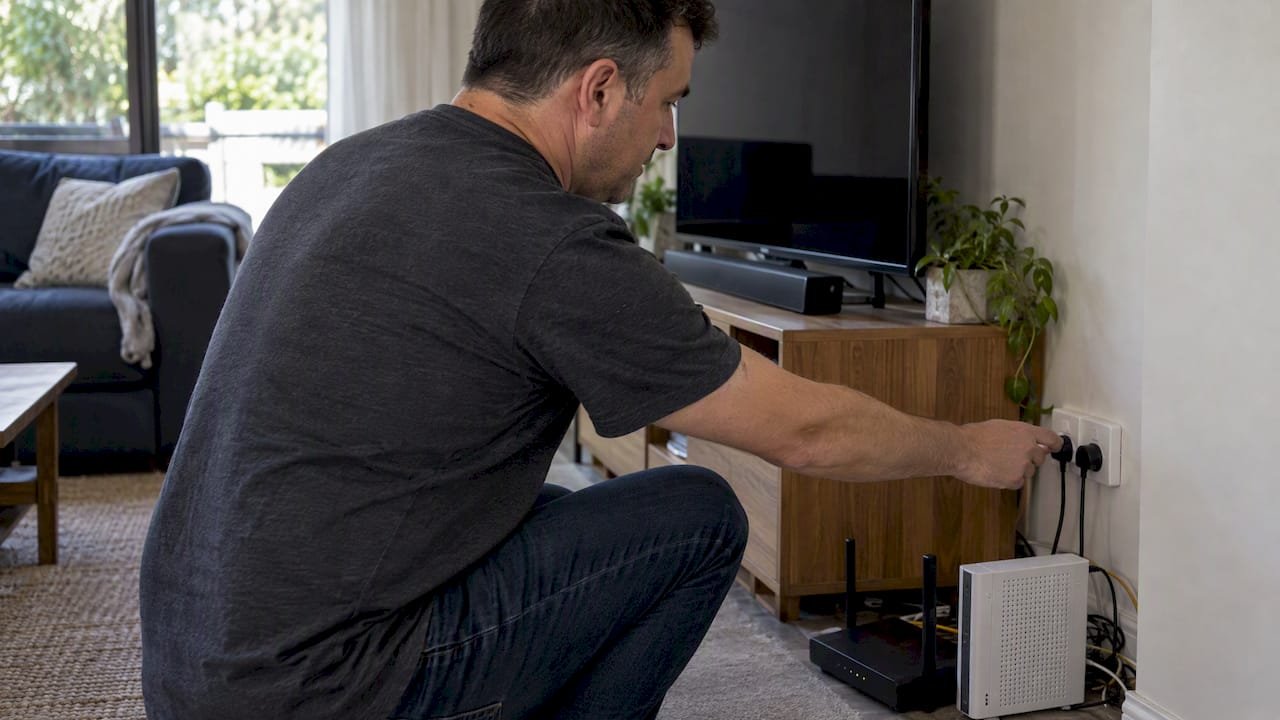
If the lights keep blinking or stay amber after a few minutes, the problem is probably upstream of your TV. Note which lights are doing what, because you'll want that information later.
Once the hardware is back up, work through these checks:
- Open a different app on the TV. If one app fails and the others stream fine, the fault is with that app, not your Wi-Fi.
- Force-close the failing app if your TV allows it, then reopen it.
- Confirm the TV is on the right network name (SSID). Neighbouring networks often have similar names, and TVs sometimes latch onto the wrong one.
- Forget the network and re-enter the password. A single mistyped character is a surprisingly common culprit. If your network is hidden, choose the option to add a network manually and type the name exactly.
- Compare behaviour on a second device. Connect your phone to the same network, then try the TV on your phone's hotspot. Google's guidance for Chromecast and Google TV suggests testing other devices, and Samsung's own steps for connecting a Samsung TV include trying a mobile hotspot when your network isn't discovered. If the TV works on the hotspot, your home network is the suspect. If it fails there too, look at the TV.
- If the TV says it's connected but nothing loads, set its DNS to 8.8.8.8. Samsung says that if other devices work, changing the TV's DNS to 8.8.8.8 can bypass ISP resolving problems. You'll find this under the TV's network or IP settings, usually by switching DNS from automatic to manual.
- Carry the TV closer to the router, or just test with a phone held where the TV sits. If the problem disappears at close range, you're dealing with coverage or interference, not a faulty TV.
Pro Tip: Take a photo of your router and NBN box lights before and after the restart. If you end up calling your provider, that photo saves time and back and forth.
If you want a shorter version of this checklist to keep handy, we've put one together in our guide to fixing a smart TV that won't connect to Wi-Fi.
How do you tell whether it's the TV, your router or your internet provider?
Before you change settings at random, work out where the fault actually sits. It takes a few minutes and tells you whether to keep fiddling with the TV or ring your provider.
Start with another device. While the TV is misbehaving, run a speed test on a phone or laptop connected to the same Wi-Fi. If that device is slow or offline too, the problem is your router or your internet service. If it's fine, the TV is the odd one out.
Pay attention to what streaming actually needs. ACCAN says Netflix needs around 5 Mbps for HD, and that many streaming issues come from network congestion or weak local coverage rather than the speed of your plan. A fast plan won't help a TV sitting at the edge of your Wi-Fi range.
Next, use the TV's own diagnosis tool. Sony's Android and Google TV models run a network check that reports whether a wireless device was found, whether the TV has local network access, and whether it can reach the internet. Where it stops tells you the story. Failing at the first step points at the TV's Wi-Fi or the router's signal. Passing local access but failing the internet step points at your router's connection or your provider. Sony's own steps recommend running the connection diagnosis, checking router placement and settings, power-resetting the router and TV, and using a wired connection if wireless trouble continues.
Two less obvious causes are worth ruling out. Google notes that networks using a captive portal (a login page, common in rental properties and shared buildings) or AP isolation can stop a TV connecting, as set out in its Google TV troubleshooting guide. If your router has AP or client isolation switched on, turn it off and retest.
Then try the wired test. Plug the TV, or a laptop, into the router with an Ethernet cable. If the wired connection works but Wi-Fi doesn't, you've confirmed the fault is wireless and not your internet service. Our five-minute wired test walks through it step by step.
Before you contact your provider or a technician, gather these:
- The status of the lights on your modem, router and NBN box
- Speed test results from a device on the same network, taken at the time of the fault
- Your TV's make, model and any error code it shows
- Whether other devices are affected, and whether the wired test worked
- What you've already tried, including the power cycle
Gather the facts first, and the call goes from "it's not working" to "it fails at the internet step on every device", which gets you a far faster answer.
How do you make streaming more reliable on your existing Wi-Fi?
Most reliability gains come from small changes to where the router sits and how it's set up, not from buying new gear.
Choose the right band. Your router likely offers two. Per ACCAN, 5 GHz gives faster, more stable speeds close to the router, while 2.4 GHz travels further through walls but is more prone to household interference. If the TV is in the same room as the router, or one room away, use 5 GHz. If it's at the far end of the house, 2.4 GHz may hold a steadier link even though it's slower. Some older TVs only support 2.4 GHz, so check your model before assuming it can see a 5 GHz network.
Fix the placement. Router location is one of the most overlooked causes of persistent dropouts, and elevating and centralising the router often resolves them. Get it off the floor, out of the cupboard and away from big metal appliances. The Australian Telecommunications Alliance's Broadband Education Package lists internal obstructions and interference from household devices among the main factors, and recommends moving the gateway, centring it and avoiding electrical interference sources.
Look for interference. Microwaves, baby monitors, solar inverters and some LED lighting can all disturb Wi-Fi. A simple test: stream something on the TV, then switch the suspect device off, or move the router away from it, and see whether the picture steadies. Do it one device at a time so you know which one it is.
Reduce the crowd. ACCAN's advice on troubleshooting streaming issues points to routers placed too far from the device and too many devices on slower plans. Disconnect what you aren't using, and lower the video quality setting in the app if you can't free up bandwidth.
Update and retune. Sony's guidance for Wi-Fi dropouts includes checking router settings and keeping the router current. If your router lets you pick a channel, try a different one to dodge a neighbour's congestion, and install any available firmware update.
A quick checklist to make the change and confirm it worked:
- Log in to your router's admin page and note the current channel and band settings
- Switch the TV's network to the 5 GHz name if the TV supports it
- Move to a less crowded channel, then save and let the router restart
- Rerun the TV's network diagnosis and play a video
- If playback stays smooth, leave the new settings in place
Pro Tip: Change one setting at a time and retest. If you change the band, channel and position together and things improve, you won't know which one did the work.
When should you switch to Ethernet, powerline, mesh or an extender?
Spend money only after the free fixes have failed, and test in a sensible order so you buy the right thing.
Ethernet is the most reliable option because it removes wireless interference altogether. Professionals advise that a stable wired connection is superior for high-bandwidth streaming. A simple test costs nothing: run a cable from the router to the TV, or to a laptop if the TV is too far, and see whether the problem vanishes. If it does, you know the router's internet connection is healthy and the wireless link is the weak spot.
If a cable can't reach, a powerline adapter sends the connection through your home's electrical wiring. It tends to work when both adapters are on the same circuit and in wall sockets rather than power boards. The simple compatibility test is to plug one beside the router and one beside the TV, then check whether the link lights come on and a video plays.
If coverage is the real problem, the choice is between a single extender and a mesh system. Mesh generally suits multi-storey homes and large footprints, where several access points share one network name. A single extender can be enough for one stubborn room. We compare the two in mesh Wi-Fi versus extender, and the short version is to test before you buy.
Work through it in this order:
- Do the wired test to prove the router and internet service are sound.
- If the TV can't be cabled, try a powerline adapter pair.
- If powerline isn't an option or the result is poor, assess whether the house needs mesh or one extender.
- Before buying anything, repeat the power cycle, move the router, change the band and update the firmware.
That last step is the one most people skip, and it's the one that saves the most money.
How do you stop smart TV Wi-Fi problems coming back?
A few habits keep a working network working.
- Keep the router's firmware updated, and restart it now and then. Sony's guidance on Wi-Fi dropouts includes a power reset of the router as a standard step.
- If your router supports QoS or device priority, give the TV's streaming traffic a higher priority so a laptop download doesn't starve the movie.
- Consider a reliable DNS or router-level filtering, especially in a family home. Our guide on safe DNS for kids covers starting at the router.
- Write down your network name and password and keep them somewhere safe. Avoid hidden networks for streaming devices unless you have a reason.
- If the same fault keeps returning despite all this, a professional site assessment is worth it. We do these across NSW.
Do smart TV software updates fix Wi-Fi problems?
Sometimes, yes. A TV's software controls how it joins networks, handles security and talks to apps, so a bug there can look exactly like a Wi-Fi fault. If your TV has been misbehaving since a recent update, or hasn't been updated in a long time, the firmware is worth checking.
The catch is that a TV with no working internet can't download an update. You have a few options. Connect it by Ethernet cable, or share your phone's hotspot, to give it a connection long enough to update. Samsung's support page notes that a mobile hotspot is a useful fallback when a network isn't discovered. On many TVs you can also download the update to a USB drive from the manufacturer's site and install it from there.
Look for the update option in the settings menu, usually under Support, About or System. Turn on automatic updates if the TV offers it, so you aren't relying on remembering. Don't switch the TV off mid-update, since that can leave it unable to start properly.
After any update, run the network diagnosis again and test a streaming app. If the problem started right after an update and nothing else has changed, mention that to the manufacturer's support team.
How do you reset network settings on a smart TV?
A network reset wipes saved Wi-Fi details and returns the TV's connection settings to their defaults. It's a good middle step: gentler than a factory reset, and often enough to clear a corrupted setting that a reboot leaves behind.
The menu names vary by brand, but the path is similar. Samsung's support guidance mentions performing a reset network if connection problems continue. On Samsung TVs this usually sits under Settings, then General, then Network. Sony and Google TV models place network options under Settings, then Network and Internet, where you can forget the network and set it up fresh.
Here's a safe order:
- Write down your Wi-Fi password so you can re-enter it.
- Open the network settings and choose the reset or forget-network option.
- Switch the TV off at the power point, wait 30 seconds, and turn it back on.
- Reconnect to your network and enter the password carefully.
- Run the network diagnosis and test an app.
Avoid a full factory reset unless you've exhausted the alternatives. It wipes your apps, logins and preferences, and it rarely solves a fault the network reset couldn't. If the TV still won't connect after a network reset but works on a phone hotspot or by cable, the issue is almost certainly with your router or its settings.
Can a VPN or proxy stop your smart TV connecting?
It can, and it's easy to forget you've set one up. A VPN or proxy sends your traffic through another server first. If that server is slow, overloaded or blocked, your TV can appear connected to Wi-Fi while apps refuse to load.
The pattern to watch for is a TV that passes the network diagnosis but still fails inside streaming apps, or an app that complains about your location or says it can't reach its service. That points at routing, not the Wi-Fi signal.
Check these places:
- The router. Some routers run a VPN client for the whole house, which affects every device including the TV.
- The TV itself. Some models have proxy settings buried in the advanced network menu. Make sure it's set to automatic or none unless you chose otherwise.
- A VPN app on the TV. If you installed one, switch it off and retest.
Streaming services also tend to block known VPN servers, which can produce errors that look like network faults. The quick test is to turn the VPN or proxy off entirely, restart the TV, and try the app again. If it works, the VPN was the culprit, and you can decide whether you need it on that device. If you run a VPN on the router for privacy, many routers let you exclude specific devices so the TV connects directly.
Do WPA2 and WPA3 settings affect your TV's connection?
They can, mostly through compatibility. WPA2 and WPA3 are security standards your router uses to protect the network. WPA3 is newer, but plenty of older TVs and streaming devices only understand WPA2, and some struggle with mixed modes.
The classic symptom is a TV that won't see your network, or sees it and fails at the password step even though you've typed it correctly. If your router is set to WPA3 only, an older TV may not be able to join at all.
The fix is usually to set the router to WPA2/WPA3 mixed mode, or to WPA2 for the band the TV uses. You'll find this in the router's wireless security settings. Save, let the router restart, then reconnect the TV.
A few other security settings can also trip a TV up:
- MAC address filtering, which blocks any device not on an approved list
- AP or client isolation, which stops devices on the network seeing each other, as flagged in Google's troubleshooting guide
- Very long or unusual passwords containing symbols that the TV's on-screen keyboard handles badly
Don't weaken your security more than you need to. Mixed mode is a sensible compromise for most homes. If you aren't comfortable changing router security settings, that's a good moment to ask for help rather than guess.
What if only one app on your smart TV won't connect?
When one app fails and the rest work, the Wi-Fi is rarely to blame. Work through the app first.
Samsung's guidance for apps that won't work on its TVs starts from the same principle: confirm whether the TV is really online, then look at the app. Try these in order:
- Force-close the app and reopen it.
- Restart the TV and try again.
- Check whether the service itself is having an outage, using the provider's status page or social channels.
- Sign out of the app and sign back in.
- Clear the app's cache or data if the TV allows it, or uninstall and reinstall the app.
- Check the TV has enough free storage, since a full TV can stop apps loading properly.
If several apps fail but others work, the cause is more likely DNS or routing, so go back to the 8.8.8.8 change and the VPN check. If the app loads but buffers constantly, that's a bandwidth issue, so look at the streaming quality setting and how many devices are using the connection. ACCAN notes that network congestion and weak coverage cause many streaming problems, so lowering video quality is a reasonable fix while you work on the underlying network.
Error codes help too. Sony documents a set of network-related codes, including 1107, 2123, 3218, 5010 and 7003, and recommends checking the network connection and doing power resets, following the diagnosis result.
What we see most often when we're called in
In our experience out in the field, the cause is rarely the TV's Wi-Fi module. It's usually where the router sits and what's around it: a cupboard, a fish tank, a microwave on the other side of the wall. Genuine faults in a TV's wireless hardware are the exception, so it's worth ruling out the network before you blame the set.
When we visit, we start with a wired test, then move or raise the router, update the firmware and change the channel. If coverage is still poor, we assess what kind of solution makes sense, and we'd rather tell you a simple fix will do than sell you more than you need. If you can run the checks above and send us the results, we can help remotely. If it needs a look at your layout, we come to you.
- us
Need a hand with a stubborn Wi-Fi or smart TV problem?
If you've worked through the steps and the picture still stutters, we can take it from here. Our Network Scientist service covers Wi-Fi and network support for homes and businesses across NSW, onsite or remotely. We provide clear steps and a focused diagnosis with a recommended fix. Before you book, run a quick speed test, note your TV model and any error codes, and jot down your router's make and model.
Get in touch through our Network Scientist page to discuss support.
Sources
- WiFi Not Working? Fix Home Internet Fast
- Accan
- The Wi-Fi signal drops out or keeps losing connection. | Sony AU
Recommended
- Fix slow home internet in Australia: 5 minute wired test first
- Stop Buying the Wrong NBN Device in Australia: Most Homes Need a Router
- Fix a Smart TV That Won't Connect to Wi-Fi in Under Five Minutes
- NBN Dropouts at Night: 8 Checks to Run Tonight in Australia
Frequently Asked Questions
Straight answers about Smart TV WiFi Issues in Australia? Check the NBN Box First - without jargon or pressure. Call 0493 563 381 for advice, or get help below.
Want the quickest answer? 0493 563 381 for free advice.
Forget the network in the TV's settings, switch the TV off at the power point for 30 seconds, then reconnect and re-enter your password. For the other half of the equation, power cycle your router and NBN box too, as a full cold restart clears connection faults on both sides.
The TV may be on a band or security setting it doesn't support, or it may be too far from the router. Run the TV's network diagnosis, try the 5 GHz or 2.4 GHz network, and set DNS to 8.8.8.8 if it says connected but won't load anything.
Start with a full power cycle of the TV, router and NBN box, then forget and re-add the network. If it still fails, test the TV on your phone's hotspot to see whether the router is the problem, and try a wired connection.
Check Wi-Fi is on and the TV is joined to the correct network, then reboot the router and TV and move them closer together. Google also notes that captive portals or AP isolation can block a connection, so switch isolation off at the router and try Ethernet if you can.
Wi-Fi help across NSW
Need a hand with Smart TV Wi-Fi issues?
If the steps above did not get Wi-Fi behaving, that is okay. Get help in your area and we will take it from here.
Start here
Get Wi-Fi help
Optional Need a Sydney city or region?
Choose a side of Sydney
These are Sydney cities and regions, such as the Northern Beaches or Inner West. First tap a side of Sydney. Then open the city or region that covers you.
C Sydney City / Inner 3 areas
N Northern Sydney 6 areas
NW North-West / Central Sydney 3 areas
W Western Sydney 1 area
SW South-West Sydney 3 areas
S Southern Sydney 2 areas
Optional Find your suburb
Type a suburb from our listed coverage. This opens the matching city or region page for this topic. Listed suburb pages are general technology services, not this specialist page.
If your suburb is not listed, use the city or region list above, or call 0493 563 381.
Disclaimer
The information in this article is provided for general educational and informational purposes only. While PC Scientist strives to keep all content accurate and up to date, technology issues can vary depending on your device, software, network configuration, and individual circumstances. Always back up important data before attempting repairs or system changes. If you are unsure or the issue cannot be resolved safely, contact PC Scientist today for professional onsite or remote IT support. PC Scientist is not liable for any loss of data, damage, or other issues resulting from the use of the information provided in this article.
