

Test First: Mesh WiFi vs Extender for Your Home's Dead Zones
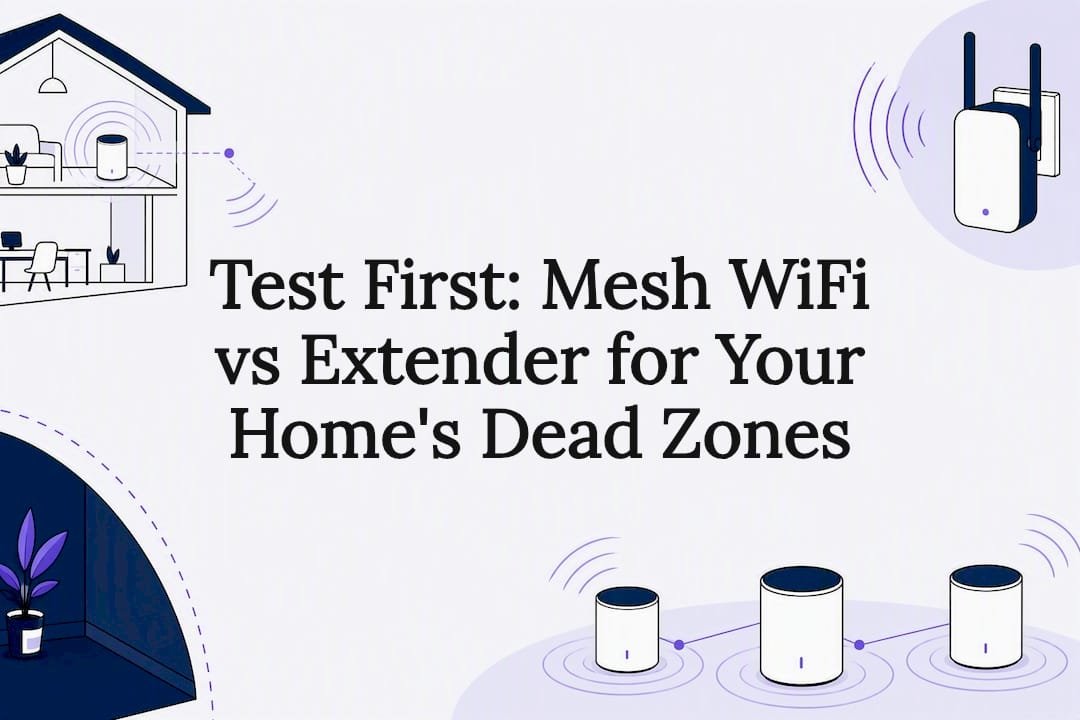
For most homes with more than one storey or a few too many dead zones, mesh WiFi is the better long-term fix. It uses multiple points working together, rather than one device shouting a weaker copy of your signal into another room. An extender still earns its place, though, if you're patching a single small dead zone on a tight budget and don't need rock-solid coverage everywhere.
Key takeaways
- Mesh systems use dedicated backhaul connections, often separate radios or wired Ethernet, to route traffic efficiently and avoid bandwidth loss.
- Mesh WiFi provides seamless roaming between nodes, preventing dropped connections during movement, unlike extenders that often require manual network switching.
- Upfront, mesh kits are more expensive but scale better and handle multiple devices and floors more reliably than multiple extenders, which can degrade performance over time.
- Before investing, test your internet speed at the modem, reposition your router, and consider professional assessment for complex layouts to avoid unnecessary hardware purchases.
Table of Contents
- Mesh WiFi vs extender: how each one actually works
- Speed, reliability and roaming: what really changes
- Cost, setup effort and how each option scales
- Extender or mesh network: a decision guide for your home
- Quick fixes to try before you buy anything
- When it's worth calling in a technician
- A pragmatic take on mesh vs extender
- Get your Wi‑Fi sorted properly, the first time
- Sources
- FAQ
Mesh WiFi vs extender: how each one actually works
A WiFi extender picks up your router's signal and rebroadcasts it. Most cheap extenders run in "repeater" mode, using the same radio to receive and resend data, which is the root of most of their problems. Better extenders offer "access point" mode instead, using a wired connection back to the router where possible, which avoids some of that penalty.
Mesh WiFi takes a different approach entirely. Instead of one router straining to cover your whole home, you place two or three units, called nodes, around the house. They form a single network with one name and one password, and they talk to each other over a dedicated backhaul connection, deciding on the fly which node should handle your phone or laptop based on your location.
There's a third option worth a mention: powerline adapters, which send your network signal through your home's electrical wiring instead of over the air. They can work well in older homes with thick walls, though performance depends heavily on your wiring quality.
The practical differences show up quickly once you're using each system day to day:
- Extenders create a weaker copy of your existing signal, often on a second network name you have to switch to manually.
- Mesh nodes share one network name and hand your device off between points as you move.
- Powerline adapters bypass walls altogether by using your electrical circuit, with results that vary by house.
Speed, reliability and roaming: what really changes
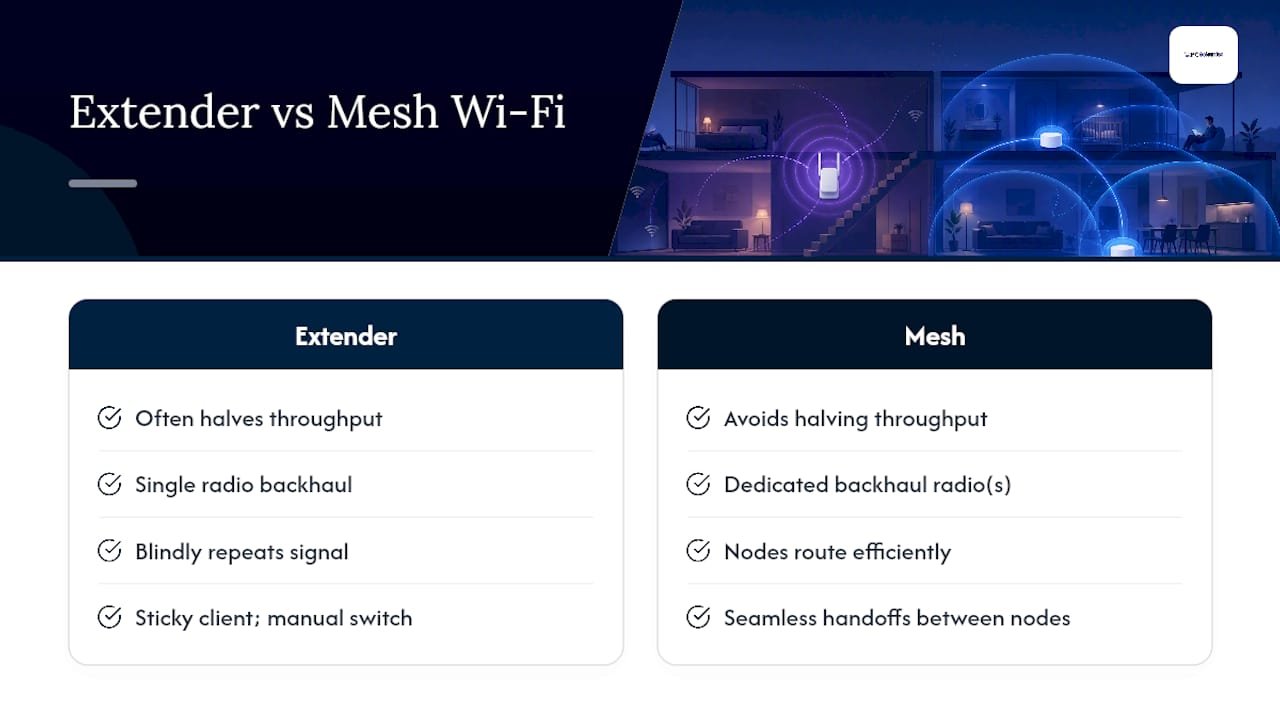
Here's the part most people don't realise until they've already bought the wrong gear: a standard extender doesn't just extend your WiFi, it often halves it. Because a single-radio extender uses the same radio to both receive the router's signal and rebroadcast it, that radio is doing double duty, and NETGEAR's own comparison notes that this typically costs you close to half your available bandwidth.
Statistic Callout: A single-radio extender can cut the practical bandwidth reaching your device by roughly half, because one radio handles both the incoming and outgoing signal instead of two radios splitting the job.
Mesh systems sidestep this with a dedicated backhaul connection, often a separate radio band reserved purely for node-to-node traffic. PCMag's breakdown of mesh versus extenders points out that mesh nodes are aware of each other and route your traffic along the most efficient path, rather than blindly repeating whatever signal they receive. Some mesh kits add a dedicated third radio just for this backhaul job, and wired Ethernet backhaul between nodes removes the wireless penalty altogether.
Roaming is where you'll feel this most in daily life. Walk from your lounge room to your bedroom on a mesh network and your phone hands off between nodes without you noticing. Do the same with an extender and you might find yourself stuck on a weak signal from the wrong device, sometimes needing to switch networks manually, which is a common complaint on forums about older extender setups. That's the difference between a video call that stays crisp as you walk to the kitchen and one that freezes right as you're trying to say goodnight to the grandkids.
For gaming and video calls specifically, this matters more than raw speed numbers suggest. Dropouts and hand-off delays hurt those activities far more than a few Mbps either way.
Cost, setup effort and how each option scales
A single plug-in extender typically costs less than one mesh node, which makes it tempting if you're only dealing with one weak spot. Mesh kits cost more upfront, but you're buying a whole-home system, not a patch. Engadget's rundown of mesh versus extenders frames it plainly: mesh costs more up front but scales more cleanly, while extenders stay cheap but can turn unreliable if you lean on them as a whole-home fix.
Setup effort follows the same pattern. An extender is usually a plug-in-and-connect job, sometimes with a short walk-through app. Mesh systems ask a bit more of you upfront, guiding you through app-based setup for each node, but the payoff is a network that manages itself afterwards.
Where this really bites is scaling up:
- Adding a second or third extender compounds the problems, since each one introduces its own bandwidth hit and its own separate network name to manage.
- Adding more mesh nodes simply extends the same unified network, with each one plugged into the smart routing already running.
- If you've already got two extenders fighting each other in your home, that's a fairly clear sign a mesh system would be the cleaner path forward.
Extender or mesh network: a decision guide for your home
Before spending a dollar, run through these questions honestly:
- How many floors and rooms need coverage? A single studio or one-bedroom unit rarely needs either solution.
- What's your home built from? Brick, concrete, and foil-backed insulation all eat WiFi signal more aggressively than plasterboard.
- What are you actually doing online? Streaming and gaming punish dropouts far more than casual browsing does.
- How many devices are connected at once? A household running phones, laptops, smart speakers, and a couple of TVs simultaneously needs smarter traffic handling, not just a stronger signal.
Match those answers to your situation:
- Studio or small unit: you probably don't need either. Try repositioning your router first.
- Small house with one stubborn dead room: an extender is a reasonable, cheap fix here, particularly if that room is used occasionally rather than constantly.
- Larger or multi-storey home with several users and devices: mesh WiFi is generally the right call. Consumer guidance from MATE lands on the same conclusion, recommending mesh for most whole-home problems and reserving extenders for single-room, budget-limited fixes.
If wiring is feasible in your home, a single wired access point can outperform both options for the money, and a mesh system with wired Ethernet backhaul between nodes gives you the most predictable performance of all, free of any wireless hop penalty.
Pro Tip: If you're weighing up two extenders against one mesh kit, price them out properly first. Two decent extenders often cost close to what a basic mesh kit does, and you'll still end up with the network-switching hassle instead of one seamless connection.
When your home has thick concrete walls, more than two floors, or you've already tried repositioning and extenders without luck, that's the point to consider a proper site survey rather than another piece of hardware.
Quick fixes to try before you buy anything
- Test your speed at the modem first. Connect a laptop directly or stand right next to the router and run a speed test. If your raw connection is only pulling 20 to 30 Mbps, no amount of mesh or extender hardware will fix that. That's an ISP plan issue, not a coverage one.
- Reposition before you buy. Move your router to a central, elevated spot away from thick walls, metal cabinets, and other electronics. This alone solves plenty of "dead zones" that were never really dead.
- Re-test after any change. Run the same speed test in the problem room and check whether video calls hold steady for a few minutes, not just whether the WiFi bars look fuller.
The most common mistake is buying hardware before confirming where the actual bottleneck sits. If our guide on WiFi that keeps dropping sounds familiar, that's usually the starting point, not a new router.
When it's worth calling in a technician
DIY troubleshooting is worth trying first for a single dead zone or an obvious placement issue. It's reasonable to reposition your router, run a speed test, and try one extender before spending more.
A site survey earns its cost once you're dealing with multiple floors, thick or unusual building materials, or a household full of devices competing for bandwidth. During a proper Wi‑Fi assessment, a technician typically checks:
- Device density and how many things are actually competing for airtime at once
- Interference sources, including neighbouring networks and appliances on the same frequency
- Whether wired backhaul is feasible in your walls or ceiling space, and what that would involve
- Channel congestion across your existing setup, which most homeowners have no way to see themselves
Technicians often conduct network and Wi‑Fi assessments across homes and offices, and the pattern repeats: most "bad WiFi" complaints trace back to placement or interference, not a lack of gear.
A pragmatic take on mesh vs extender
Mesh WiFi is the sensible default for most households now, and that's not a trend call, it's a reflection of how much more we're asking our home networks to do. But don't let that turn into an automatic upgrade either. If you've got one weak room and a router that's otherwise doing fine, an extender or even a simple reposition might solve it for a fraction of the cost.
Test before you buy. Run the speed check at the modem, try repositioning, and only reach for new hardware once you know what you're actually solving. If the problem persists or your home has layout quirks that make DIY guesswork frustrating, a professional assessment will save you from buying the wrong thing twice.
- PC Scientist
Get your Wi‑Fi sorted properly, the first time
We give you a straight answer instead of a guess, with an onsite Wi-Fi assessment that tells you exactly whether you need a reposition, an extender, a mesh upgrade, or wired backhaul, before you spend a cent on hardware you might not need.

Our technicians check device density, interference, and wiring options in person, something no online guide can do for your specific walls and floor plan. We've fixed dead zones that owners had already thrown two or three mismatched extenders at, only to end up with a patchier network than they started with. Whether you need a full Wi-Fi and network assessment or help with a broader setup, expert teams generally provide straightforward, honest advice to homes and businesses. Book an assessment today and find out what your home actually needs before you buy anything.
Sources
- WiFi Extender vs Mesh WiFi - Which is Better? (NETGEAR)
- Mesh Wi‑Fi vs range extender: pros and cons explained (Engadget)
- Mesh WiFi vs extenders vs powerline: which is best? (MATE)
Recommended
- Wi-Fi keeps dropping? Here's what actually fixes it
- Home Wi-Fi setup: get online in under 30 minutes
- Printer won't connect to Wi-Fi: quick fixes that work
- Guest Wi-Fi network setup: secure and simple
Frequently Asked Questions
Straight answers about Test First: Mesh WiFi vs Extender for Your Home's Dead Zones - without jargon or pressure. Call 0493 563 381 for advice, or get help below.
Want the quickest answer? 0493 563 381 for free advice.
For whole-home coverage, yes. Mesh systems use smart routing and dedicated backhaul to avoid the bandwidth loss that single-radio extenders cause, though an extender can still be the cheaper, sensible fix for one isolated dead zone.
Mesh kits cost more upfront than a single extender, and setup takes a bit longer since you're configuring multiple nodes rather than plugging in one device.
Mesh signal still weakens through brick, concrete, and foil-backed insulation like any WiFi signal does, but placing multiple nodes around your home means the signal doesn't have to travel as far through those materials to reach you.
Not in the true sense. A standard extender doesn't share smart routing or a unified backhaul with your router, so it won't roam or route traffic the way genuine mesh nodes do, even if it shares the same network name.
Wi-Fi help across NSW
Want help choosing mesh or an extender?
If the steps above did not get Wi-Fi behaving, that is okay. Get help in your area and we will take it from here.
Start here
Get Wi-Fi help
Optional Need a Sydney city or region?
Choose a side of Sydney
These are Sydney cities and regions, such as the Northern Beaches or Inner West. First tap a side of Sydney. Then open the city or region that covers you.
C Sydney City / Inner 3 areas
N Northern Sydney 6 areas
NW North-West / Central Sydney 3 areas
W Western Sydney 1 area
SW South-West Sydney 3 areas
S Southern Sydney 2 areas
Optional Find your suburb
Type a suburb from our listed coverage. This opens the matching city or region page for this topic. Listed suburb pages are general technology services, not this specialist page.
If your suburb is not listed, use the city or region list above, or call 0493 563 381.
Disclaimer
The information in this article is provided for general educational and informational purposes only. While PC Scientist strives to keep all content accurate and up to date, technology issues can vary depending on your device, software, network configuration, and individual circumstances. Always back up important data before attempting repairs or system changes. If you are unsure or the issue cannot be resolved safely, contact PC Scientist today for professional onsite or remote IT support. PC Scientist is not liable for any loss of data, damage, or other issues resulting from the use of the information provided in this article.
