

POS Wi-Fi Requirements: Speed, Setup and Security for NSW Businesses

Your POS needs a stable internet connection more than a fast one. Most systems work on a modest plan, as long as the connection doesn't drop mid-sale and the payment device sits on a network you control. This guide covers the speeds the major POS providers publish, when Wi-Fi is fine and when to run a cable, how to keep payment traffic separate from guests and staff, and what to do when the internet goes down on a busy Saturday.
Key takeaways
- Stability beats speed. Published POS minimums are small (5 to 20 Mbps per device, depending on the provider), but dropouts and high latency are what stop sales.
- Use Ethernet for fixed terminals where you can, and Wi-Fi for tablets and handhelds. Add a mobile backup so one failure doesn't close your till.
- Put payment devices on their own network, away from guest Wi-Fi and general staff devices.
- Offline modes exist, but they are time-limited and have conditions. Treat them as a short-term safety net, not a plan.
- Change router defaults, keep firmware updated, and have your setup checked if the POS keeps disconnecting.
Table of Contents
- Does a POS actually need Wi-Fi or internet?
- How much internet speed does a POS need?
- Wi-Fi or Ethernet: which should you use?
- Keep payment devices on their own network
- What happens when the internet goes down?
- Our perspective: fix the network before blaming the POS
- Get your POS network checked
- A quick pre-flight checklist
- FAQ
- Sources
Does a POS actually need Wi-Fi or internet?
Mostly, yes. Cloud-based POS apps depend on the internet to sync sales, send email receipts and approve card payments. Square says its apps need a connection to work at their best, and that its hardware connects by Wi-Fi or Ethernet, while phones and tablets can also use mobile data such as 4G or 5G (Square Support Centre). Shopify's documentation says the same about syncing, receipts and card capture, and supports both Wi-Fi and cellular data (Shopify Help Center).
So the real question isn't "Wi-Fi or not". It's which connection type each device uses, and what happens when it fails. A countertop terminal, a tablet that walks to tables and a handheld in the stockroom each have different needs.
How much internet speed does a POS need?
Less than you'd think, though providers differ. Here is what each publishes for its own system.
| POS system | Published guidance |
|---|---|
| Octopos | No minimum speed, but a stable connection of at least 100 Mbps is recommended. Stability matters more than speed. |
| Lightspeed Restaurant (K-Series) | Stable broadband, minimum 20 Mbps download and upload for each POS device and payment terminal. |
| Lightspeed Retail (S-Series) | At least 10 Mbps download and 5 Mbps upload, with latency under 60 to 80 ms. |
| Shopify POS | Minimum 5 Mbps download, with more for larger catalogues or several registers. |
| Clover | Minimum 8 Mbps download and 384 Kbps upload for efficient payment processing. |
Two things stand out. First, the numbers are per device or per site in different ways, so a venue with four registers, two handhelds and a kitchen display should add them up rather than read one line. Second, almost every NSW business plan on the NBN clears these figures on paper. The trouble is rarely the plan. It's a weak signal at the till, a router buried in a back room, or a network shared with guests streaming video.
What matters more than the speed test
A speed test measures a moment. A POS needs the connection to stay up for every moment. Look at:
- Latency: the delay in each request. Lightspeed's retail guidance calls for under 60 to 80 ms, and a busy network can push it well past that.
- Dropouts: short disconnects that a speed test never catches but a customer standing at the terminal certainly notices.
- Upload speed: card approvals and syncing send data up. A plan with plenty of download but weak upload can still feel slow at the till.
- Signal at the device: one or two bars at the register is a problem, whatever the plan says.
If your POS keeps losing the connection, our guide on what actually fixes Wi-Fi that keeps dropping walks through the usual causes in order.
Wi-Fi or Ethernet: which should you use?
Where a device doesn't move, use a cable. Westpac notes that Ethernet is more stable than Wi-Fi because it doesn't depend on a wireless signal or mobile reception (Westpac). A cable also removes interference from microwaves, neighbouring tenants and crowded channels, which are common in shopping strips and food courts.
A simple rule of thumb:
- Fixed registers and card terminals: Ethernet where a cable can reach. Many terminals have a dock or hub for exactly this.
- Tablets and mobile POS: Wi-Fi, with good coverage across every area staff will walk, including the back of house and outdoor seating.
- Anything you can't cable: Wi-Fi, but with a mobile data fallback.
If you're deciding between a mesh system and wired access points for a larger space, this four-question comparison of mesh Wi-Fi and access points will help. For anything with several rooms, a loading area or a courtyard, wired access points usually give the steadier result for POS.
Connecting a Square terminal, as an example
The process is simple when the network is ready. Power on the Square Terminal, pick your Wi-Fi network from the list and enter the password if asked. Or connect the powered Terminal Hub with an Ethernet cable. Square says networks that use a captive portal, the kind with a login or "accept terms" page, aren't supported (Square Support Centre). That matters for cafes and venues using public-style guest Wi-Fi: the payment device should never sit on that network.
Keep payment devices on their own network
This is the most useful change most small businesses can make. If your POS, your staff phones and your customers' phones share one Wi-Fi network, every device on it can see the others, and any one of them could be the weak link.
The usual fix is segmentation: separate networks, or VLANs, for payments, staff and guests. Verifone's guidance recommends putting payment-terminal traffic on a dedicated VLAN isolated from corporate and guest networks, limiting outbound connections with firewall rules and watching for unexpected connections (Verifone). TP-Link makes the same point about VLANs and access control lists for retail and restaurant sites (TP-Link Omada).
A dedicated network name for POS has a second benefit. It makes faults easier to trace, because a problem on that network points to the POS devices rather than the whole venue (Wi-Fi OEM).
A sensible layout for a small venue looks like this:
- Payments network: POS terminals, tablets and printers used for sales. Hidden or password-protected, with no guest access.
- Staff network: laptops, office phones and everything else your team uses.
- Guest network: isolated from both. Our guest Wi-Fi setup guide explains how to do this without making it hard to join.
Basic security on the router itself
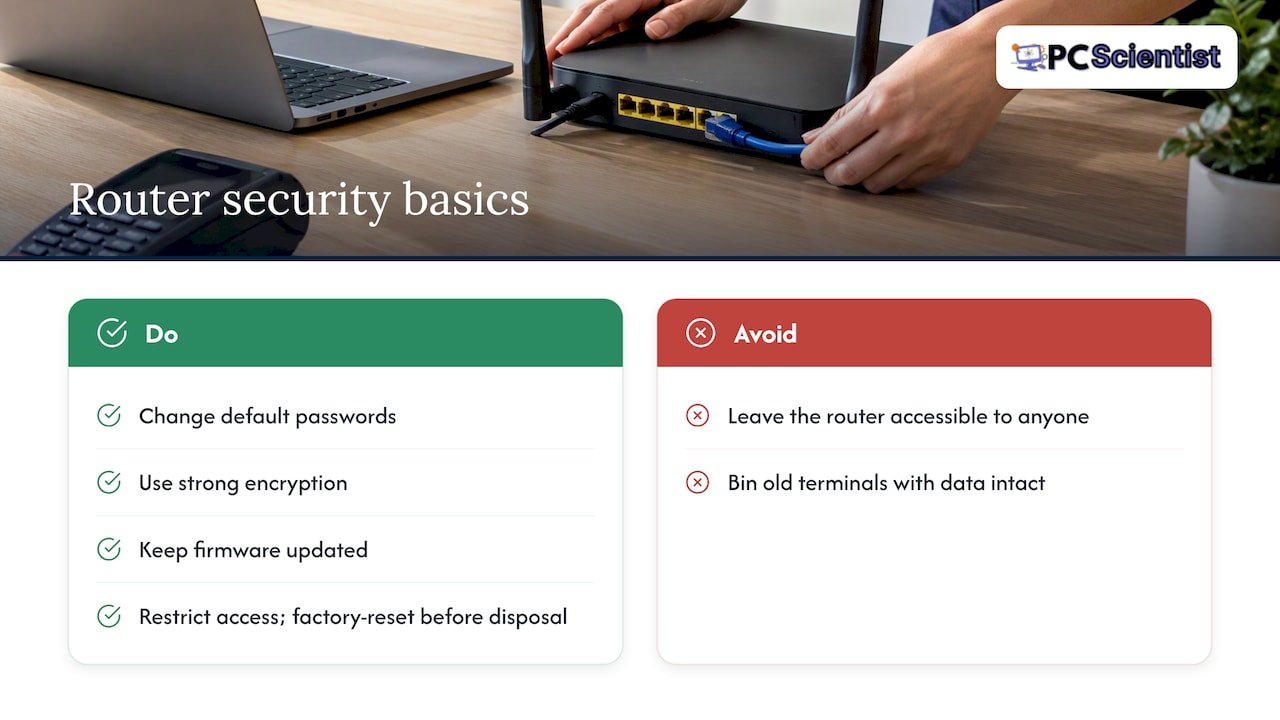
The Australian Cyber Security Centre's small business guidance is practical: secure your router by changing default passwords, use strong encryption and keep firmware updated. It also advises restricting physical access to business devices and securely wiping them, including a factory reset, before disposal (Australian Cyber Security Centre). In a shop, that means the router isn't on the counter where anyone can plug into it, and the old terminal doesn't go in the bin with its data intact.
If you take card payments, you'll also come across PCI DSS, the card industry security standard. A plain summary of PCI DSS requirements shows the kind of evidence assessors expect, such as patching and firewall rules. For a broader view of your obligations, there's a guide to payment processing compliance written for business owners. Your payment provider or bank will tell you which level applies to you.
What happens when the internet goes down?
It will go down eventually, so plan for it before it does. There are three layers.
1. Offline modes
Most providers offer a limited offline mode, with conditions:
- Square (Australia): when offline, you can take cash and card payments from most major card brands. Transactions are stored on the device and must be processed once you reconnect, within 24 hours and no later than 72 hours (Square Support Centre). The Terminal's specifications also say offline payments are temporary and subject to additional terms (Square).
- Shopify: offline checkout accepts cash and manual payments for all POS users. Offline card acceptance needs to be switched on in Shopify admin and depends on your hardware (Shopify Help Center).
The catch with offline card payments is risk. You are taking the sale before the card is approved, so check the terms with your provider and set limits you're comfortable with. Switch it on before you need it, not during an outage.
2. A mobile data backup
Telstra's guidance says EFTPOS can run over fixed or mobile internet and recommends having both, because the two are not usually disrupted in the same way (Telstra). Westpac's EFTPOS terminals connect over Wi-Fi, Ethernet or 4G and should switch to the mobile network automatically if the other connections aren't available (Westpac).
In practice, that means a terminal with a SIM or a 4G/5G router that takes over when the NBN drops. For a small shop, it's often the cheapest insurance you can buy.
3. A written fallback
Keep a one-page list near the till: who to call, how to switch the terminal to mobile data, how to take cash or manual payments, and how to record sales for later entry. Your staff shouldn't be working it out at 12:30 on a Friday.
Our perspective: fix the network before blaming the POS
When a business tells us its POS "keeps dropping out", the POS is rarely the problem. More often the router is in a cupboard at the far end of the building, the guest Wi-Fi shares a network with the till, or one cheap extender is trying to cover three rooms. Replacing the POS hardware wouldn't fix any of that.
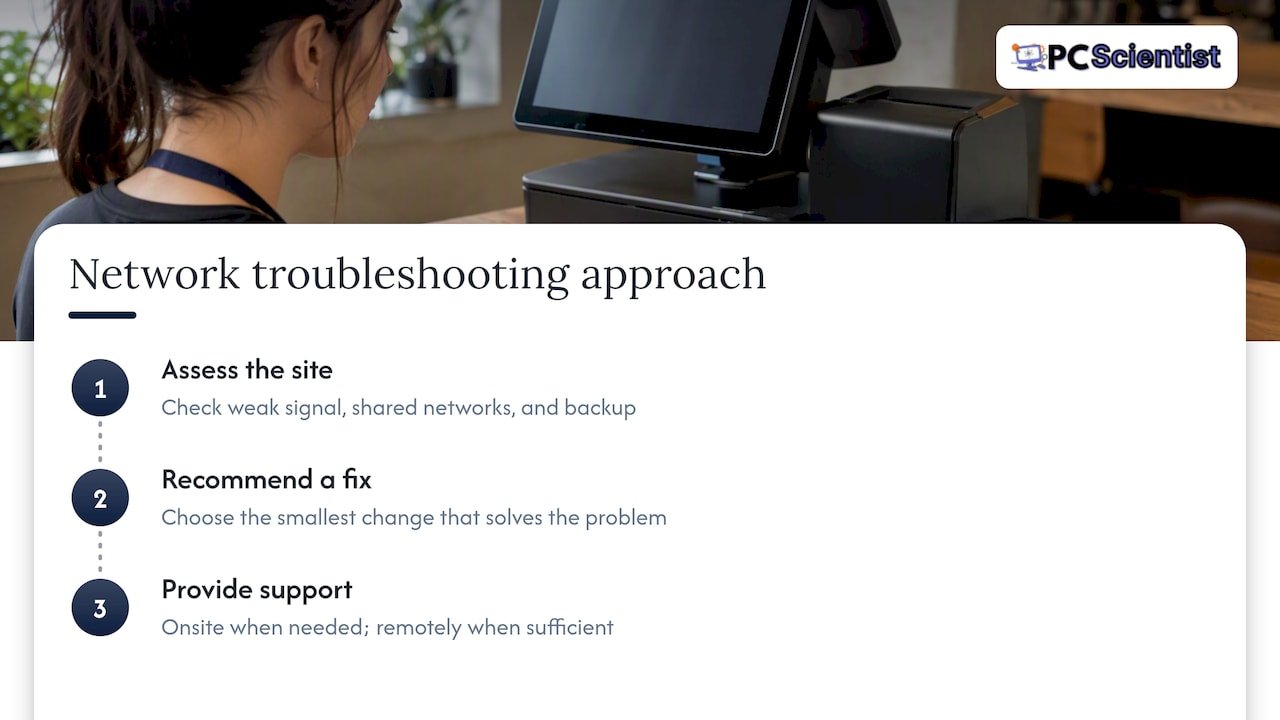
Our approach is to look at the whole site first. We check where the signal is weak, which devices share which network, and whether the connection has any backup. Then we recommend the smallest change that solves the problem. Sometimes that's one cable run and a router setting. Sometimes it's separate staff and guest networks, or a mobile backup. We'd rather tell you that than sell you a bigger system than you need.
We also don't expect you to know the technical terms. Tell us what's happening at the till and we'll work out the rest, onsite where it's needed and remotely where that's enough.
- PC Scientist
Get your POS network checked
If your terminals drop out, your guest Wi-Fi shares a network with your till, or you're setting up a new shop, cafe or clinic, our Network Scientist service covers Wi-Fi and network design and installation across NSW. We can also look at your security setup through business cybersecurity support. For a closer look at your site, start with a business network and Wi-Fi assessment. On the Central Coast, see our business network help for staff and guest Wi-Fi.
A quick pre-flight checklist
Before you go live, or if you're troubleshooting an existing setup, run through this:
- Check your POS provider's published requirements for speed and latency, and add up the devices at your site.
- Test the signal at every spot where a device is used, not just near the router.
- Cable the fixed terminals and keep Wi-Fi for mobile devices.
- Put payments, staff and guests on separate networks.
- Change default router passwords, use strong encryption and update firmware.
- Switch on offline mode where your provider allows it, and understand its limits.
- Add a mobile data backup.
- Write down your outage steps and keep them at the till.
Sources
- Process offline payments, Square Support Centre Australia
- Square Terminal technical specifications
- Set up Square Terminal
- Using Shopify POS offline
- Setting up your network for Shopify POS
- Octopos internet requirements
- Lightspeed K-Series site preparation
- Lightspeed Retail network best practices
- Clover network best practices
- Westpac EFTPOS Now
- Westpac EFTPOS outage help
- Telstra EFTPOS resilience
- Australian Cyber Security Centre small business handbook
- Verifone payment terminal security
- TP-Link Omada for small restaurants and stores
- Wi-Fi OEM on POS disconnections
Recommended
- Wi-Fi and Network Help Sydney CBD NSW
- Business Network & Wi-Fi Assessment NSW
- Wi-Fi and Network Help Western Sydney NSW
- Wi-Fi and Network Help Parramatta NSW
Frequently Asked Questions
Straight answers about POS Wi-Fi Requirements: Speed, Setup and Security for NSW Businesses - without jargon or pressure. Call 0493 563 381 for advice, or get help below.
Want the quickest answer? 0493 563 381 for free advice.
It depends on the provider, but published minimums are modest. Shopify asks for at least 5 Mbps download, Clover 8 Mbps, and Lightspeed's restaurant system 20 Mbps up and down per device. A stable connection matters more than a headline speed, so check dropouts and latency as well.
Some systems support mobile data, and Square says its apps on mobile devices can use 4G, 5G or EDGE. A hotspot is fine as a short-term backup. For daily trading, a proper fixed connection with a mobile fallback is more reliable.
No. Guest networks are open to devices you don't control, and some payment terminals won't work on networks with a login page. Keep payments on their own network, separate from staff and guests.
Sometimes, within limits. Square lets you take cash and most major card brands offline, but transactions must be processed within 24 hours of reconnecting and no later than 72 hours. Shopify offline card acceptance has to be activated first. Check your own provider's terms.
Device setup across NSW
Still stuck with POS Wi-Fi?
If setup still feels unfinished, that is okay. Get help in your area and we will take it from here.
Start here
Get device setup help
Optional Need a Sydney city or region?
Choose a side of Sydney
These are Sydney cities and regions, such as the Northern Beaches or Inner West. First tap a side of Sydney. Then open the city or region that covers you.
C Sydney City / Inner 3 areas
N Northern Sydney 5 areas
NW North-West / Central Sydney 3 areas
W Western Sydney 1 area
SW South-West Sydney 3 areas
S Southern Sydney 2 areas
Optional Find your suburb
Type a suburb from our listed coverage. This opens the matching city or region page for this topic. Listed suburb pages are general technology services, not this specialist page.
If your suburb is not listed, use the city or region list above, or call 0493 563 381.
Disclaimer
The information in this article is provided for general educational and informational purposes only. While PC Scientist strives to keep all content accurate and up to date, technology issues can vary depending on your device, software, network configuration, and individual circumstances. Always back up important data before attempting repairs or system changes. If you are unsure or the issue cannot be resolved safely, contact PC Scientist today for professional onsite or remote IT support. PC Scientist is not liable for any loss of data, damage, or other issues resulting from the use of the information provided in this article.