

Outlook Search Not Working? Fixes That Actually Work

When Outlook search stops finding emails you know are there, the cause is almost always the search index, not your mail. The index is a catalogue Windows (or macOS) builds of your messages. If it is unfinished, switched off or damaged, Outlook searches an empty catalogue and tells you nothing matches. The fixes below run from the two-minute checks to a full index rebuild, in the order we would try them on a visit.
Your emails are not lost. Search is a separate feature from your mailbox, and it can be repaired without touching a single message.
Key takeaways
- Work out which Outlook you use first: classic Outlook for Windows, new Outlook for Windows, or Outlook for Mac. The fix is different for each.
- In classic Outlook, check Indexing Status before anything else. If items are still counting down, the answer is to wait and leave Outlook open.
- Make sure the Windows Search service is running and set to Automatic (Delayed Start), then rebuild the index if results are still missing or partial.
- On a Mac, the equivalent is Spotlight: let it finish, restart, then reindex.
- If search is still broken after a rebuild, the problem is likely deeper (a damaged data file, an Office install fault or an account issue) and worth a professional look.
Table of Contents
- First, work out which Outlook you are using
- Why Outlook search stops working
- Step 1: Restart Outlook and check indexing status
- Step 2: Check the Windows Search service
- Step 3: Confirm Outlook is included in the index
- Step 4: Rebuild the search index
- If you use the new Outlook for Windows
- If search broke after upgrading to Windows 11
- Can you search Outlook without the index?
- If you use Outlook for Mac
- When to repair Office or get help
- Our perspective
- Need a hand with Outlook?
- FAQ
- Sources
First, work out which Outlook you are using
Microsoft now ships more than one Outlook, and they search differently. Spending 30 seconds on this saves an hour of following the wrong steps.
| Version | How to tell | How search works | Start with |
|---|---|---|---|
| Classic Outlook for Windows | Has a File menu in the top left | Relies on the Windows Search index for locally stored mail | Indexing Status, then the Windows Search service |
| New Outlook for Windows | No File menu, a Settings cog instead | Has a search scope setting | Settings > General > Search |
| Outlook for Mac | Runs on macOS | Relies on Spotlight indexing | Wait for Spotlight, restart, reindex |
Most of this article covers classic Outlook for Windows, because that is where most search complaints come from. Microsoft's own troubleshooting guide for Outlook search splits the advice the same way.
Why Outlook search stops working
Microsoft documents several separate causes, and knowing them helps you pick the right fix instead of trying everything.
- The index is incomplete. Microsoft explains that when search returns partial or no results, the indexing of your data files may be incomplete, and a rebuild restarts it.
- The Windows Search service is off. Outlook leans on it, so if the service is stopped, search features can be unavailable or greyed out.
- Windows indexes mail only while Outlook is open. Microsoft notes that Windows Search indexes Outlook data only when Outlook is running, and that built-in back-off can pause indexing when the computer is busy.
- A Windows upgrade reset things. After moving to Windows 11, Microsoft says searches can return nothing while the search index is rebuilt.
- A configuration setting is wrong. Microsoft Learn describes a case where Instant Search says "No matches found" because of one Windows Search service setting.
- Your account type matters. Microsoft says the problem hits mail stored locally in PST or OST files, such as POP and IMAP accounts, and offline search for Exchange or Microsoft 365 accounts.
You may also see messages such as "Instant search encountered a problem while trying to display search results" or "Outlook cannot perform your search". The University of Iowa's IT team lists both among common Outlook errors when search is failing.
Step 1: Restart Outlook and check indexing status
It sounds basic, but a restart clears temporary glitches, and it is the check Microsoft puts near the top.
- Close Outlook completely, then open it again.
- Click into the search box at the top.
- Go to Search Tools and choose Indexing Status.
- Read the message. If it says indexing is complete and zero items remain, indexing is not your problem. Move to Step 2.
- If items remain, wait five minutes and look again. If the number is going down, indexing is working, just slowly.
This is the answer to "my Outlook indexing is stuck" in most cases. A large mailbox can have tens of thousands of items to catalogue, and it only progresses while Outlook is open and the computer is not under heavy load. Microsoft's advice is to leave Outlook running overnight so indexing can finish. Plug a laptop in, turn off sleep for the night and leave Outlook open.
If the count has not moved at all after a few checks, indexing is genuinely stuck. Carry on.
Step 2: Check the Windows Search service
If the search box is greyed out, or Outlook says the search service is unavailable, the Windows Search service is the first suspect. Microsoft's steps for making the desktop search service available are:
- Close Outlook.
- Press the Windows key and R, type
services.mscand press Enter. - Find Windows Search in the list and double-click it.
- If the status is not Running, click Start.
- Set Startup type to Automatic or Automatic (Delayed Start). Microsoft's general search guidance recommends Automatic (Delayed Start) with the status showing Running.
- Click OK and reopen Outlook.
Give it a few minutes, then try a search. If the service had been off, Outlook may need time to catch up on the index.
The one setting that causes "No matches found"
If Windows Search is running and Outlook still reports no matches, look at the same service's properties. Microsoft Learn identifies the "Allow service to interact with desktop" option on the Log On tab as a cause when it is ticked. If it is ticked, untick it, restart the service and reopen Outlook. Services settings can affect more than Outlook, so if you are on a work computer managed by someone else, ask them first.
Step 3: Confirm Outlook is included in the index
A running service does nothing if Outlook is not on its list of places to index.
- In Outlook, go to File > Options > Search.
- Click Indexing Options.
- Under Index these locations, make sure Microsoft Outlook is ticked.
- Click Modify if it is missing, and tick it.
Also confirm that your data files or mailboxes are selected as search locations. Microsoft lists this alongside the indexing status check in its search troubleshooting page. If you have added a second account or an archive file recently, it may simply not have been included.
Step 4: Rebuild the search index
If the index is damaged or stuck, rebuilding makes Windows start the catalogue from scratch. Microsoft's guide to rebuilding your Instant Search catalog goes like this:
- Close Outlook.
- Open Control Panel and search for Indexing Options.
- Check that Microsoft Outlook is listed under Index these locations.
- Click Advanced.
- Under Troubleshooting, click Rebuild and confirm.
- Reopen Outlook and leave it running.
The University of Iowa describes the same route from inside Outlook (File > Options > Search > Indexing Options > Advanced > Rebuild) for cases where search misses messages or only finds recent ones.
Expect search to be patchy while it rebuilds. Searching straight after clicking Rebuild and concluding it failed is the most common mistake. Check Indexing Status again, and give a large mailbox the overnight treatment.
If you use the new Outlook for Windows
The new Outlook has no File menu and handles search differently. When search returns no results or odd results, Microsoft's advice is to update the search scope under Settings > General > Search. Check that the scope covers the mailbox or folder you are actually searching, for instance all folders rather than only the current one.
If search broke after upgrading to Windows 11
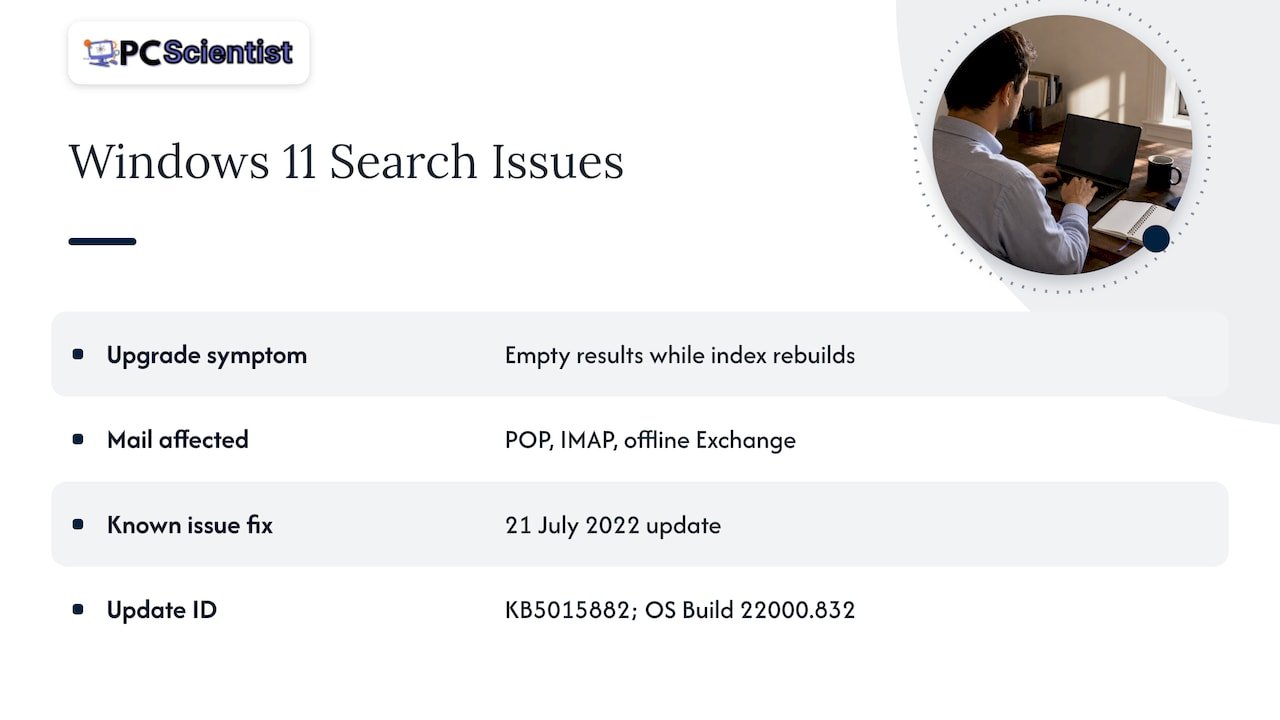
This is a well-known pattern. Microsoft says that after the upgrade, searches can come back empty while the index is rebuilt, and that it hits mail stored locally (POP, IMAP and offline Exchange data). Use Search Tools > Indexing Status to see how far along it is.
A separate issue showed up on Windows 11 where recent emails did not appear in search results. Microsoft's known issues page says this was fixed in an update released on 21 July 2022 (KB5015882, OS Build 22000.832). If your computer is behind on Windows updates, run Windows Update first, then retry the steps above.
Can you search Outlook without the index?
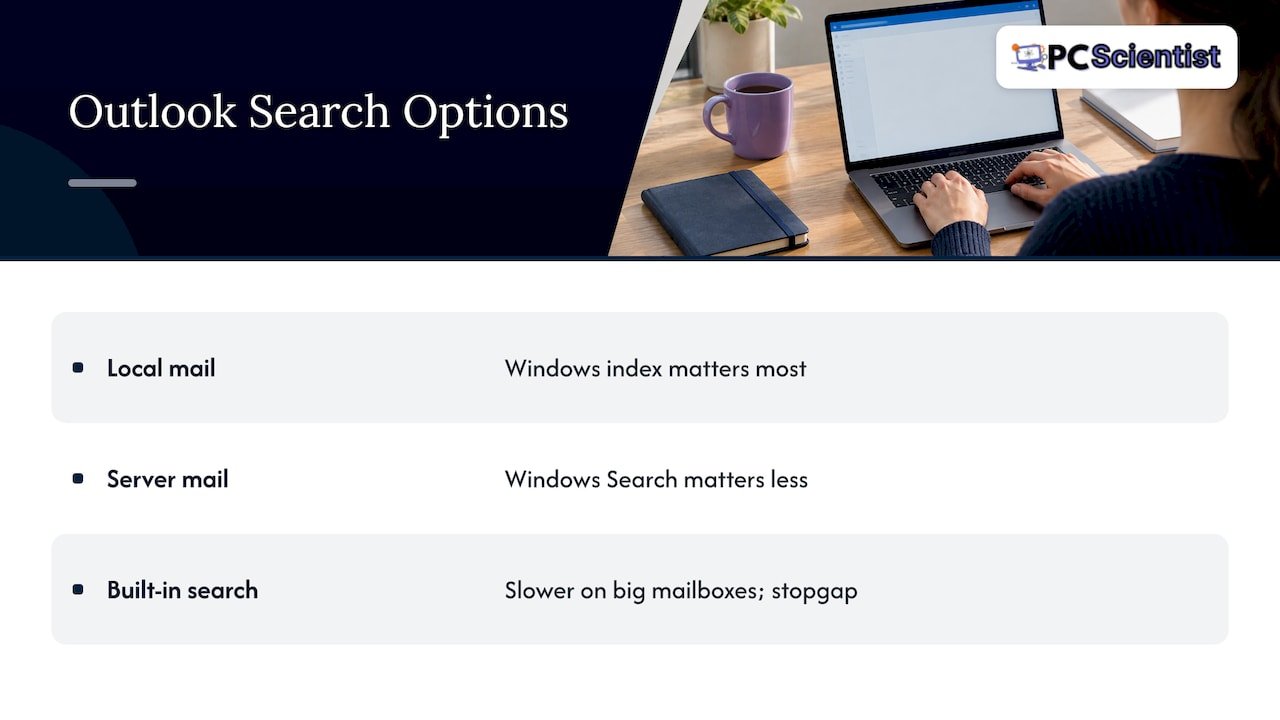
Yes, with a trade-off. Microsoft's documented workaround for that Windows 11 issue is to disable Windows Desktop Search, which makes Outlook use its own built-in search instead of the Windows Search service. Built-in search can be slower on a big mailbox, so treat it as a stopgap while you fix the proper index, not a permanent setup.
Microsoft also notes that Windows Search is less of a factor for mail held on the server, so the index matters most when your mail is stored locally. For Exchange and Microsoft 365 accounts, running in Cached Exchange Mode can reduce performance issues related to building indexes.
If you use Outlook for Mac
On a Mac, Outlook search depends on Spotlight. Microsoft lists three causes of "No Results": incomplete or corrupted Spotlight indexing, special characters in the profile name, or Spotlight Privacy exclusions. The order to work through:
- Wait. If you recently created a new profile, added an account or imported data such as a PST or OLM file, Spotlight may still be indexing. Let it finish and search again.
- Check Spotlight Privacy. In System Settings, make sure your Outlook profile folder has not been added to the exclusion list.
- Restart the Mac. This restarts the Spotlight services.
- Reindex. Microsoft then instructs you to reindex Spotlight for the Outlook profile using the
mdimportcommand. The exact steps are on Microsoft's page, so follow them precisely rather than from memory.
If you are comfortable in Terminal, that is a reasonable job. If not, it is a quick one for a technician.
When to repair Office or get help
If you have waited out the index, confirmed the service, rebuilt the catalogue and search is still broken, stop repeating the same steps. Rebuilding for the fourth time will not change anything. These signs point somewhere else:
- Search fails for one account but works for others, which suggests an account or data file problem.
- Outlook is slow, freezes or crashes as well, which suggests a damaged data file or a struggling computer.
- Search broke straight after an Office update, which a repair of the Office installation can sometimes sort out.
- Emails are missing, not just unsearchable. That is a sync problem rather than a search problem, and our guide to Outlook not receiving emails covers it.
- The mailbox is a work or Microsoft 365 one and you are not the admin, in which case the fix may sit with whoever manages your tenant.
Before anything drastic, make sure your mail is backed up. If a data file is damaged, a careless repair attempt can make it worse, and recovering it later is harder than protecting it now.
At that point a second pair of eyes saves time, and it should not cost you a day of lost work. A technician can check the data file, repair the Office install and confirm indexing is genuinely finishing.
Our perspective
Search is one of those features nobody thinks about until it fails, and then it feels like the whole mailbox has vanished. It has not. In our experience the people who come to us after a week of trying fixes are rarely stuck on a hard problem. They are stuck because nobody told them which version of Outlook they have, or that indexing needs Outlook open and a computer that is not flat out.
What we do on a visit is simple. We confirm the version, check indexing and the Windows Search service, and look at the account type and data files before rebuilding anything. Then we leave you with a search that works and a mailbox that is backed up, so it does not happen again.
We work onsite across NSW and remotely where it suits, and we fix email and Microsoft 365 problems alongside the computer itself, so you are not passed between a person for the PC and another for the email. You do not need to know the technical terms or pick the right service before you call. Describe what you see and we will take it from there.
PC Scientist
Need a hand with Outlook?
If search is still failing, or you would rather not poke around in Services and Indexing Options on a work computer, our Email Systems Scientist service handles Outlook, mailbox and Microsoft 365 problems for homes and businesses across NSW. We work onsite, with remote help where it is suitable, and we sort out the PC and the email in one visit.

Businesses can read about our Business Email and Microsoft 365 support, and if you are in Western Sydney, see email support in Western Sydney. If the whole computer is sluggish, Computer Repair Scientist is the better starting point.
Sources
- Troubleshooting Outlook search issues, Microsoft Support
- Fix search issues by rebuilding your Instant Search catalog, Microsoft Support
- How to troubleshoot performance issues in Outlook, Microsoft Support
- Outlook search does not return results after upgrade to Windows 11, Microsoft Support
- Outlook Search might not display recent emails on Windows 11, Microsoft Support
- Windows Search service setting results in no matches found, Microsoft Learn
- Why is desktop search service unavailable, Microsoft Support
- Troubleshoot search issues in Outlook for Mac, Microsoft Support
- Outlook Troubleshooting Tips and Common Errors, University of Iowa ITS
Recommended
- Outlook not receiving emails: fix it fast
- Teams Meeting Not Connecting? Fixes That Work
- IT Support Pymble NSW | Outlook Stuck in the Outbox
Frequently Asked Questions
Straight answers about Outlook Search Not Working? Fixes That Actually Work - without jargon or pressure. Call 0493 563 381 for advice, or get help below.
Mail not sending Outlook Shared inboxes Phone and computer Whole NSW
Want the quickest answer? 0493 563 381 for free advice.
Usually the search index is unfinished, switched off or damaged. In classic Outlook the Windows Search service has to be running and Outlook has to be included in the index. On a Mac the same job falls to Spotlight. Work through indexing status first, then the service, then a rebuild.
Close Outlook, open Indexing Options from Control Panel and check Microsoft Outlook is ticked. Choose Advanced, then Rebuild under Troubleshooting. Reopen Outlook and leave it running, because results stay patchy until indexing completes, and a large mailbox can take hours.
Indexing only moves while Outlook is open, and Windows can slow or pause it when the computer is busy. Check Search Tools > Indexing Status and look again after five minutes. If the remaining count is falling, it is working. If it never moves, rebuild the index.
Microsoft documents turning off Windows Desktop Search so Outlook uses its built-in search instead. It works as a temporary measure, though it can be slower on large mailboxes. Fixing the index properly is the better long-term answer.
No. Search and mail storage are separate, so an empty result usually means the catalogue is incomplete, not that messages are gone. Browse the folder directly to confirm they are there. If they are genuinely missing, that is a sync issue and needs a different fix.
Email help across NSW
Still stuck with Outlook search that isn't working?
If you have tried the steps and mail still is not coming through, that is okay. Get email help in your area and we will take it from here.
Start here
Get email help
Optional Need a Sydney city or region?
Choose a side of Sydney
These are Sydney cities and regions, such as the Northern Beaches or Inner West. First tap a side of Sydney. Then open the city or region that covers you.
C Sydney City / Inner 3 areas
N Northern Sydney 5 areas
NW North-West / Central Sydney 3 areas
W Western Sydney 1 area
SW South-West Sydney 3 areas
S Southern Sydney 2 areas
Optional Find your suburb
Type a suburb from our listed coverage. This opens the matching city or region page for this topic. Listed suburb pages are general technology services, not this specialist page.
If your suburb is not listed, use the city or region list above, or call 0493 563 381.
Disclaimer
The information in this article is provided for general educational and informational purposes only. While PC Scientist strives to keep all content accurate and up to date, technology issues can vary depending on your device, software, network configuration, and individual circumstances. Always back up important data before attempting repairs or system changes. If you are unsure or the issue cannot be resolved safely, contact PC Scientist today for professional onsite or remote IT support. PC Scientist is not liable for any loss of data, damage, or other issues resulting from the use of the information provided in this article.