

Teams Meeting Not Connecting? Fixes That Work

If your Teams meeting won't connect, the cause is usually one of four things: you're waiting in the lobby, you're signed in to the wrong account, your internet connection is too weak for live video, or a firewall is blocking the traffic Teams needs. Most of these take under five minutes to sort out once you know which one you're dealing with. This guide walks you through them in the order we check them on a call-out, starting with the quick ones.
The meeting starts in two minutes, your stomach drops, and the Join button does nothing. We know the feeling. Take a breath and work down the list.
Key takeaways
- Check the simple things first: the lobby, the right meeting link, the right account. These cause most "can't join" problems.
- If Teams shows a sign-in error, note the status code at the bottom left of the window. It tells your IT person exactly what's wrong.
- For a call that keeps dropping, test your Wi-Fi, use a proper headset and update Teams before blaming Teams itself.
- In an office, ask whoever looks after your network to allow UDP ports 3478 to 3481 and TCP ports 443 and 80 outbound.
- If you're out of time, dial in by phone to catch the audio while you fix the rest.
Table of Contents
- Start here: a 60-second triage
- You click Join and nothing happens, or it says you can't join
- Teams won't connect at all, or won't sign in
- Your Teams call keeps dropping
- Why your home or office network might be the culprit
- Firewall ports and network settings Teams needs
- Is something wrong with Teams right now?
- Work through it in order
- Our view: the problem is rarely Teams alone
- Want a person to sort it out?
- FAQ
- Sources
Start here: a 60-second triage
Before you reinstall anything, run through this short list. It catches the majority of cases.
- Is anything else online? Open a website in a browser. If that fails too, the problem is your internet, not Teams.
- Are you in the lobby? If you can't get straight in, you may simply be waiting for the organiser to admit you.
- Are you on the right account? Check the profile picture in the top right of Teams. A work meeting often needs your work account, not your personal one.
- Did you restart Teams? Close it fully (not just minimise) and reopen it.
- Is the meeting link complete? Links copied from emails sometimes lose their last characters.
If none of that fixes it, find your symptom below.
You click Join and nothing happens, or it says you can't join
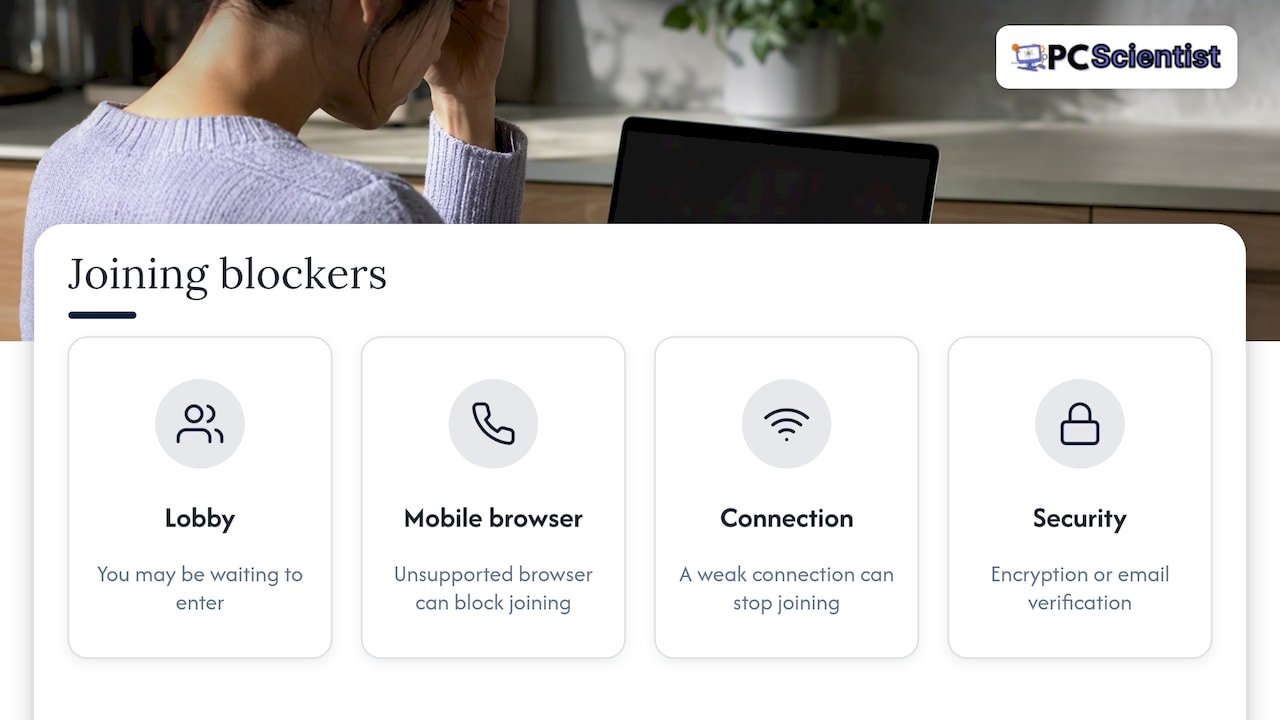
Microsoft's own guidance lists the common reasons: you might be waiting in the lobby, using an unsupported mobile web browser, or on a weak connection, and meeting security policies such as end-to-end encryption or email verification can also stop you joining. Here's how each plays out in real life.
Stuck in the lobby
If you can't immediately get in, the organiser may need to admit you. Per Microsoft, your request can time out after 30 minutes. If you've been waiting a while, leave and rejoin with the original link, and message the organiser by text or email. If the meeting has been locked, only the organiser can let you in.
You can only join as a guest
This one is common when you click a link and Teams opens in a browser, or signs you in under a different account than you expected. Sign out, sign back in with the account the invitation was sent to, then click the link again. If you keep landing as a guest, ask the organiser which email address they invited.
Some organisations also restrict who can come in. Microsoft notes that admin settings can stop unverified people joining, and you may have to enter a one-time passcode sent to your email or create a Teams account. Check your inbox, including junk, for that code. If you run a business and your clients keep hitting this wall, our guide on Teams guest access settings explains what to set up in advance.
The link is dead or missing
If the invite has no link at all, the problem is on the organiser's side, usually the Teams add-in in Outlook. Ask them to reschedule the meeting from Teams directly. If the invite arrives but the link is unresponsive, copy it and paste it into a browser address bar. And if the invite never arrived because email is misbehaving, see our fix for Outlook not receiving emails.
The emergency exit: join by phone
If the clock is against you, dial in. Microsoft explains that calling in lets you join the audio part of a Teams meeting by phone, which helps when your computer can't manage audio. The invite needs to include dial-in details, which depends on how your organisation's Microsoft 365 is set up. If it doesn't, the organiser can usually share the meeting on screen with you by message.
Teams won't connect at all, or won't sign in
If Teams itself opens but shows an error instead of your chats and calendar, you have a connection or sign-in problem rather than a meeting problem.
Microsoft's sign-in guidance says to make sure you're connected to the internet, then work with your IT admin to confirm that other apps or a firewall configuration aren't blocking access. It also points out that the status code shown at the bottom left of the window helps your admin diagnose it. Two you may see:
| Status code | What it means | What to try |
|---|---|---|
| 0xCAA82EE2 | The request timed out | Check your connection, move closer to the router, try again |
| 0xCAA82EE7 | The server name couldn't be resolved | Restart your router, then ask your IT admin to check DNS and firewall settings |
Take a screenshot of the error and send it to whoever looks after your computers. It saves a lot of back and forth.
Your Teams call keeps dropping
A call that connects and then falls over a few minutes in is almost always a quality problem rather than a Teams fault. Microsoft's checklist for this is short: make sure both callers have stable internet with enough throughput, use certified headsets or audio devices, and restart Teams on the latest version.
In practice, here's what we look at first:
- Distance from the router. Wi-Fi through two or three walls, or across a storey, drops out under the load of live video.
- Other people using the connection. Someone streaming 4K video or downloading a game update can starve your call.
- A cheap or damaged headset. Bluetooth earbuds that disconnect can look like the whole meeting dropping.
- An old Teams version. Update it, restart it, and test again.
- Both ends. If only one person is dropping, the fault is usually on their side. If everyone drops at once, look at the organiser's connection.
Quick fixes you can do right now
- Plug your computer into the router with a network cable if you can. It's the fastest way to prove whether Wi-Fi is the problem.
- Turn off video for a minute. If the call steadies, your connection is struggling with bandwidth.
- Close other apps, especially cloud backups and large downloads.
- Restart the router. Unplug it for 30 seconds, plug it back in and wait for all the lights to settle.
For a few more general ideas, these laptop Wi-Fi quick checks cover the basics of network access, restarts and updates. If your Wi-Fi drops across the house rather than just in Teams, our guide to what actually fixes Wi-Fi that keeps dropping goes much deeper.
Why your home or office network might be the culprit
Teams carries live audio and video, and that's far more sensitive to a poor network than loading a web page. A connection that seems fine for email can still struggle in a meeting.
The signs that your network, not Teams, is the problem:
- Zoom, Google Meet or video calls on your phone also stutter in the same room
- The problem happens in one part of the house or office and disappears near the router
- It's worse at certain times, such as when kids are home from school or the whole office is on calls
- Other devices, like smart TVs or printers, also drop off the Wi-Fi
In a small office, a single consumer-grade router trying to serve a dozen people, a phone system and guest Wi-Fi is a common bottleneck. In a large or multi-storey home, one router in the corner of the lounge room rarely reaches the home office upstairs. Both are fixable with better placement, a properly planned mesh system or a wired connection to the room that matters. If you're on the Central Coast, see our Wi-Fi and network help for the Central Coast.
Firewall ports and network settings Teams needs
If Teams works at home but not at the office, or works for everyone except one site, a firewall is the prime suspect. This part is for whoever manages your network, so pass it on if that isn't you.
Microsoft's call-flow documentation says that open connectivity to TCP ports 80 and 443, and UDP ports 3478 (STUN), 3479 (audio), 3480 (video) and 3481 (screen sharing) is required. Here's the summary:
| Port | Protocol | Used for |
|---|---|---|
| 80 | TCP | Web traffic |
| 443 | TCP | Secure web traffic, sign-in, fallback for media |
| 3478 | UDP | STUN, connection setup |
| 3479 | UDP | Audio |
| 3480 | UDP | Video |
| 3481 | UDP | Screen sharing |
A few practical points for your admin:
- These are outbound rules. A Microsoft Q&A answer notes that inbound ports don't need opening to the internet, because stateful inspection allows the return traffic.
- The rules should point at Microsoft's published address ranges, not at the whole internet.
- Microsoft recommends that Teams traffic bypasses proxy servers, including SSL inspection. Content-filtering and inspection features on business firewalls are a very common reason for choppy or failed calls.
- The same page also strongly recommends local, external DNS resolution.
If you're not sure who "your admin" is, that's worth knowing. Microsoft says your first resource for Teams technical support is your IT admin, who manages Teams settings for your organisation. If you're a small team without one, that's the gap we fill.
Is something wrong with Teams right now?
Sometimes it really is Microsoft. Here's a quick way to tell the difference:
- If only you are affected, it's your device, account or network.
- If everyone in your organisation is affected at the same moment, across several devices and networks, check the service health page in the Microsoft 365 admin centre. Anyone with admin access can see current incidents there.
- If some people can join and others can't, think account type, guest settings or a firewall at one site.
A useful test: try joining from your phone on mobile data. If it works, Teams is fine and your Wi-Fi or office network is the issue. If it fails everywhere, check the admin centre or wait a few minutes and try again.
Work through it in order
Use this as a one-page checklist. Stop when it starts working.
- Confirm your internet works for other things.
- Rejoin using the original invitation link and the right account.
- Check the lobby and message the organiser.
- Close Teams completely, reopen it, update it.
- Try a different device or the phone on mobile data.
- Dial in by phone if the meeting can't wait.
- Plug in with a cable, or move closer to the router.
- Note any status code and send it to your IT person.
- For office-only problems, ask for the firewall and proxy checks above.
Our view: the problem is rarely Teams alone
When someone rings us about a Teams meeting that won't connect, the fault is rarely in Teams itself. It's usually a small thing sitting between you and the meeting: a router that's four years old, a Wi-Fi signal that doesn't reach the study, a firewall rule nobody has looked at since the office was set up, or an account mix-up that nobody noticed because things mostly worked.
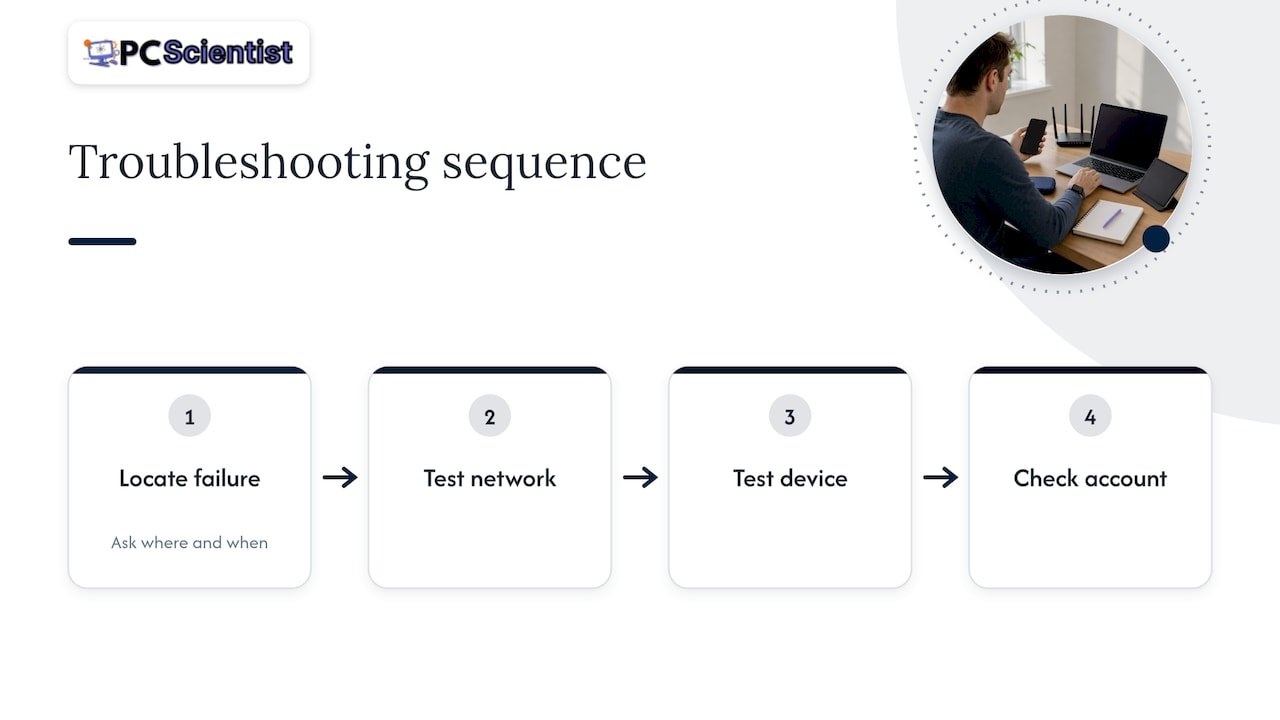
That's why we don't start by reinstalling software. We start by asking where and when it fails, then test the network, the device and the account in that order. The aim is to fix the actual cause so you aren't back in the same panic next Tuesday. For homes, that often means better Wi-Fi placement or a wired connection for the work desk. For small businesses, it often means a proper look at the firewall and how guest and staff traffic are separated.
One more thing: you shouldn't need to know the jargon to get help. Tell us what you saw on the screen and what you were trying to do. We'll work out the rest.
- PC Scientist
Want a person to sort it out?
If you've been through the list and the meeting still won't connect, we can take it from here. Our Computer Support Scientist service covers onsite and remote help for Teams, devices and everyday computer problems across NSW, and for network faults behind dropouts our Network Scientist team looks at Wi-Fi, routers and firewalls. We can often work remotely to start with, and come onsite when the cause is in your building. We offer no fix, no fee repairs and clear upfront pricing.

Businesses wanting ongoing help can look at our Business Network and Wi-Fi assessment, which is designed for offices where the internet is unreliable.
Sources
- I can't join a meeting in Microsoft Teams, Microsoft Support
- Join a meeting without an account in Microsoft Teams, Microsoft Support
- Join a Teams meeting by phone, Microsoft Support
- Why am I having trouble signing in to Microsoft Teams?, Microsoft Support
- My calls or meetings keep dropping in Microsoft Teams, Microsoft Support
- Microsoft Teams call flows, Microsoft Learn
- Firewall Ports for Teams, Microsoft Q&A
- Proxy servers for Teams, Microsoft Learn
- Troubleshoot in Microsoft Teams, Microsoft Support
Recommended
- Fix a Smart TV That Won't Connect to Wi-Fi in Under Five Minutes
- Outlook not receiving emails: fix it fast
- Printer won't connect to Wi-Fi: quick fixes that work
- Teams Guest Access: Admin Preflight for Pro Services to Avoid Exposure
Frequently Asked Questions
Straight answers about Teams Meeting Not Connecting? Fixes That Work - without jargon or pressure. Call 0493 563 381 for advice, or get help below.
Want the quickest answer? 0493 563 381 for free advice.
The usual causes are waiting in the lobby, being signed in to the wrong account, an unsupported mobile browser or a weak connection. Microsoft also lists meeting security settings, such as email verification, as a cause. Sign out, sign back in with the invited address, and rejoin from the original link.
Usually it's an unstable connection, an unreliable headset or an out-of-date Teams app. Check that your internet is steady, try a cable instead of Wi-Fi, use a certified audio device, and update and restart Teams. If everyone on the call drops together, the organiser's connection is the first place to look.
Teams needs outbound access to TCP ports 80 and 443, and UDP ports 3478 to 3481. Inbound ports don't need to be opened to the internet. Your network admin should also let Teams traffic bypass proxy and SSL inspection where possible.
Try the link in a different browser or paste it into the address bar, then try the Teams app instead of the browser. If it still does nothing, ask the organiser to resend the invitation or to confirm the meeting isn't locked. As a last resort, dial in by phone if the invite has a number.
Network help across NSW
Still stuck with a Teams meeting that will not connect?
If the steps above did not get the network behaving, that is okay. Get help in your area and we will take it from here.
Start here
Get network help
Optional Need a Sydney city or region?
Choose a side of Sydney
These are Sydney cities and regions, such as the Northern Beaches or Inner West. First tap a side of Sydney. Then open the city or region that covers you.
C Sydney City / Inner 3 areas
N Northern Sydney 5 areas
NW North-West / Central Sydney 3 areas
W Western Sydney 1 area
SW South-West Sydney 3 areas
S Southern Sydney 2 areas
Optional Find your suburb
Type a suburb from our listed coverage. This opens the matching city or region page for this topic. Listed suburb pages are general technology services, not this specialist page.
If your suburb is not listed, use the city or region list above, or call 0493 563 381.
Disclaimer
The information in this article is provided for general educational and informational purposes only. While PC Scientist strives to keep all content accurate and up to date, technology issues can vary depending on your device, software, network configuration, and individual circumstances. Always back up important data before attempting repairs or system changes. If you are unsure or the issue cannot be resolved safely, contact PC Scientist today for professional onsite or remote IT support. PC Scientist is not liable for any loss of data, damage, or other issues resulting from the use of the information provided in this article.