

Parental controls on the router: six setup steps
Your router is the single best place to manage a child's internet access because every device on your home Wi-Fi passes through it. If your router has decent built-in controls, use them; if not, point its DNS to a free family filter like CleanBrowsing or Cloudflare for Families and add device-level limits for mobile data. No setup replaces talking to your kids about what they're doing online.
Key takeaways
- Content filtering via DNS change or router controls can block adult content, gambling, and violence without requiring complex setup or app management.
- Regularly updating router firmware and securing admin access are crucial to prevent skillful bypasses like VPNs, DNS over HTTPS, or mobile data use.
- Device-specific controls are necessary because kids can bypass network filters using their phones on mobile data or through encrypted messaging and video apps.
- Setting schedules and conducting monthly checks help maintain effective parental controls as children age and devices change.
- Professional help may be needed for complex home networks with multiple access points or numerous smart devices that require tailored profiles and advanced configurations.
Table of Contents
- What router parental controls actually do
- What to look for when choosing a router for parental controls
- Built‑in controls, DNS filtering, Pi‑hole or device controls: which one fits your home?
- Why kids get around router controls, and what to do about it
- Step‑by‑step: get baseline protections running today
- When it's worth calling in a professional
- Getting the balance right between control and trust
- Where to go for hands‑on setup help
- Sources
- FAQ
What router parental controls actually do
A parental controls router works by applying rules at the network level, before traffic even reaches your child's phone, tablet or console. That's the whole appeal: one setup, every device covered, no app‑hopping required.
Most modern routers group a child's gadgets into a single profile, so you're not toggling settings on five separate devices every time something changes. Set a bedtime once, and it applies to the tablet, the gaming console and the old phone they use as an iPod.
Scheduling and instant pause are the features families use most. A homework or bedtime window cuts access at a set time without you having to physically confiscate anything, and an instant pause button is handy for "dinner's ready, phones away" moments that don't need a permanent schedule.
Beyond timing, look at what the router filters and reports:
- Content categories block broad groups of sites (adult content, gambling, violence) without you manually listing every domain.
- Whitelists and blacklists handle specific exceptions, like allowing a school portal or blocking one problem site the category filter missed.
- Activity reports show which sites were visited and when, useful for spotting patterns, but they can't see inside encrypted messaging apps or video streams.
- Per‑device grouping means new devices added to a profile inherit existing rules automatically.
None of this works if the app is a pain to use. If checking or adjusting settings takes fifteen minutes and three menus, most parents simply stop doing it after week two. Ease of use isn't a nice extra here, it's the difference between controls that stay active and ones that quietly lapse.
What to look for when choosing a router for parental controls
Not every router marketed with "child safety features" delivers the same level of control. Before you buy or upgrade, run through this checklist:
- A management app that's actually usable. TP‑Link's HomeCare and Netgear's Smart Parental Controls both use companion apps that let you check or adjust settings from your phone, which matters far more than a feature list once you're three weeks into ownership.
- Age‑based presets and easy device assignment. Look for routers that let you pick "young child," "teen" or similar presets rather than building filter rules from scratch.
- Custom DNS support. A router that lets you enter your own DNS addresses means you can add a family filter like Cloudflare for Families or CleanBrowsing without buying new hardware.
- VPN and DNS‑bypass restrictions. Some routers let you block common VPN ports or force all outbound DNS requests through the router, closing an obvious escape route.
- A clear subscription policy. Some vendors bundle basic scheduling for free but charge a subscription for content categories or reporting. Check this before you buy, not after
- Regular firmware updates. A router that hasn't had a security patch in two years is a bigger risk to your family than any website filter.
Pro Tip: Check the vendor's support page before buying, not after. TP‑Link publishes a step‑by‑step parental control guide for its routers, and if a setup looks too complicated even reading the instructions, it'll be worse living with it.
Built‑in controls, DNS filtering, Pi‑hole or device controls: which one fits your home?
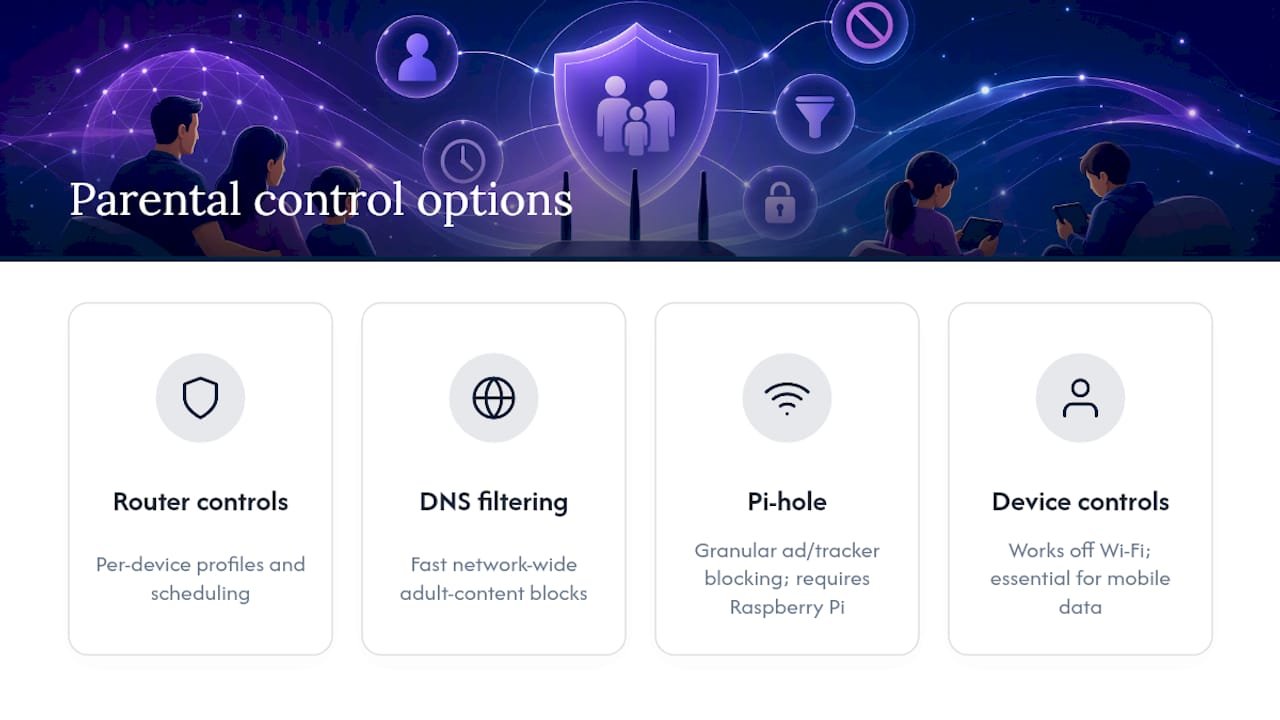
There's no single correct setup, only the one that matches your household's tech comfort and how many kids' devices you're managing.
Built‑in router controls are the easiest starting point if your router has them. You get per‑device profiles and scheduling without installing anything extra, though feature depth varies wildly between brands and older routers may offer very little.
DNS filtering is the fastest fix if your router's own controls are thin or nonexistent. Redirecting your router's DNS to Cloudflare for Families or CleanBrowsing Family blocks adult content network‑wide in minutes, and it works on almost any router that accepts custom DNS settings, no firmware update or new hardware needed.
Pi‑hole suits technically confident households wanting granular, ad‑and‑tracker‑level blocking on top of content filtering. It's a genuinely powerful DIY option, but it requires a Raspberry Pi (or similar device) running continuously and some comfort with basic network configuration.
Device‑level controls such as Apple's Screen Time settings or Google Family Link aren't optional extras, they're essential, because they're the only layer that still works once a phone leaves your Wi‑Fi and switches to mobile data.
For most families, the practical answer is a combination: router controls or DNS filtering for the home network, plus device controls for anywhere else. Belt and braces beats any single layer working alone.
Why kids get around router controls, and what to do about it
Every parent eventually discovers that a determined teenager finds the gap in the fence. Understanding the common bypasses makes them far easier to close.
- Mobile data and friends' hotspots skip your router entirely, which is exactly why device‑level controls matter, not just router rules.
- VPN apps create an encrypted tunnel around your filters. Blocking common VPN protocols at the router firewall, where your router supports it, closes most of this without an argument.
- DNS over HTTPS (DoH) lets a browser bypass your chosen DNS filter quietly. Forcing all DNS traffic through firewall rules, or choosing a router that supports this natively, limits the workaround.
- Encrypted messaging and video apps simply can't be inspected at the network level, so in‑app parental settings are your only real lever there.
A genuinely tech‑savvy teen can find several of these in an afternoon. Treat controls as a deterrent and a conversation starter, not an unbreakable wall, and pair graduated trust (more freedom as they demonstrate responsibility) with a monthly check that settings and firmware are still current.
Pro Tip: Set a recurring monthly reminder to log into your router and check for firmware updates. Vendors patch security holes far more often than most parents realise, and an outdated router is often the easiest door in the house.
Step‑by‑step: get baseline protections running today
You don't need a full afternoon to get meaningful protection in place. Here's the order that gets you the most coverage for the least effort:
- Change the router's admin password and turn on two‑factor authentication if it's offered. This stops anyone from quietly undoing your work later.
- Inventory every connected device and assign each one to a named profile (not just "unknown device 14").
- Set schedules for bedtime and homework on each child's profile.
- Turn on content filtering, or if the built‑in options feel thin, switch the router's DNS to a family filter such as CleanBrowsing or Cloudflare for Families.
- Test it from a child's device, then switch that same device to mobile data to confirm exactly where your router's protection stops.
- Book a recurring monthly check to review settings as your kids get older and your household adds new devices.
This last step matters more than most parents expect. A 2024 eSafety study found that 55% of Australian children had made contact with someone they first met online, while only 34% of parents were aware of who their child was talking to. Settings drift, kids get new devices, and a five‑minute monthly check catches what a one‑off setup misses.
When it's worth calling in a professional
Some homes outgrow a on your own setup fast. If you're running a mesh network with multiple access points, or you've got a house full of smart TVs, consoles and IoT devices all needing separate profiles, working out the interactions yourself can eat an entire weekend.
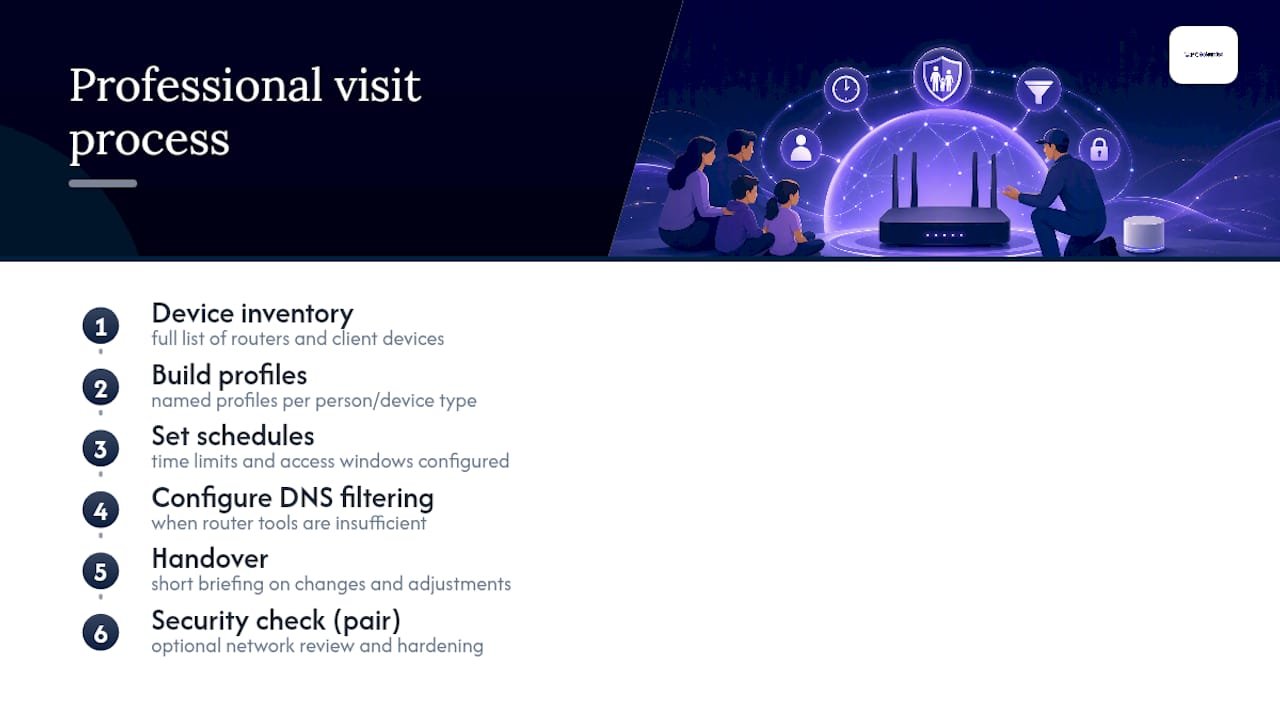
Professional IT support services can handle this onsite and remotely, starting with a full device inventory, then building named profiles, setting schedules, and configuring DNS filtering where your router's own tools fall short. A typical visit ends with a short handover so you understand exactly what's been set and how to adjust it later. It's also worth pairing this with a network security check if your home network hasn't been reviewed in a while, since a locked-down router protects the whole household, not just the kids.
Getting the balance right between control and trust
I think the biggest mistake parents make is treating parental controls as a set-and-forget wall rather than a dial you adjust as your kids grow. Lock things down hard for a seven-year-old. Loosen the reins for a fifteen-year-old and negotiate the terms with them directly, they'll respect the boundary more if they helped draw it.
The families who get the most out of this combine a bedtime pause with an honest conversation about why it exists. Controls stop accidental exposure. Conversation is what actually builds the judgement your kids will need once they're out of your house and off your Wi‑Fi entirely.
- PC Scientist
Where to go for hands‑on setup help
For step‑by‑step configuration, check TP‑Link's parental control guide or Netgear's own support pages. For family‑safe DNS, look at Cloudflare for Families and CleanBrowsing. For broader guidance, the eSafety Commissioner and Cyber are worth bookmarking.
If your setup involves more than one router or a network that's already causing headaches, a Wi‑Fi network assessment can sort out the foundations before you layer parental controls on top.
Sources
- How to Set Up Parental Controls on Your Router (All Major Brands + DNS Filtering) - The Infobits
- How to configure Parental Control on TP‑Link Wi‑Fi Router
- Protect your children online - Australian Cyber Security Centre
Recommended
- Guest Wi-Fi network setup: secure and simple
- Home Wi-Fi setup: get online in under 30 minutes
- Your new PC setup checklist: eight things to do first
Frequently Asked Questions
Straight answers about 6 Step Router Setup for Parental Controls: Quick Wins for Busy Parents - without jargon or pressure. Call 0493 563 381 for advice, or get help below.
Want the quickest answer? 0493 563 381 for free advice.
Yes. Most routers made in the last several years include built‑in parental control features, and even older routers can filter content by switching to a family DNS service like Cloudflare for Families or CleanBrowsing.
There's no single best option for every household, but routers with strong companion apps, such as those offering TP‑Link HomeCare or Netgear Smart Parental Controls, tend to be easier for parents to actually keep up to date, which matters more than any single feature.
Log into your router's admin app or web interface, create a profile for each child's devices, then apply schedules and content filters to that profile. If the built‑in options are limited, change the router's DNS to a family filter instead.
Most current TP‑Link and Netgear routers include parental control features through their respective apps, and almost any router that accepts custom DNS settings can use a free family filter like CleanBrowsing regardless of brand.
Cybersecurity across NSW
Want help setting parental controls?
If the device still does not feel safe, that is okay. Get help in your area and we will take it from here.
Start here
Get cybersecurity help
Optional Need a Sydney city or region?
Choose a side of Sydney
These are Sydney cities and regions, such as the Northern Beaches or Inner West. First tap a side of Sydney. Then open the city or region that covers you.
C Sydney City / Inner 3 areas
N Northern Sydney 6 areas
NW North-West / Central Sydney 3 areas
W Western Sydney 1 area
SW South-West Sydney 3 areas
S Southern Sydney 2 areas
Optional Find your suburb
Type a suburb from our listed coverage. This opens the matching city or region page for this topic. Listed suburb pages are general technology services, not this specialist page.
If your suburb is not listed, use the city or region list above, or call 0493 563 381.
Disclaimer
The information in this article is provided for general educational and informational purposes only. While PC Scientist strives to keep all content accurate and up to date, technology issues can vary depending on your device, software, network configuration, and individual circumstances. Always back up important data before attempting repairs or system changes. If you are unsure or the issue cannot be resolved safely, contact PC Scientist today for professional onsite or remote IT support. PC Scientist is not liable for any loss of data, damage, or other issues resulting from the use of the information provided in this article.
