
Chromecast Not Connecting? Fixes That Work in Australia
Most Chromecast connection problems come down to one of three things: the Wi-Fi itself, the phone or tablet doing the setup, or a router setting that stops devices from seeing each other. Start with the quickest test. Check whether your other devices can get online. If they can't, the fault is your router, not the Chromecast. If they can, work through the steps below in order, finishing with a factory reset only if nothing else helps.
We fix this sort of thing in NSW homes every week, and the pattern is usually simple once you know where to look. This guide walks you through it without the jargon.
Key takeaways
- Check that your phone and other devices can get online first. If they can't, restart the router (unplug it for 2 minutes) before touching the Chromecast.
- If setup fails or the Chromecast won't appear in Google Home, check Bluetooth, Local Network and location permissions, and keep the Chromecast close to your phone and router.
- Older Chromecasts only see 2.4 GHz Wi-Fi, and a hidden network name won't show in the list at all.
- A router setting called AP isolation, or switched-off UPnP, can make a perfectly healthy Chromecast invisible.
- Factory reset is the last step, not the first. If it still fails, the problem is usually the network, and we can come to you.
Table of Contents
- Start here: is it the Chromecast or your Wi-Fi?
- Quick checks that fix a surprising number of cases
- Setup failed or the Chromecast isn't showing up in Google Home
- Chromecast can't find your Wi-Fi network
- Connecting a Chromecast to a new Wi-Fi network or password
- When to factory reset your Chromecast
- A quick fault-finding table
- Is the Chromecast still supported?
- Our perspective: why it's usually the network, not the Chromecast
- When it's time to call someone
- Get it sorted onsite or remotely
- FAQ
- Sources
Start here: is it the Chromecast or your Wi-Fi?
Before you reset anything, spend one minute on this. Grab your phone, laptop or smart TV and check that they can load a web page. Google's own guidance is to check whether other devices can connect to your Wi-Fi and get online, and if they can't, to reboot the router by unplugging it for 2 minutes.
Two details that trip people up:
- Count the 2 minutes. Unplugging and replugging straight away often doesn't clear anything.
- If your router has a backup battery pack, Google notes you may need to disconnect the battery so the router turns off completely. Some NBN boxes and modems in Australian homes have one.
If other devices also can't connect, the issue likely lies with the router, not the streaming device. That's good news, because it means your Chromecast probably isn't faulty. If you want a proper walkthrough of securing and checking the router itself, this step-by-step home Wi-Fi router guide covers the settings you may need to open later in this article. And if the whole connection keeps dropping, our guide on what actually fixes Wi-Fi that keeps dropping goes deeper.
Quick checks that fix a surprising number of cases
These take a couple of minutes and need no tools.
- Power the Chromecast properly. Use the power adapter that came with it, plugged into a wall socket, rather than the TV's USB port. A weak supply can cause random dropouts. This is our experience in the field rather than a Google rule, but it's an easy thing to rule out.
- Restart the Chromecast. Unplug the power, wait about a minute, plug it back in. Google's advice is to reboot the device first, and only perform a factory reset if you still can't find it in the Google Home app.
- Put your phone on the same Wi-Fi. Casting only works when your phone and the Chromecast are on the same network. Turn your phone's Wi-Fi off and on, and switch off any VPN while you test.
- Move the Chromecast closer. Google recommends keeping it within about 6 metres (20 feet), or as close as possible, to the device you're setting up and to the router. Behind a TV, against a wall full of cabling, is a poor spot for a signal.
- Use the HDMI extender on a first-generation model. If you have the original Chromecast, Google says the included HDMI extender can improve Wi-Fi performance.
Setup failed or the Chromecast isn't showing up in Google Home
This is the most common complaint we hear: the app searches and searches, then gives up. In most cases the Chromecast is fine and the phone isn't allowed to find it.
Check your phone's permissions
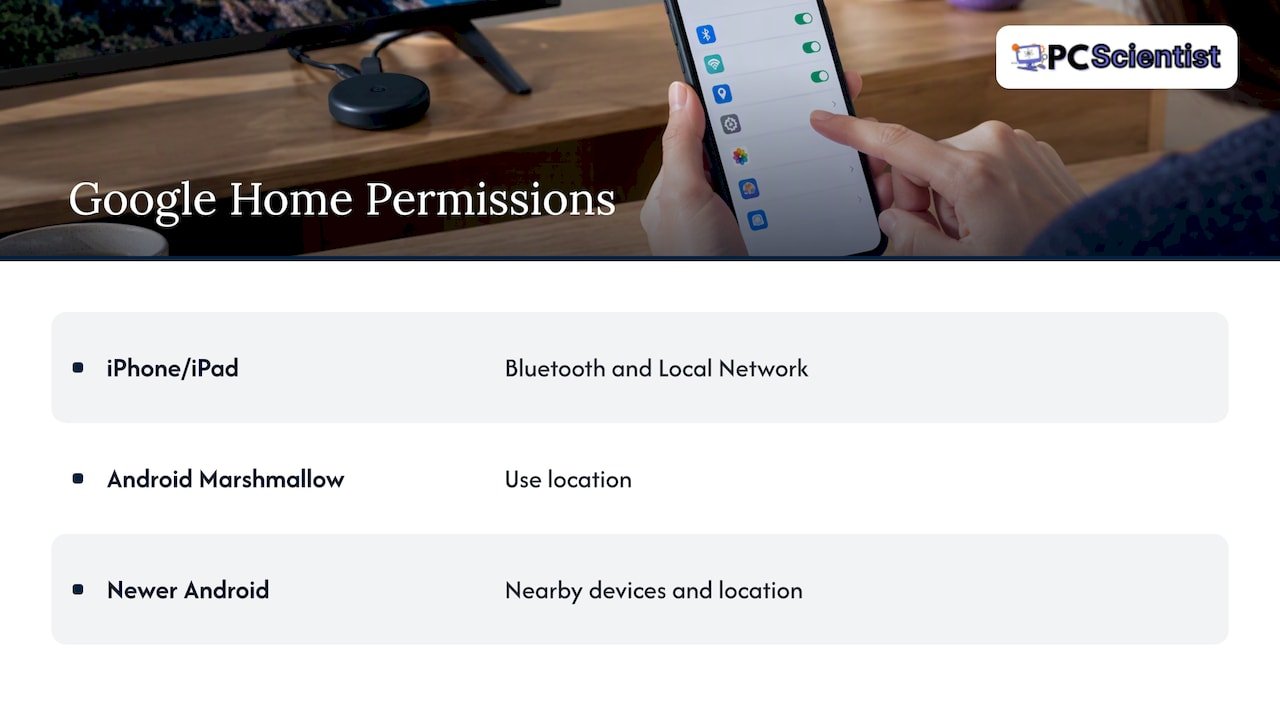
Google's troubleshooting page says that on an iPhone or iPad you should turn on Bluetooth and Local Network access for the Google Home app. On Android Marshmallow, the equivalent is turning on Use location. On newer Android versions, check that Google Home has the nearby devices and location permissions it asks for.
Next, force close the Google Home app and reopen it. If that doesn't work, reinstall it, or try setup from a different phone or tablet. We've seen older phones with stubborn settings fail where a family member's phone sets it up in a minute.
Keep everything close during setup
During setup, keep the Chromecast within 15 to 20 feet (4 to 6 metres) of the phone you're using, per Google's setup guidance. Don't set it up from the other end of a double-storey house.
Check the router's discovery settings
Two router settings can hide your Chromecast from your phone even when both are on the same Wi-Fi:
- UPnP (also called multicast). Google explains that enabling UPnP in your router settings allows discovery of UPnP-enabled devices on the same Wi-Fi network. If it's off, your phone may never see the Chromecast.
- AP isolation. This stops devices on the Wi-Fi from talking to each other. Google's Australian support page says AP isolation can prevent devices from communicating with Google streaming devices, and recommends turning it off in your router settings.
AP isolation is often switched on by default for guest networks, and by some providers on the main network too. If you're on a guest network, move to the main one for setup.
Chromecast can't find your Wi-Fi network
If the list of networks during setup doesn't include yours, there are two usual reasons.
Your network name is hidden
If the router hides its network name (SSID), it won't appear in the list. For the Chromecast (1st, 2nd or 3rd gen), Audio and Ultra, Google says you should select Other at the Wi-Fi step and enter the name and password manually. Type the name exactly, with capital letters and spaces as they are.
It's a 5 GHz-only network
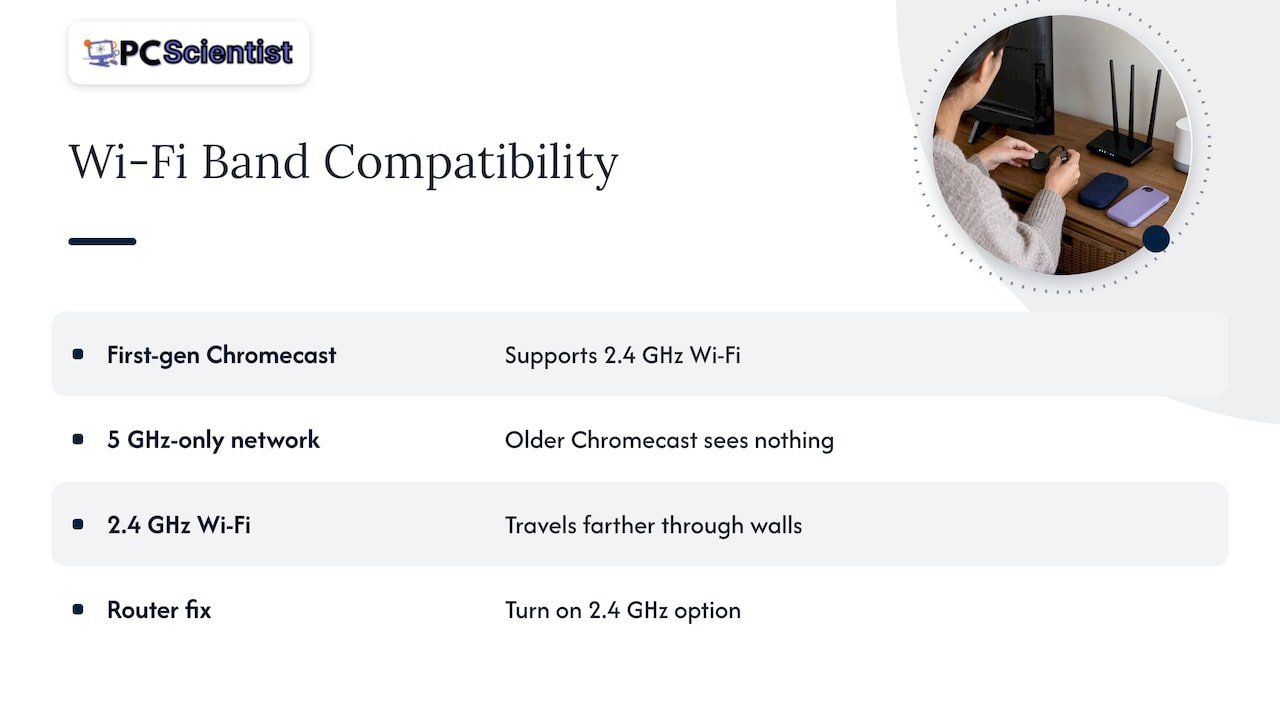
First-generation Chromecasts support only 2.4 GHz Wi-Fi, so they won't list 5 GHz networks. Many Australian routers combine both bands under one name, which is usually fine. But if your router splits them, or you've set up a 5 GHz-only network, an older Chromecast will see nothing. Check your router for a 2.4 GHz option and turn it on.
A useful side-effect: 2.4 GHz travels further through walls, so it can also help if the Chromecast is in a far corner of the house. If you're regularly fighting weak spots, see our five checks to run before buying Wi-Fi gear.
Connecting a Chromecast to a new Wi-Fi network or password
Changed your Wi-Fi password, swapped providers, or got a new router? Your Chromecast still remembers the old details, so it sits there unable to connect. Google says that if you change your Wi-Fi credentials or replace your router, you need to connect your Google Nest or Home device to the new network. Its steps, in short:
- Make sure your phone is signed in to the same Google account as the device.
- Open the Google Home app, tap your device's tile (touch and hold) and open Settings.
- Go to Device information, tap Wi-Fi, then choose Forget this network.
- Back on the Home screen, tap Add, then Device, then search for the device and follow the prompts to pick the new network.
Google adds that you may need to factory reset and set up again if those steps don't work, or if you get a "could not communicate" message when trying to forget the network. That's common when the old network has disappeared completely, which is exactly what happens after an NBN provider swap.
One tip from us: if you're about to change your Wi-Fi name or password, do it when you have 20 minutes spare, and keep a list of every device that will need rejoining. Printers, smart TVs and Chromecasts all need updating. Our guides on printers that won't connect to Wi-Fi and smart TVs that won't connect cover the other usual suspects.
When to factory reset your Chromecast
A factory reset wipes the saved Wi-Fi details and returns the device to how it was in the box. It's the right move when:
- a restart didn't help and the Chromecast still isn't visible in Google Home
- you can't forget the old network
- you've moved house or changed router and the device is stuck
The method depends on the model. On most Chromecast dongles, you hold the small button on the device until the light starts flashing, then release. Because buttons, timings and menus differ between models, use Google's model-specific reset instructions rather than guessing. Once it restarts, set it up again from scratch in Google Home.
If it still won't connect straight after a reset, that's a strong sign the problem is in the network, not the device. Go back to the router checks above: UPnP, AP isolation, the 2.4 GHz band and signal strength.
A quick fault-finding table
| What you see | Most likely cause | What to try |
|---|---|---|
| No device can get online | Router or NBN connection | Unplug the router for 2 minutes, check the NBN box lights |
| Phone can't find the Chromecast during setup | Permissions or distance | Turn on Bluetooth, Local Network or location, move closer |
| Your network isn't in the list | Hidden name or 5 GHz only | Choose Other and type it in, or enable 2.4 GHz |
| Chromecast is on, phone can't cast | AP isolation or UPnP off | Switch off AP isolation, switch on UPnP, avoid guest networks |
| Worked yesterday, not today | Changed password or router | Forget the network in Google Home and set up again |
| Everything fails after a reset | Weak signal or router fault | Move the router or Chromecast, get the network checked |
Is the Chromecast still supported?
People ask this often, partly because of some confusing headlines. In May 2026 Google said it would continue to support many of its older Chromecast devices with security updates after a support page wrongly suggested otherwise. So an older Chromecast that's misbehaving is rarely a sign it has been switched off. It's far more likely to be a network or setup problem. For anything about a specific model's support status, check Google's official support pages.
Our perspective: why it's usually the network, not the Chromecast
When a Chromecast won't connect, people understandably blame the little dongle. After years of visiting homes and small businesses across NSW, we see it differently: the Chromecast is usually the first device to show a problem that was already there.
A router that hides discovery between devices, a guest network that nobody remembered, a Wi-Fi name changed after a provider switch, or a TV cabinet that blocks the signal. The Chromecast just happens to be the gadget that needs all of those things right at once.
That's why we don't start with a reset. We look at the whole picture in one visit: the router, the signal around the house, the TV, the phone, and the other devices that have been playing up. Our approach is to explain what we find in plain words, give you clear pricing before we begin, and our repairs are no fix, no fee.
You shouldn't need to know what UPnP or AP isolation means to get your TV working. That's our job.
PC Scientist
When it's time to call someone
Try the steps above first. They solve most cases and cost nothing. But it's worth getting help when:
- the Chromecast fails after a factory reset and your other devices also drop out
- you can't find your router settings, or don't want to change them and risk locking yourself out
- several things (smart TV, printer, Chromecast) all struggle to stay connected
- you're a business or short-stay host and a dropout costs you money
- you're helping a parent or grandparent who just wants the TV to work
If your problem is wider than one dongle, our guides on smart TV Wi-Fi problems caused by the NBN box, smart TVs that keep dropping out and slow home internet explain what's likely going on. If you'd rather have it set up properly from the start, see our home Wi-Fi setup guide.
Get it sorted onsite or remotely
We look after homes and businesses across NSW, including the Central Coast, Sydney, Newcastle, Lake Macquarie, Wollongong and the Southern Highlands. For a Chromecast that won't behave, our Network Scientist service looks at the Wi-Fi and router side, and Computer Support Scientist covers the devices, phones and TVs connected to it. You don't need to know which one you need. Tell us what's happening and we'll work it out, often with several devices fixed in a single visit.
If you're on the Central Coast, our Wi-Fi and network help page has local details. Otherwise, start from pcscientist.com and get in touch. We'll give you clear pricing upfront.
Sources
- Can't establish a Wi-Fi connection to Chromecast or Google TV Streamer (Google, global)
- I can't establish a Wi-Fi connection to my Chromecast (Google, Australia)
- Fix a "Reconnect me" error (Google)
- Can't find Chromecast or Google TV Streamer in the Google Home app (Google)
- Having trouble setting up a TV or speaker that works with Chromecast (Google)
- Wi-Fi not listed, Streaming Help (Google)
- How to connect your Nest or Home devices to a new Wi-Fi network (Google)
- Google says Chromecast support will continue (The Desk, May 2026)
- How to Secure Your Home Wi-Fi Router, Step by Step
Recommended
- Smart TV Wi-Fi Dropping Out? Fixes That Work in Australia
- Smart TV WiFi Issues in Australia? Check the NBN Box First
- Fix a Smart TV That Won't Connect to Wi-Fi in Under Five Minutes
- Printer won't connect to Wi-Fi: quick fixes that work
Frequently Asked Questions
Straight answers about Chromecast Not Connecting? Fixes That Work in Australia - without jargon or pressure. Call 0493 563 381 for advice, or get help below.
Want the quickest answer? 0493 563 381 for free advice.
The Wi-Fi may be working for your phone but not for the Chromecast, because of distance, a 2.4 GHz and 5 GHz mismatch, or a router setting such as AP isolation. Check the signal where the Chromecast sits, and turn off AP isolation if it's on. If you recently changed your Wi-Fi password, forget the old network in Google Home and set up again.
Usually it's a permissions or distance problem. Make sure Bluetooth and Local Network access (iPhone) or location permission (Android) are on for Google Home, keep the phone close to the Chromecast, and make sure both are on the same network. If that fails, restart the Chromecast, then try another phone before resorting to a reset.
Unplug its power, wait about a minute, then plug it back in. This is a restart and keeps your settings. A factory reset is different: it erases the saved Wi-Fi and everything else, and should only be used if a restart doesn't bring the device back into Google Home.
Yes. In Google Home, open the device's settings, choose Wi-Fi and forget the old network, then run setup again to pick the new one. If the old network no longer exists and the app can't reach the device, a factory reset followed by a fresh setup will do it.
Wi-Fi help across NSW
Still stuck with a Chromecast that won't connect?
If the steps above did not get Wi-Fi behaving, that is okay. Get help in your area and we will take it from here.
Start here
Get Wi-Fi help
Optional Need a Sydney city or region?
Choose a side of Sydney
These are Sydney cities and regions, such as the Northern Beaches or Inner West. First tap a side of Sydney. Then open the city or region that covers you.
C Sydney City / Inner 3 areas
N Northern Sydney 5 areas
NW North-West / Central Sydney 3 areas
W Western Sydney 1 area
SW South-West Sydney 3 areas
S Southern Sydney 2 areas
Optional Find your suburb
Type a suburb from our listed coverage. This opens the matching city or region page for this topic. Listed suburb pages are general technology services, not this specialist page.
If your suburb is not listed, use the city or region list above, or call 0493 563 381.
Disclaimer
The information in this article is provided for general educational and informational purposes only. While PC Scientist strives to keep all content accurate and up to date, technology issues can vary depending on your device, software, network configuration, and individual circumstances. Always back up important data before attempting repairs or system changes. If you are unsure or the issue cannot be resolved safely, contact PC Scientist today for professional onsite or remote IT support. PC Scientist is not liable for any loss of data, damage, or other issues resulting from the use of the information provided in this article.